Gmail Setup
Starting 01st of June 2022, Gmail has completely removed unsecured access to their Mailboxes. Hence, you cannot access your Gmail using your Gmail user credentials from third-party applications. Instead, they recommend that users enable two-step verification for their account and register the third-party application to let them access their Gmail with their consent. On successful registration of the third-party application, Gmail will provide you with App Password to access your Mailbox from third-party applications.
Use the App Password in the following Email activities to input the secure password for the password field:
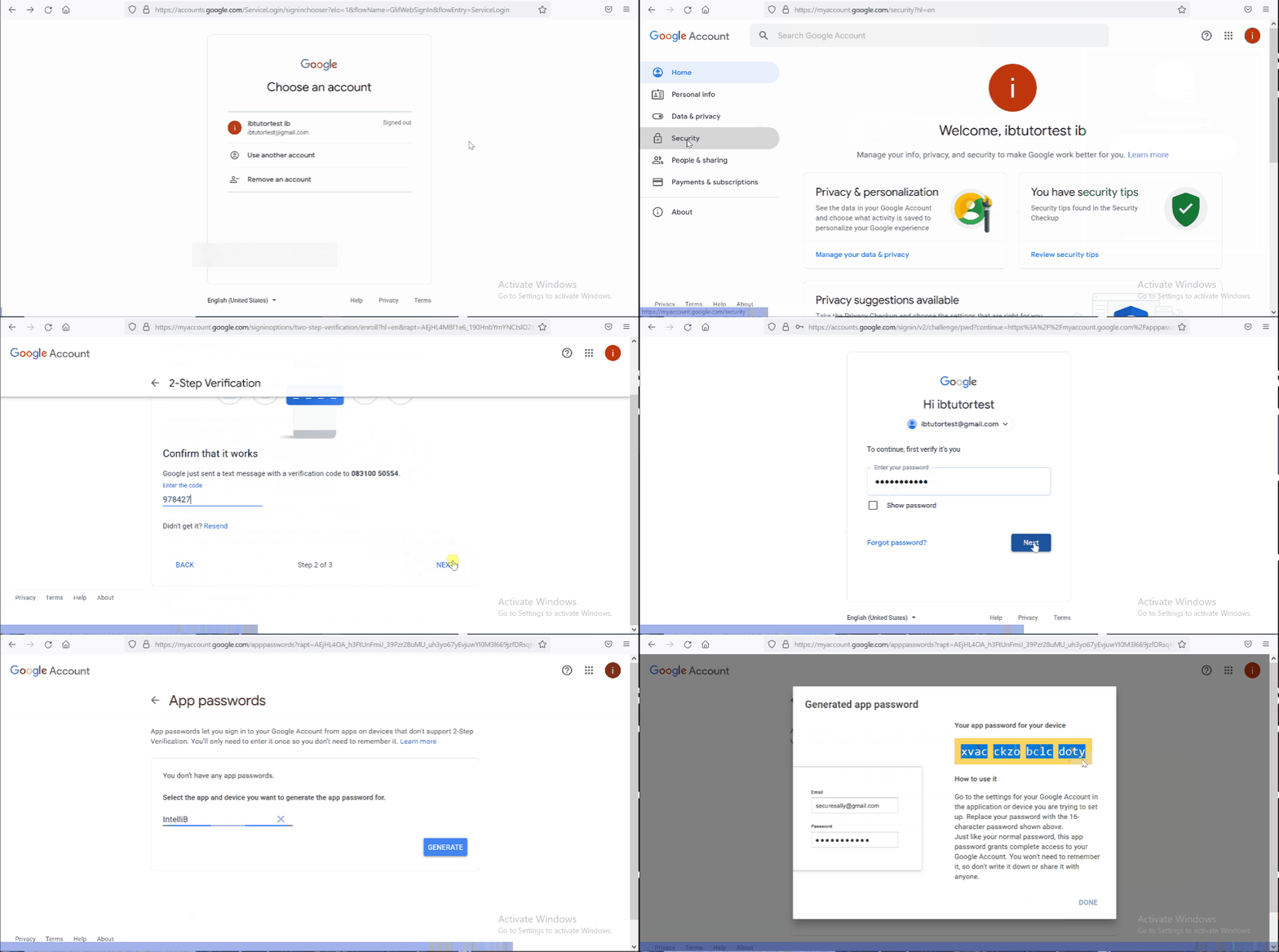
Generating App Password
Generating an App Password is a two-step process, as stated below:
Turn on 2-Step Verification
To turn ON two-step verification for your Gmail account, follow the steps given below:
-
Open and log in to Google Account.
OR
-
Click on Google Account in the right top corner. Click on Manage Your Google Account.
-
In the left navigation pane, click on Security
-
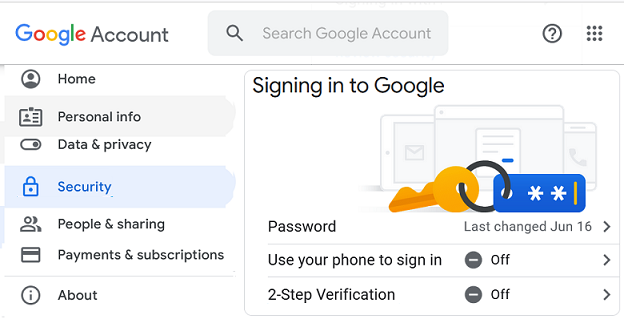
Scroll down to the Signing into Google section and select the 2-Step Verification
-
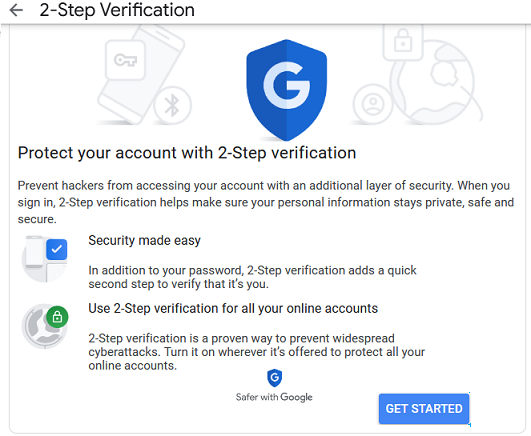
Click on GET STARTED button.
-
Enter the password and G-Code sent to your mobile by clicking on the Text on the verification page. - On successful validation, open the 2-Step Verification page.
-
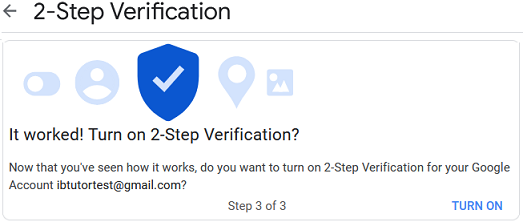
Click on TURN ON
Generate 16-digit App Password
-
Go back or Navigate to the Security tab
-
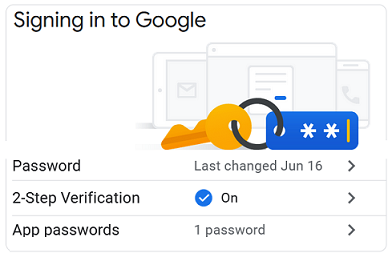
Scroll down to the Signing into Google section and select the App passwords
-
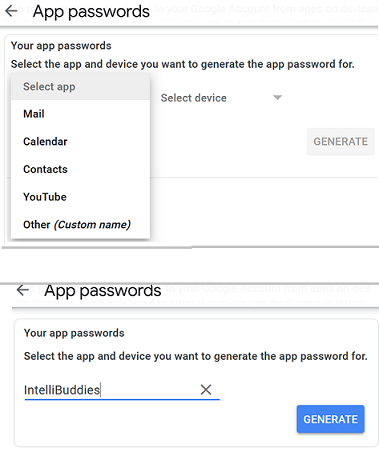
In the App Passwords page, click on the Select app dropdown and choose Other (Custom name)
-
Enter an App name as IntelliBuddies and click on GENERATE
-
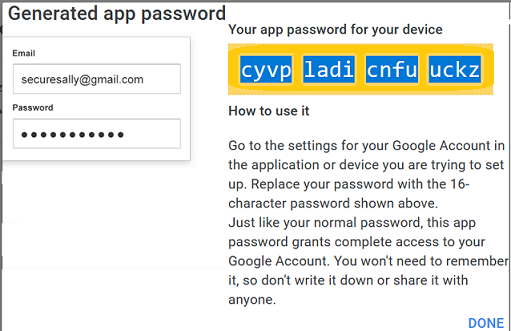
A 16-digit App Password will be generated and shown on the page.
-
Copy the 16-digit passcode and use this in Activity to provide a secure password.