File Settings
Overview
Users can upload and download files through the form by configuring the following properties in File Settings.
Storage
It lists the storage providers from which the file will be stored and accessed. Select the appropriate provider. The following storage providers are supported.
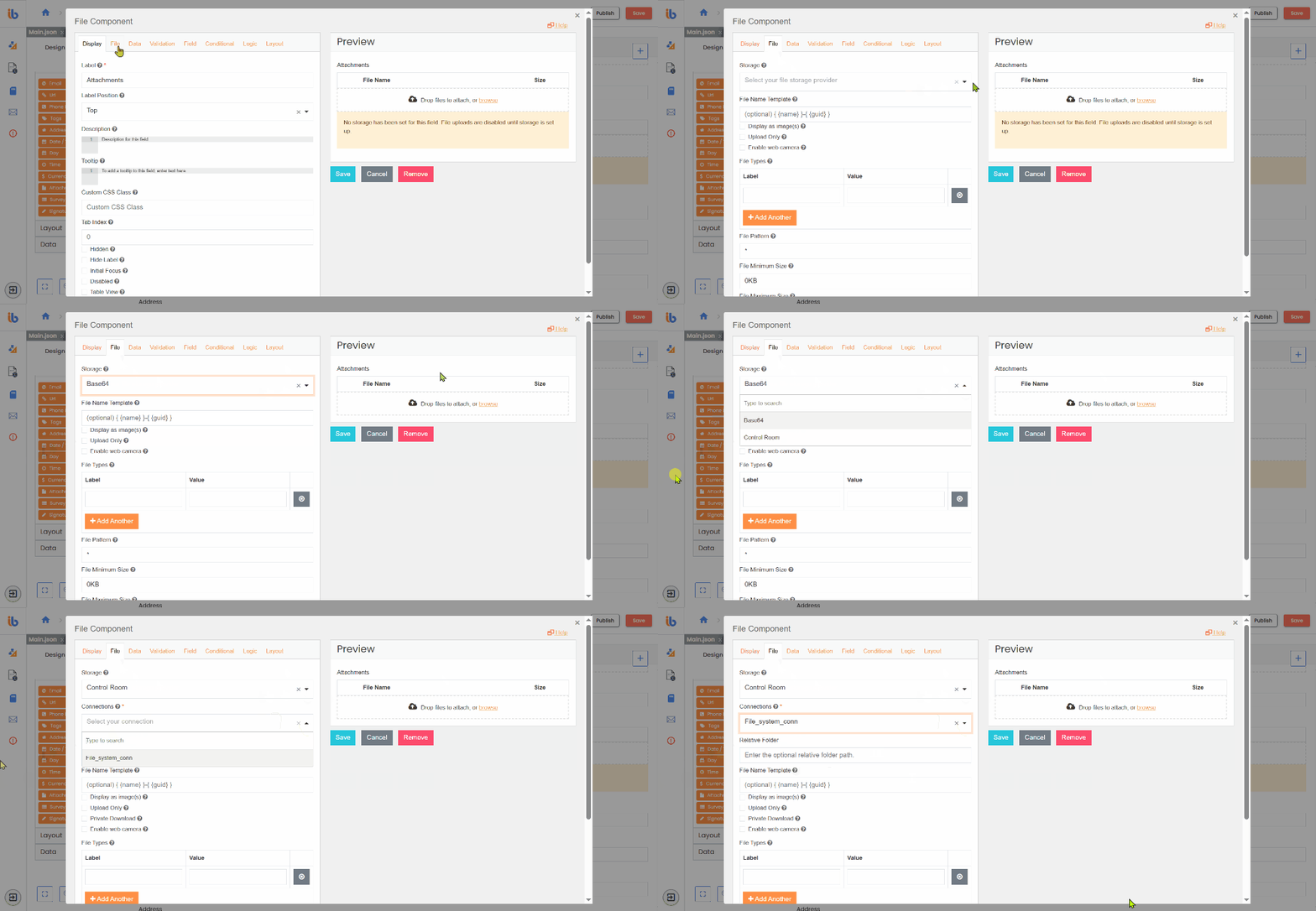
Base64
Upon choosing this option, it embeds the file data in a base64 string as part of Form data.
Control Room
On choosing this option, you can store the files in external data sources by selecting the appropriate Connections property dropdown in the File Setting tab. The following external data sources are currently supported:
It stores the uploaded files in the storage location specified in the selected component connection. It enables users to upload and download files to and from the selected storage location.
Connections
This option is visible when choosing the Control Room for the Storage property.
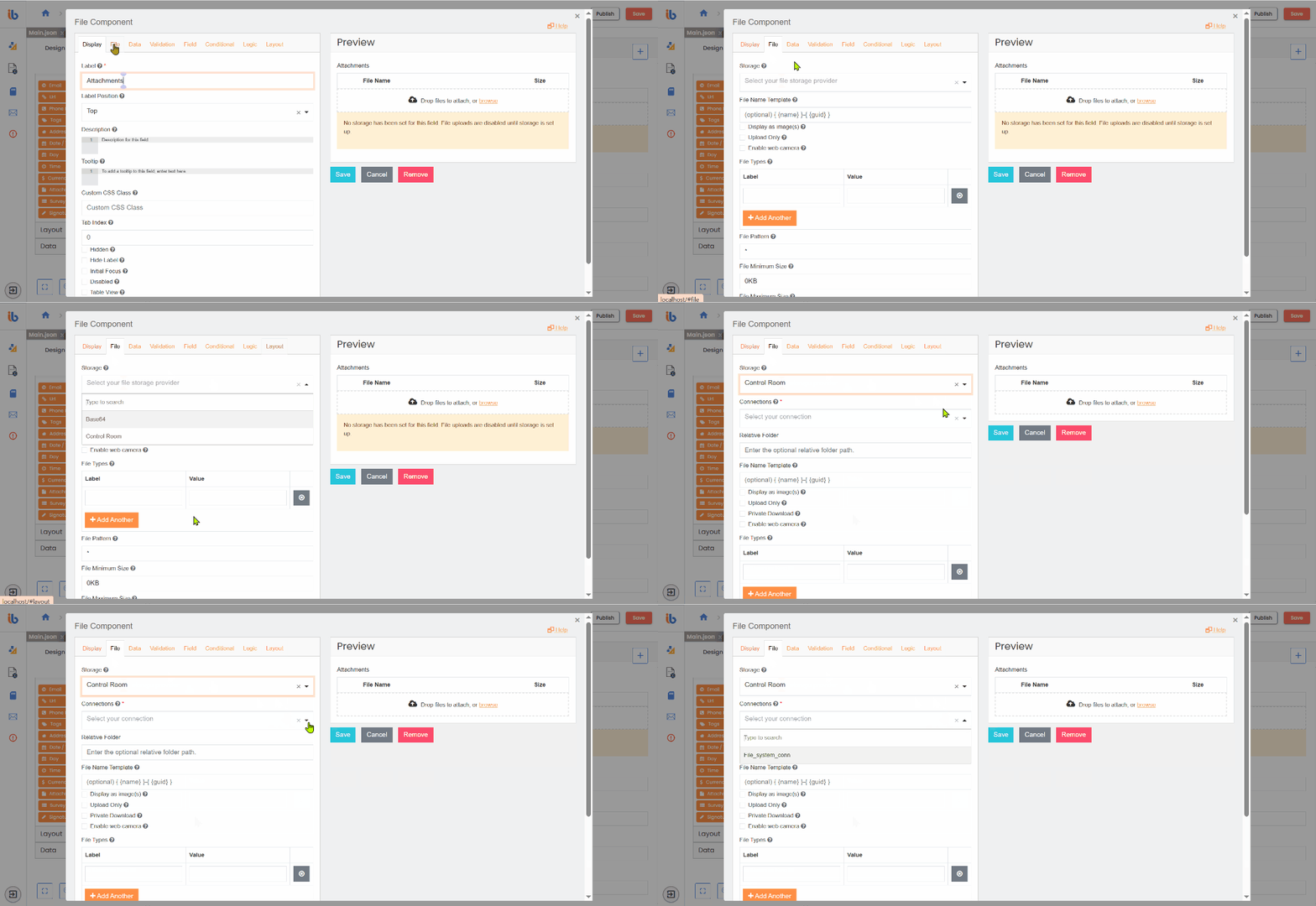
Relative Folder
Specify the relative folder under the central storage selected to organize your storage.
File Name Template
Allows specifying a template for the uploaded file(s) name. Regular template variables are available (data, component, user, value, moment, etc.). Also, fileName and GUID variables are available. The GUID part must be present and added automatically if not found in the template.
Display as Image
Check this if you want to render the image file within the form.
Image Size
Specify the image size in pixels for previewing images.
Upload only
Check this if you want to restrict the files to upload only inside the form. It will deny downloading files if this option is checked.
Enable Web Camera
Check this if you want to allow an attached camera to take a picture directly instead of uploading an existing file.
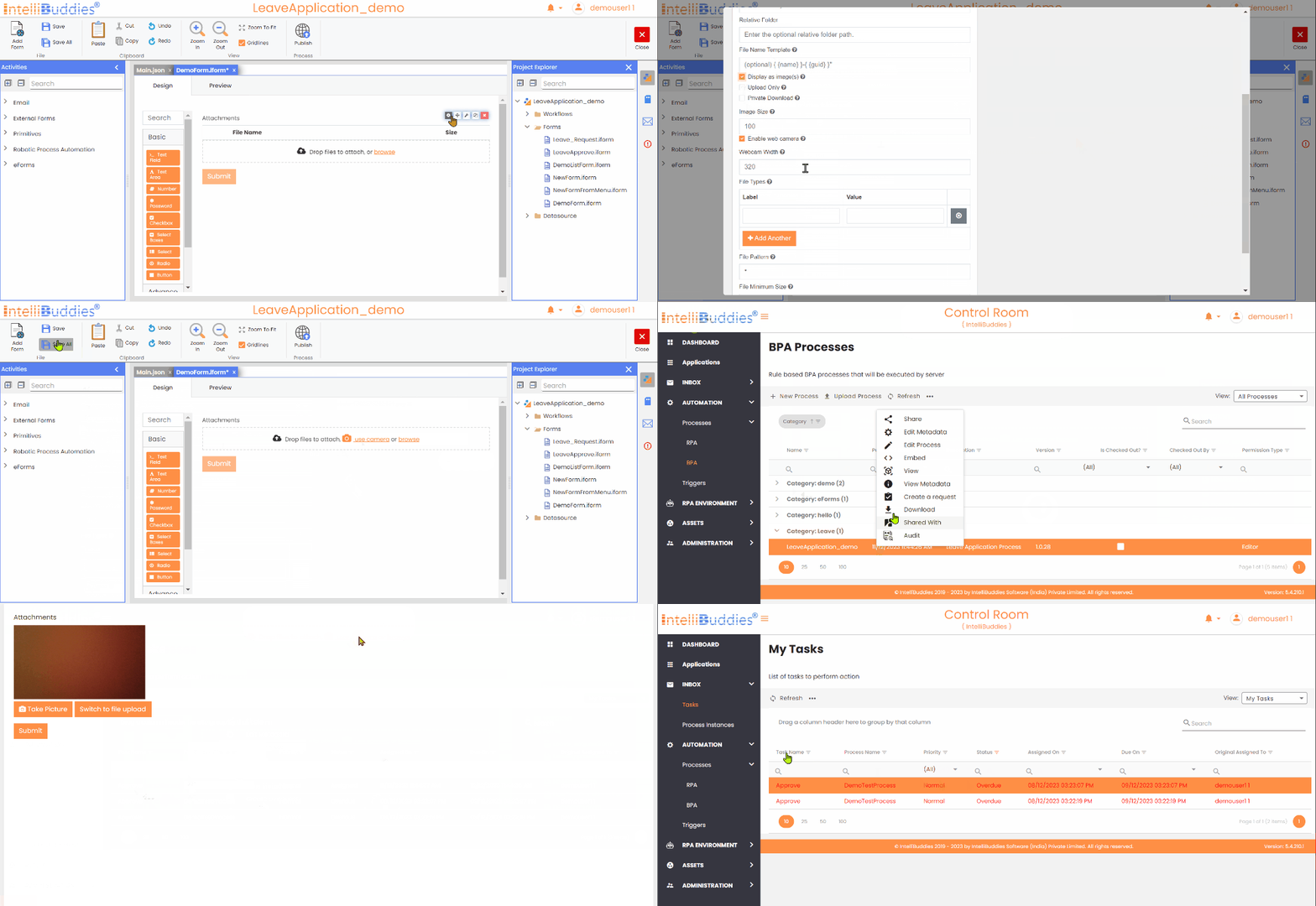
Webcam Width
Specify the webcam size in pixels for taking pictures.
File Types
Allows specifying file types to classify the uploads. It will enable multiple types of uploads but wants to allow the user to determine which type of file each is.
File Pattern
Specifying file extensions determines which files can be uploaded. It will block files that are not specified. Example: '.pdf,.jpg, video/*,!.jog', Filter file names and types using comma-separated wildcards. You can exclude specific files by using "!".
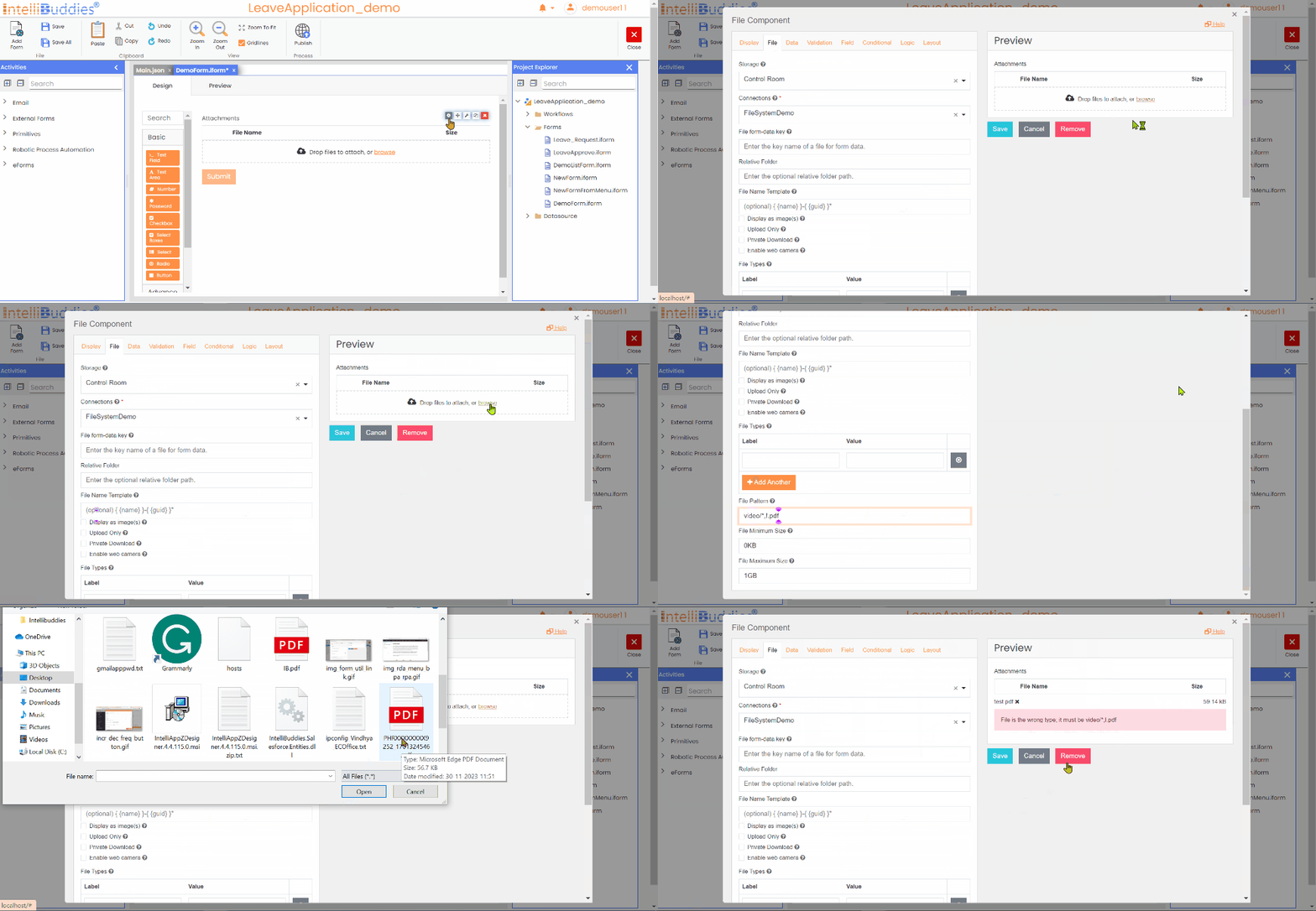
File Minimum Size
Allows setting a minimum file size for uploaded files.
File Maximum Size
Allows setting a maximum file size for uploaded files.