Professional and IntelliAppZ License Activation
Professional / IntelliAppZ License Activation
To activate licenses for the following IntelliBuddies Components
- Process Designer Professional Edition
- Assistant Buddy Professional Edition
- IntelliAppZ Designer
- IntelliAppZ
Launching any of the above IntelliBuddies Components will check for the license. If you have not activated your license before or in case the license has expired, it brings up the License Status dialog.

Clicking on the Activate License link will open the License Activation dialog.

Online Activation
- Specify the Serial Key obtained from the Account Manager or our IntelliBuddies Partner.
- Select Online Activation radio button in the Activation dialog
- Click on Activate button
Offline Activation
-
Step 1: Specify the Serial Key obtained from the Account Manager or our IntelliBuddies Partner.
-
Select Offline Activation radio button in the Activation dialog
-
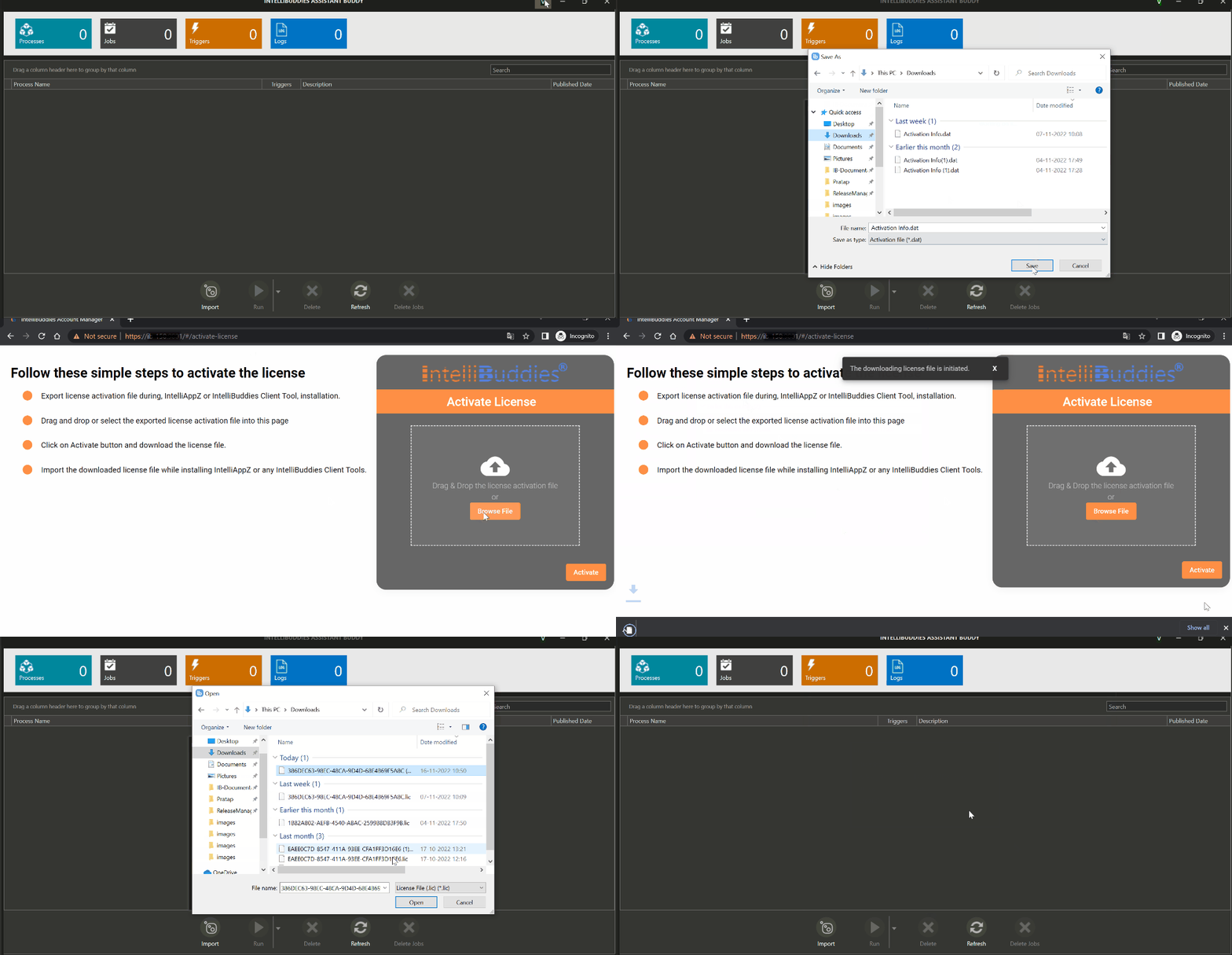
Step 2: Click on the Export button to export the license activation file (ActivationInfo.dat).
-
Step 3: Go to a machine where you have internet access. Copy the activation file (ActivationInfo.dat) downloaded in the previous step into this machine.
-
Step 4: Open a web browser and go to: https://accounts.onintellibuddies.com/#/activate-license
-
Step 5: Follow the steps provided in the page.
-
Step 6: Copy the downloaded license file to the machine where the IntelliBuddies Component is installed.
-
Step 7: Go back to the license activation dialog. Click on Browse and select the license file copied in the previous step. Click on the Activate button to activate the license
-
Step 8: License activates showing the Status as Active and Days Left.