Output Persistence
Overview
Activity outputs are values produced by an activity that can be used as inputs to later activities. Output Persistence controls which of these values are stored when a workflow suspends and restored when it resumes.
Long-running activities, such as Human Task and Delay, can suspend a workflow until a user responds, a delay expires, or another event allows execution to resume. Model data and agent data are persisted during suspension. Activity outputs, however, are not persisted by default.
Enable output persistence when later activities need outputs produced before suspension. For example, if an activity calculates a total before a Human Task, and an activity after that task uses the total, configure persistence for the output containing that value.
Output persistence is off by default so designers can decide what to store based on the security and sensitivity of the agent workflow. Persist only the outputs needed after resume.
Configuration Levels
Output persistence is controlled at the workflow, activity, and individual-output levels. The workflow setting takes precedence: when it is off, no activity can persist outputs through this feature.
| Workflow setting | Activity setting | Individual output setting | Result on suspension |
|---|---|---|---|
| Off | Any | Any | No activity outputs are persisted. |
| On | Off | Any | No outputs from this activity are persisted. |
| On | On | Off | This output is not persisted. |
| On | On | On | This output is persisted and restored on resume. |
When workflow-level persistence is enabled, persistence is enabled for activities by default. Designers can turn it off for a specific activity or individual outputs. Large collections default to off in the output selector; review the available outputs instead of assuming that every output is selected.
Turning workflow-level persistence off retains the per-activity settings. Those selections apply again when workflow-level persistence is turned back on.
Enable Persistence from Workflow Properties
- In Project Explorer, select the workflow.
- Right-click the workflow and select Edit.
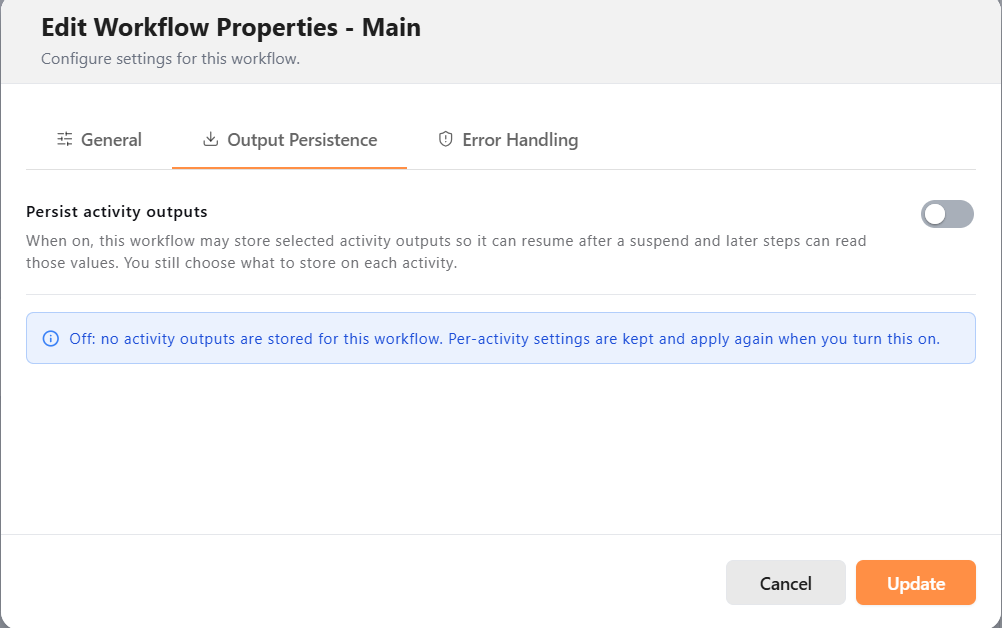
- In Edit Workflow Properties, open the Output Persistence tab.
- Turn on Persist activity outputs.
- Click Update to save the workflow properties.
The following screenshot shows the workflow setting before it is enabled.
Once enabled, review activity settings to choose which outputs to retain.
Enable Workflow Persistence from an Activity
You can also enable the workflow setting while configuring an activity within that workflow.
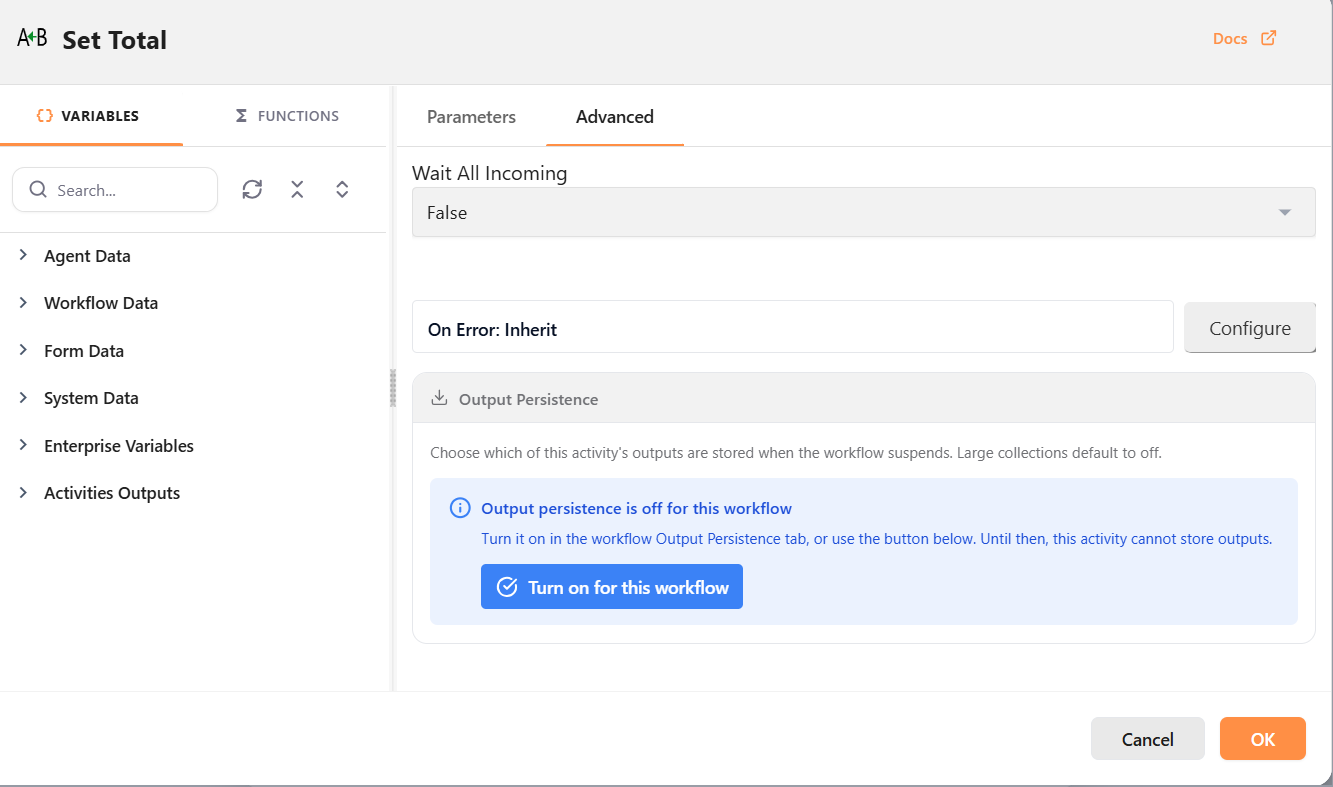
- Open the activity properties and select Advanced.
- Locate Output Persistence.
- If persistence is off for the workflow, click Turn on for this workflow.
- Review the activity and output selections described below, then click OK.
Turn on for this workflow enables persistence for the containing workflow, so it affects the workflow's other activities as well.
Choose Activity Outputs to Persist
With workflow-level persistence enabled:
- Open the activity properties and select Advanced.
- Locate Output Persistence.
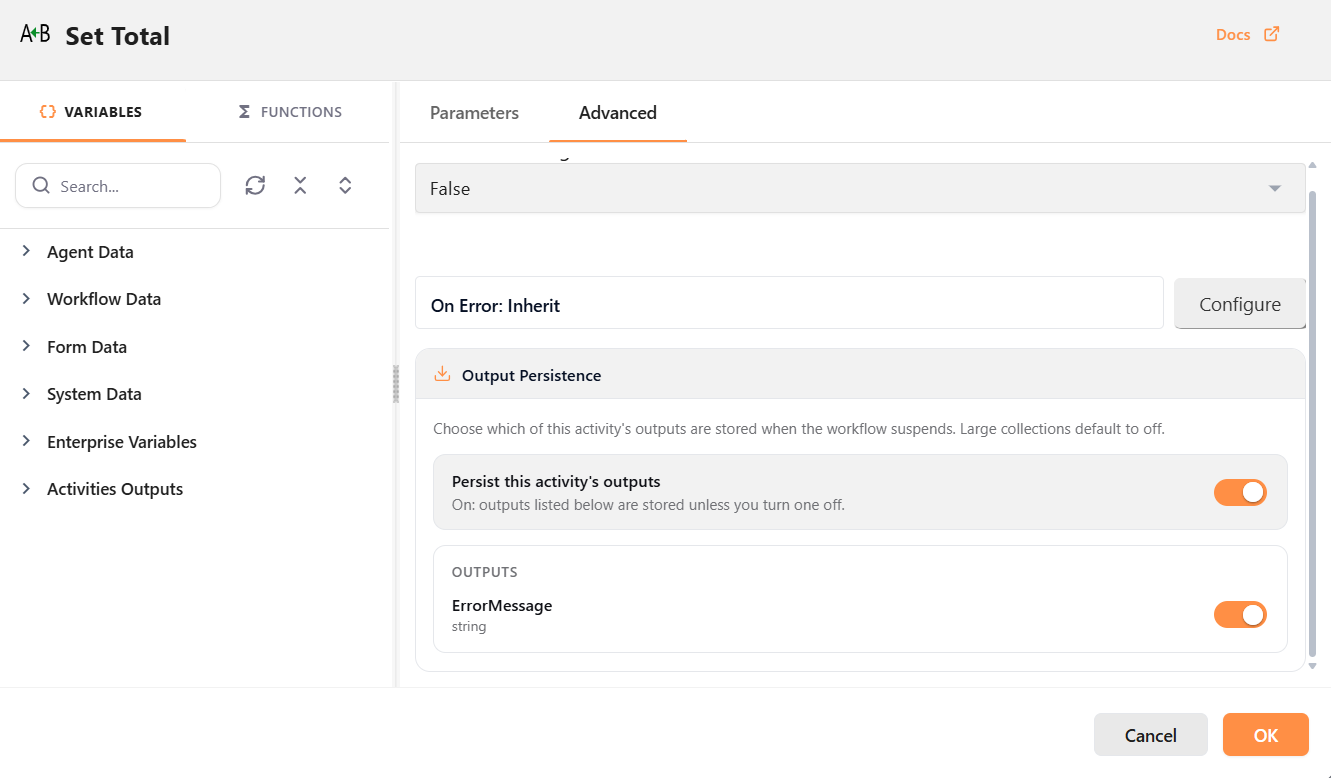
- Use Persist this activity's outputs to enable or disable persistence for the entire activity.
- When activity persistence is on, review the toggles under Outputs. Turn off any output that should not be stored, or turn on an output needed after resume.
- Click OK to save the activity settings.
The available outputs depend on the activity. In the example below, ErrorMessage is selected for persistence.
Example: Use an Output After a Human Task
Consider a workflow that calculates an order total, waits for approval in a Human Task, and then uses the total in a later activity.
- Enable output persistence for the workflow.
- Open the activity that produces the total and select Advanced.
- Ensure Persist this activity's outputs and the output containing the total are on.
- Exclude any other outputs that are not needed after resume, especially sensitive values or large collections.
When the workflow suspends at the Human Task, the selected total output is persisted. After approval, the workflow resumes and later activities can use that restored value. If persistence is off at the workflow, producing activity, or individual-output level, the total output is not retained through this feature.