Custom Error Handlers
Overview
Custom Error Handlers allow you to define activity-specific error handling directly within a workflow.
When an activity encounters a runtime error, execution can be redirected to a dedicated error-handling path where you can perform corrective actions such as logging, notifications, auditing, recovery, or escalation.
Unlike On Error policies, which define generic behaviors such as Fault, Continue, Retry, or Suspend, Custom Error Handlers allow each activity to have its own error processing logic.
Availability
Custom Error Handlers are available for most workflow activities.
Some lightweight activities, such as primitive activities, may not support Custom Error Handlers.
Configuring a Custom Error Handler
To add a Custom Error Handler:
- Right-click the activity.
- Select Add Error Handler.
- An additional Error output port is added to the activity.
- Connect the Error output port to the activities that should execute when an error occurs.
The error connection is displayed in red, making it easy to distinguish error-handling paths from the normal execution flow.
Example
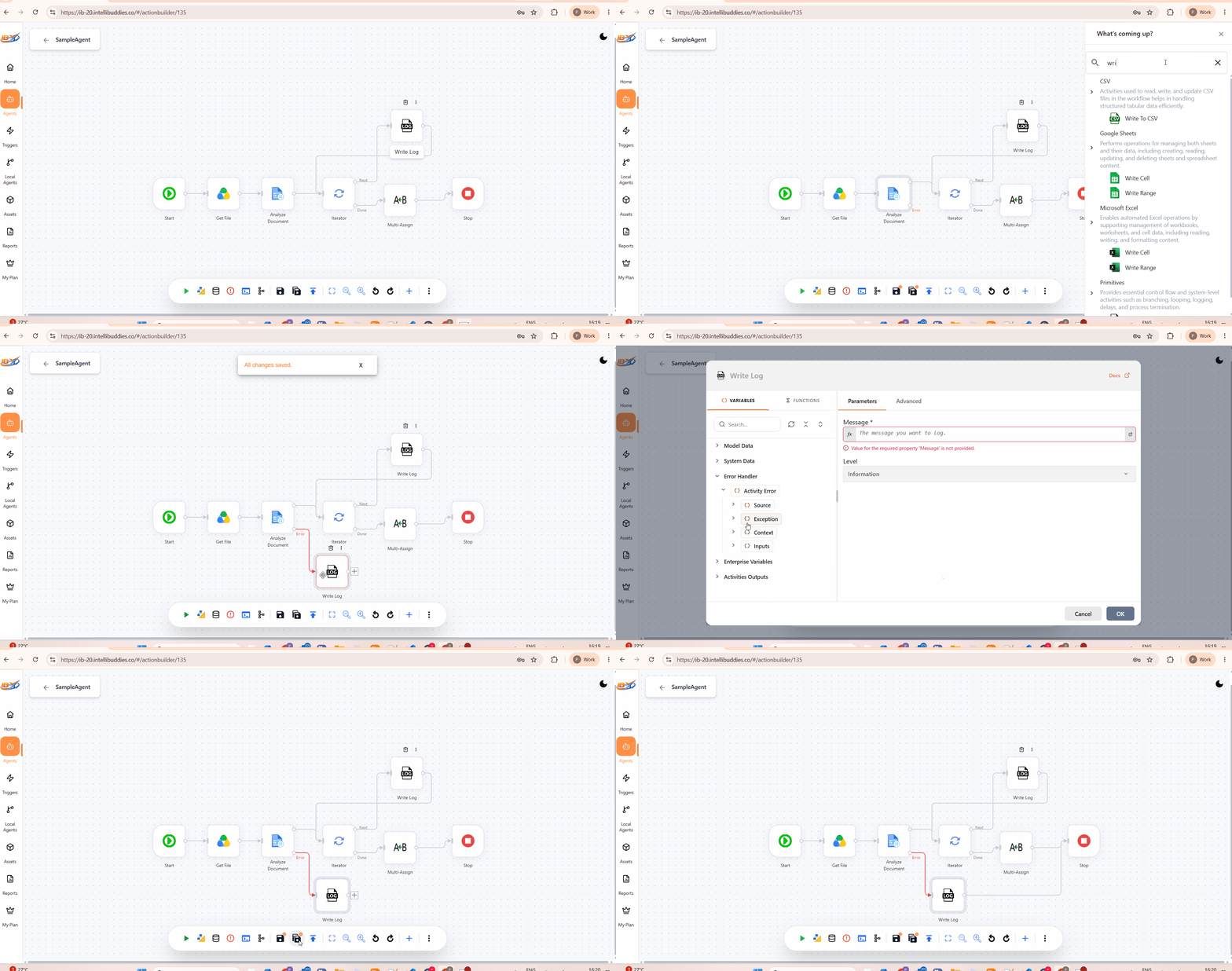
In this example:
- Successful execution continues through the normal workflow path.
- Failed execution follows the dedicated error-handling path.
- Activities on the error path perform recovery, logging, notifications, or other corrective actions.
Error Execution Flow
When an activity encounters an error:
- The activity stops executing.
- The workflow captures information about the failure.
- Execution is redirected to the configured Custom Error Handler.
- Activities within the error-handling path receive access to detailed error information through the Error Handler node in the Process Data Explorer.
- The configured error-handling workflow is executed.
Activities without a Custom Error Handler continue to follow their configured On Error policy.
Error Handler Data
Activities executing within a Custom Error Handler automatically receive access to an Error Handler node in the Process Data Explorer.
This node exposes an Activity Error object containing detailed information about the activity failure, including:
- Source activity information
- Exception details
- Execution context
- Activity input values
This information can be used to:
- Generate detailed notifications
- Create incidents
- Record audit information
- Perform recovery logic
- Diagnose execution failures
For a complete description of the available error information, see Error Handler.
Typical Usage Scenarios
Custom Error Handlers are commonly used for:
Sending Notifications
Notify administrators or support teams when critical activities fail.
Creating Incidents
Create incidents in external ticketing or monitoring systems using the captured error information.
Audit Logging
Record detailed failure information for compliance and troubleshooting.
Recovery Actions
Execute compensating activities to restore the application to a consistent state.
Escalation Workflows
Route failures to different recovery paths based on the activity or exception details.
Best Practices
- Use Custom Error Handlers only where activity-specific recovery is required.
- Keep error-handling paths focused and easy to understand.
- Include logging for critical failures.
- Use the Error Handler data instead of hard-coded error messages.
- Avoid exposing internal exception details directly to end users.
- Combine On Error policies and Custom Error Handlers to build layered error-handling strategies.