Email Template Drawer
Overview
The Email Template Drawer provides a centralized workspace for managing all email templates used within a process. Email templates define the structure, recipients, content, and attachments for emails sent throughout the process lifecycle, including task notifications, process events, and explicit Send Email activities.
Using templates ensures consistency, reusability, and dynamic content generation across notifications.
The drawer allows you to:
- View all Global Email Templates available for reuse
- View all Process Email Templates created within the current process
- Create new process-specific email templates
- Edit, clone, or delete existing process templates
- Configure email attachments using workflow data
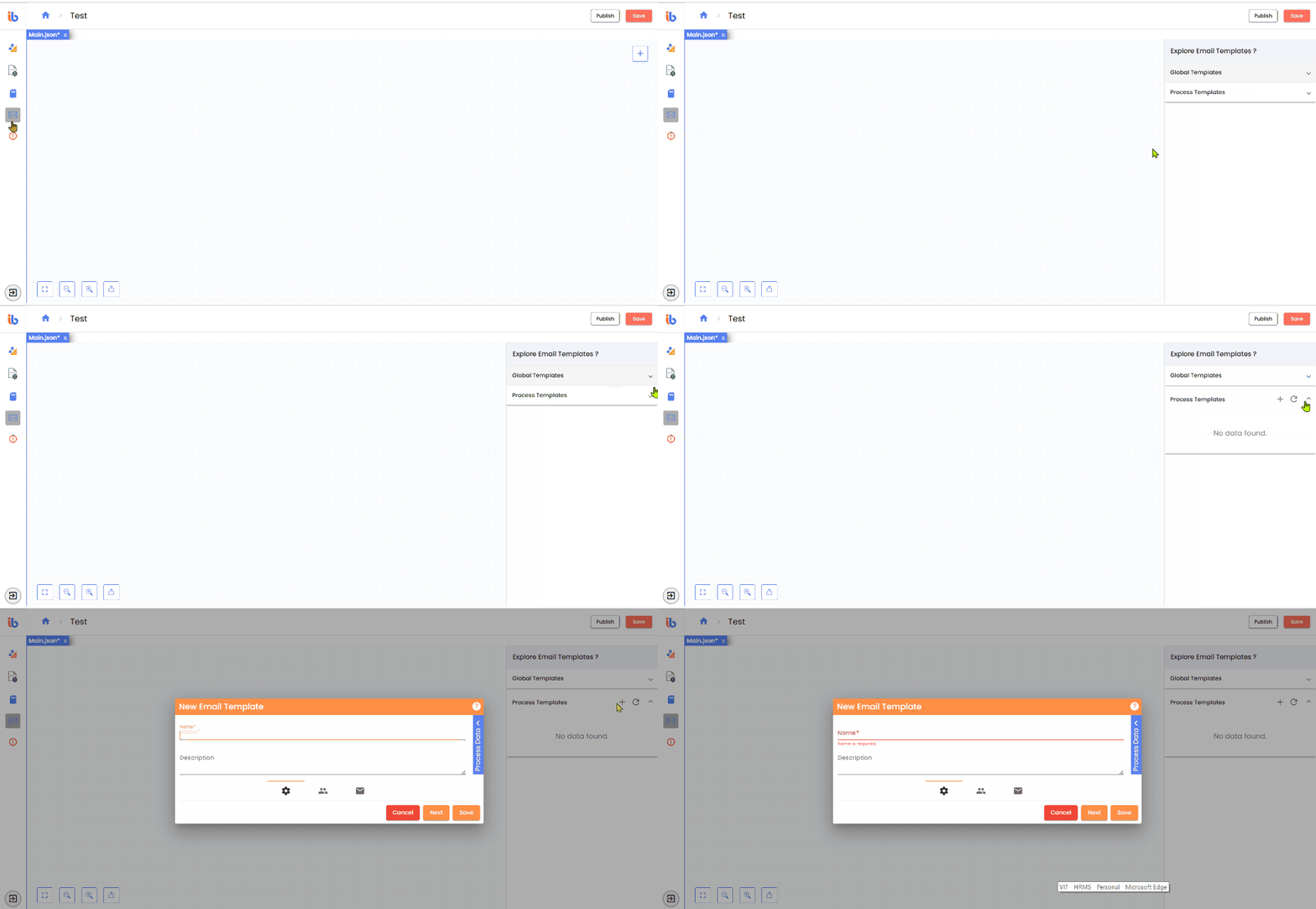
Email Template Types
Global Email Templates
- Predefined and centrally managed templates
- Read-only within the process designer
- Can be cloned to create process-specific templates
Process Email Templates
- Created and maintained within a process
- Fully editable
- Can be used by task notifications, process notifications, and Send Email activities
Available Actions
- Creating a New Process Email Template
- Managing Process Email Templates - Editing Templates - Deleting Templates - Cloning Templates
Creating a New Process Email Template
To create a new process email template:
- Click the + button in the Process Templates section.
- The New Email Template wizard opens and guides you through a multi-step configuration.
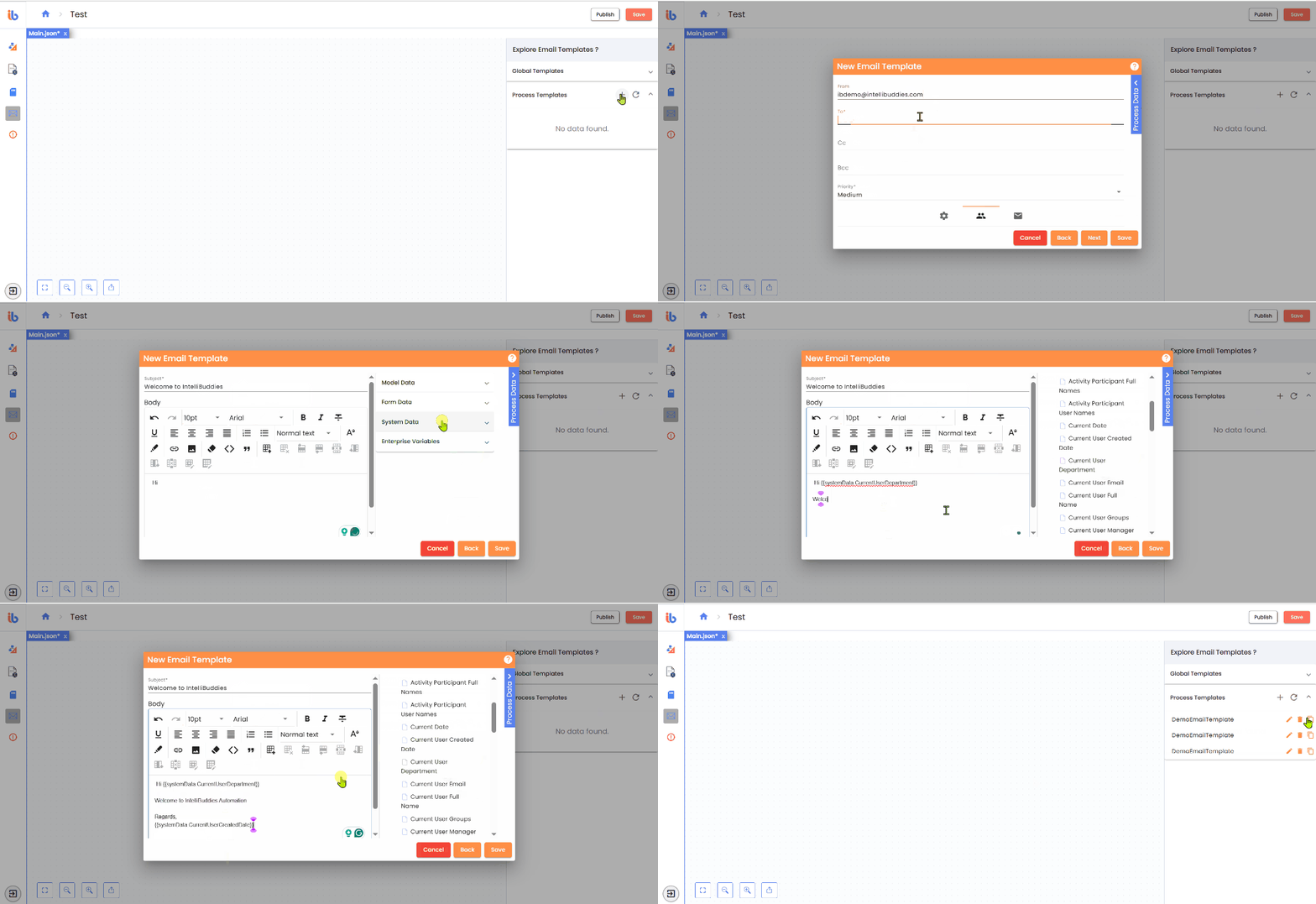
Step 1: Basic Information
- Provide a Template Name
- Optionally add a Description
- Click Next
Step 2: Recipients and Priority
- Specify email recipients (To, CC, BCC)
- Set the email priority
Recipients can be dynamically populated by dragging and dropping variables from the Process Data Drawer.
- Click Next
Step 3: Subject, Body, and Attachments
- Compose the email subject and body
- Use drag-and-drop variables to personalize content dynamically
- Click Attachments to configure files to be included with the email
Attachments can be sourced from process data, activity outputs, or file-based variables, enabling fully dynamic email payloads.
Managing Process Email Templates
You can manage process email templates directly from the drawer.
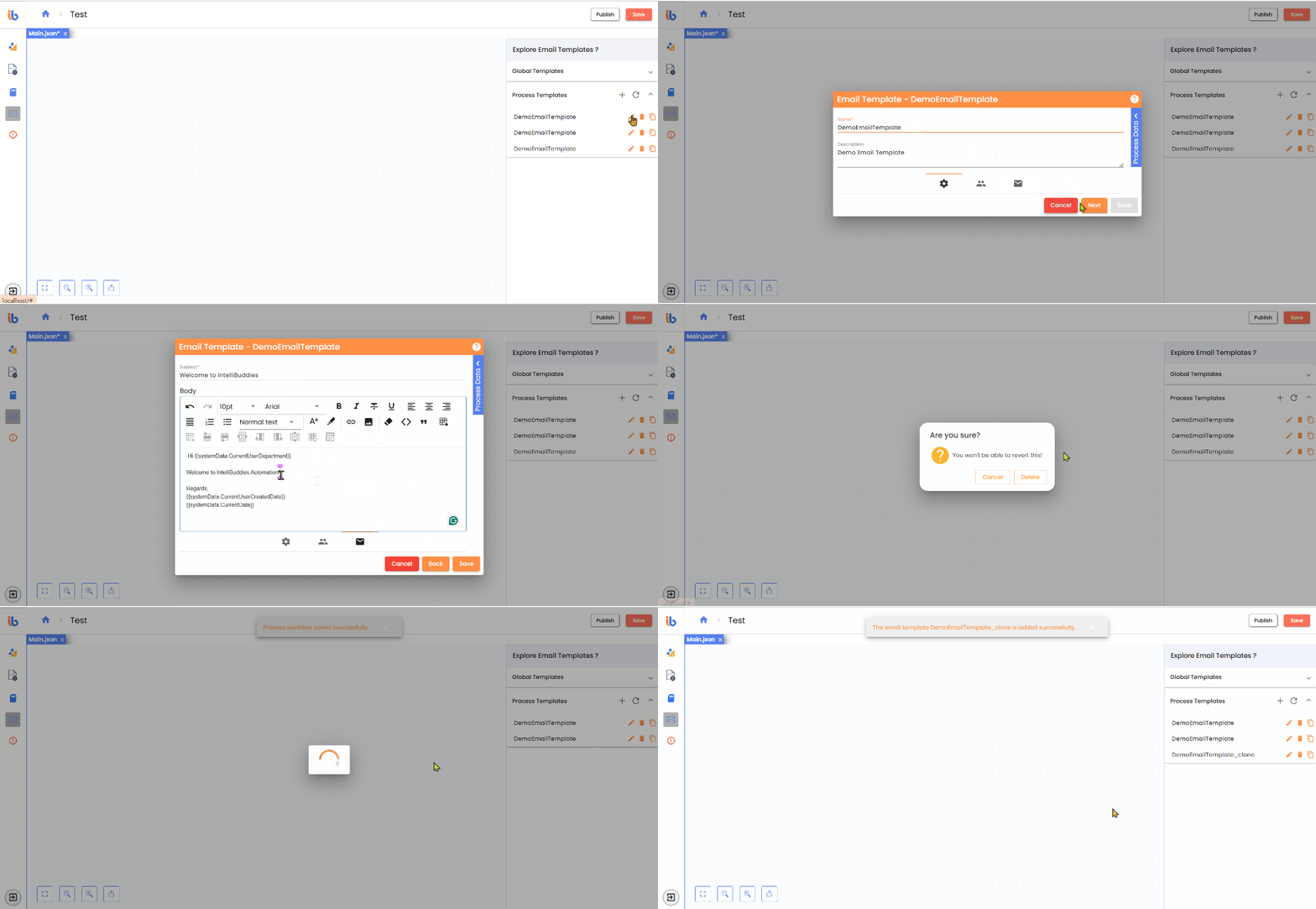
Editing Process Email Templates
- Click Edit next to the template
- Modify recipients, subject, body, or attachments
- Save changes to update the template
Deleting Process Email Templates
- Click Delete next to the template
- Confirm deletion when prompted
Deleting a template permanently removes it and may affect notifications or activities that reference it.
Cloning Process Email Templates
- Select the template to clone
- Click Clone
- Provide a new name and optional description
- Modify recipients, subject, body, or attachments as needed
- Click Save to create the cloned template
Cloning is commonly used to:
- Customize Global Templates for a specific process
- Create variations of existing templates with minimal effort
Best Practices
- Use Global Templates for organization-wide standards
- Use Process Templates for workflow-specific communication
- Prefer dynamic variables over hardcoded values
- Attach files only when required to reduce email size
- Clone templates instead of recreating them from scratch
The Email Template Drawer enables consistent, dynamic, and reusable email communication throughout the process lifecycle, improving clarity, maintainability, and user experience.