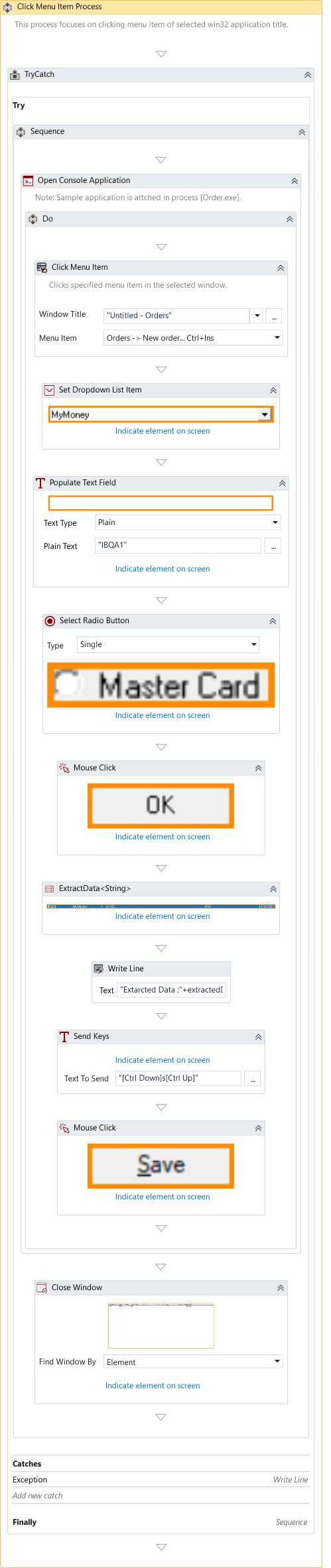
Click Menu Item
Description
The Click Menu Item activity selects and clicks a menu item within a desktop application using the menu command ID, rather than relying on UI element selectors.
This makes it more reliable than traditional UI-based clicking for menu interactions, especially in applications where menu structures are stable but UI rendering may vary.
💡 Unlike the Mouse Click activity, which interacts with UI elements, this activity directly invokes the underlying menu command.
When to Use
Use this activity when:
- You need to interact with application menus (e.g., File → Open, Edit → Copy)
- UI element selectors are unreliable or dynamic
- The application exposes stable menu command IDs
Properties
Input
- Window Title Select the target application window by its title. - You can manually enter the title - Or select from the dropdown list > Note: The dropdown displays all currently open windows at design time.
- Menu Item Specify the menu item to be clicked. - This internally uses the command ID associated with the menu - Ensures more stable interaction compared to UI-based selection
- Delay Before Specifies the delay (in milliseconds) before execution. Default: 200 ms
- Delay After Specifies the delay (in milliseconds) after execution. Default: 300 ms
Optional
- Timeout Maximum time to wait for the operation to complete. Default: 30 seconds
- Continue On Error Determines whether the workflow continues in the event of an error. - True → Continues execution without throwing an exception - False → Throws an exception (default)
If this activity is used inside a Try-Catch block and Continue On Error is set to True, the error will not be caught by the Try-Catch.
Misc
-
DisplayName Specifies a custom name for the activity.
-
Private When enabled, prevents logging of property values during execution.
Example
Download Example