Agent Life Cycle
An Agent is the primary automation unit in IB-X. An Agent defines the workflow logic, business rules, integrations, AI capabilities, and human interactions required to automate business processes and business tasks.
Agents are designed using Agent Builder and published to the AI Command Center where they can be executed, monitored, versioned, shared, and managed throughout their lifecycle.
Agents Page
To open the Agents page inside the AI Command Center:
- Log in to the AI Command Center
- Click Agents in the left navigation panel
The Agents page lets you manage all agents within your tenant. From here you can create new agents, edit existing agents, publish new versions, start automations, manage permissions, and monitor agent activity.
To create, edit, publish, or execute an Agent, the user must have the appropriate permissions assigned within the AI Command Center.
Finding and Filtering Agents
As the number of Agents in your environment grows, the Agents page provides several filtering and search capabilities to help you quickly locate the Agents you need.
User Scope Filter
The first filter determines which Agents are displayed based on your relationship to them.
| Option | Description |
|---|---|
| All | Displays all Agents available to you. |
| My Agents | Displays Agents that you own. |
| My Drafts | Displays Agents currently checked out by you. |
| Shared With Me | Displays Agents that have been shared with you by other users. |
Permission Filter
The second filter displays Agents based on your permission level.
| Option | Description |
|---|---|
| All | Displays Agents regardless of your permission level. |
| Owner | Displays Agents for which you have Owner permissions. |
| Editor | Displays Agents for which you have Editor permissions. |
| Viewer | Displays Agents for which you have Viewer permissions. |
Health Filter
The health filter allows you to locate Agents based on their current health status.
| Option | Description |
|---|---|
| All | Displays Agents regardless of health status. |
| Healthy | Displays Agents whose health score is within the healthy range. |
| Degraded | Displays Agents whose health score is within the degraded range. |
| Unhealthy | Displays Agents whose health score is within the unhealthy range. |
| Inactive | Displays Agents that have not executed during the configured health evaluation period. |
Sort Options
The sort selector controls the order in which Agents are displayed.
| Option | Description |
|---|---|
| Name (A-Z) | Sorts Agents alphabetically in ascending order. |
| Name (Z-A) | Sorts Agents alphabetically in descending order. |
| Created (Newest) | Displays the most recently created Agents first. |
| Created (Oldest) | Displays the oldest Agents first. |
Search
Use the search box to quickly locate Agents.
The search capability is not limited to Agent names. It searches across multiple Agent attributes and metadata fields exposed within the platform.
Depending on the available metadata, search results may match information such as:
- Agent name
- Description
- Health status
- Owner information
- Creation details
- Modification details
- Other searchable Agent attributes
This allows you to quickly locate Agents without manually applying multiple filters.
Combining Filters
Filters can be combined to narrow results further.
For example, you can:
- View only Agents shared with you that are currently unhealthy
- Display only your draft Agents
- Show only Agents you own that are currently degraded
- Sort unhealthy Agents by newest creation date
Combining filters helps quickly identify Agents that require attention or management.
Agent Actions
The Agents page provides several actions that allow you to manage, execute, monitor, and administer agents.
Quick Actions
The following actions are available directly from the Agent card or row for faster access.
| Action | Description |
|---|---|
| View | Opens the Agent in Agent Builder in read-only mode. |
| Edit | Checks out the Agent and opens it in Agent Builder for editing. |
| History | Displays the version history of the Agent. |
| Clone | Creates a copy of the selected Agent. |
| Delete | Deletes the Agent. |
| Run | Creates and starts a new automation using the Agent. |
More Actions
Additional actions are available from the More Actions menu (...).
| Action | Description |
|---|---|
| Share | Manage Agent permissions and share the Agent with other users. |
| Edit Metadata | Modify the Agent metadata and configuration. |
| View Metadata | View Agent metadata, configuration, and version information in read-only mode. |
| Embed | Displays an embeddable URL that can be used in external applications to show the automation monitoring view for executions created from the Agent. |
| Shared With | Displays all users who currently have access to the Agent. |
| Audit | View audit information and changes associated with the Agent. |
| Undo Checkout | Discards the current checkout and releases the Agent. This option is only available when the Agent is checked out. |
| Enable / Disable | Enables or disables the Agent. Enabled Agents can start new automations, while disabled Agents cannot. The available action depends on the current status of the Agent. |
| Health Configuration | View the current health configuration, including inherited and overridden settings, and optionally define Agent-specific health settings. |
Status Badges
The Agents page displays status badges that provide quick visibility into the current state of an Agent.
| Badge | Description |
|---|---|
| Checked Out | The Agent is currently checked out by a user for editing. |
| Published | The Agent has at least one published version available for execution. |
| Unpublished | The Agent has not yet been published. |
| Enabled | The Agent is available for execution. |
| Disabled | The Agent is disabled and cannot start new automations. |
| Healthy | The Agent health score is within the configured healthy range. |
| Degraded | The Agent health score is within the configured degraded range, indicating a decline in reliability or performance. |
| Unhealthy | The Agent health score is within the configured unhealthy range and may require corrective action. |
| Inactive | No automations have executed for the Agent during the configured health evaluation period. |
| Owner | The current user has Owner permissions for the Agent. |
| Editor | The current user has Editor permissions for the Agent. |
| Viewer | The current user has Viewer permissions for the Agent. |
Creating a New Agent
To create a new Agent:
- Click New Agent from the application toolbar
- Specify a name and description for the Agent
- Click Create
The Agent opens in Agent Builder and is ready for design.
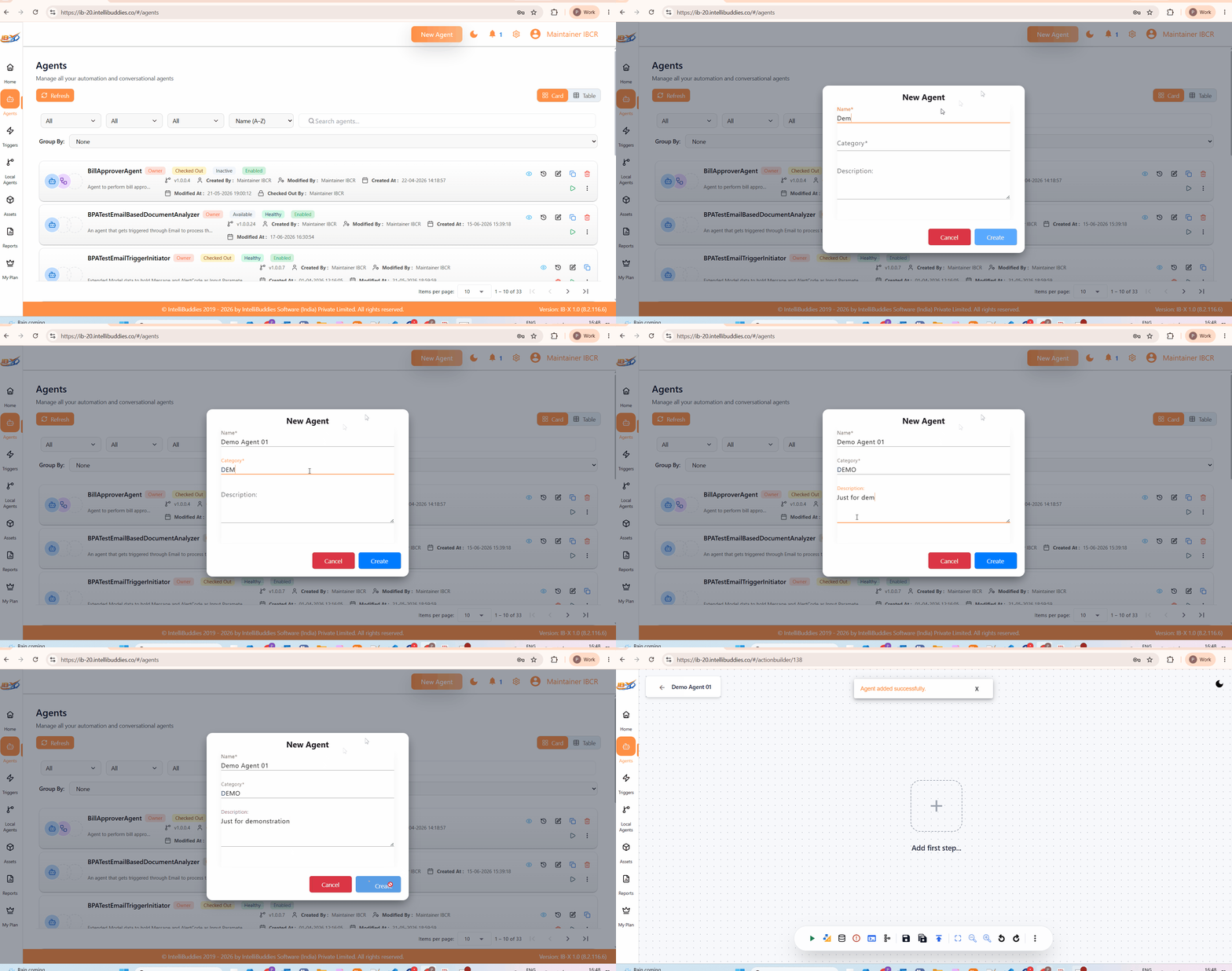
Agents can be used to implement a wide variety of automation scenarios, including business process automation, system integrations, AI-powered workflows, and conversational experiences.
Designing an Agent
After creating an Agent, you can begin designing its workflow using Agent Builder.
A workflow typically starts with either:
- A Trigger activity, which initiates execution when a specific event occurs, or
- A Start activity, which allows the workflow to be executed manually or by another workflow
To design an Agent:
- Drag and drop the required activities from the Activities Drawer onto the Designer Canvas
- Configure each activity using its settings icon or by double-clicking the activity
- Connect activities by dragging from an output port to the corresponding input port of another activity
- Configure the workflow logic, integrations, AI capabilities, or business processes as required
- Save your work using Save or Save All from the Main Toolbar
A workflow can complete in several ways depending on its design. For example:
- Execution reaches a Stop activity
- A workflow output is returned using activities such as Set Workflow Output
- There are no further activities available to execute
The Start and Stop activities are optional and are not required in all workflow designs. Many event-driven workflows begin with a Trigger activity and complete naturally based on the configured workflow logic.

Configure Max Allowed Sessions
The Max Allowed Sessions setting controls the maximum number of activity sessions that can be created during a single automation execution.
This setting acts as a safeguard against workflows that unintentionally create excessive numbers of activity executions, helping prevent runaway automations from consuming server resources indefinitely.
To configure the setting:
- Open the Agent in Agent Builder
- Open the Project Explorer Drawer
- Right-click the Agent node
- Select Properties > Max Allowed Sessions
- Specify the desired limit
- Click Update
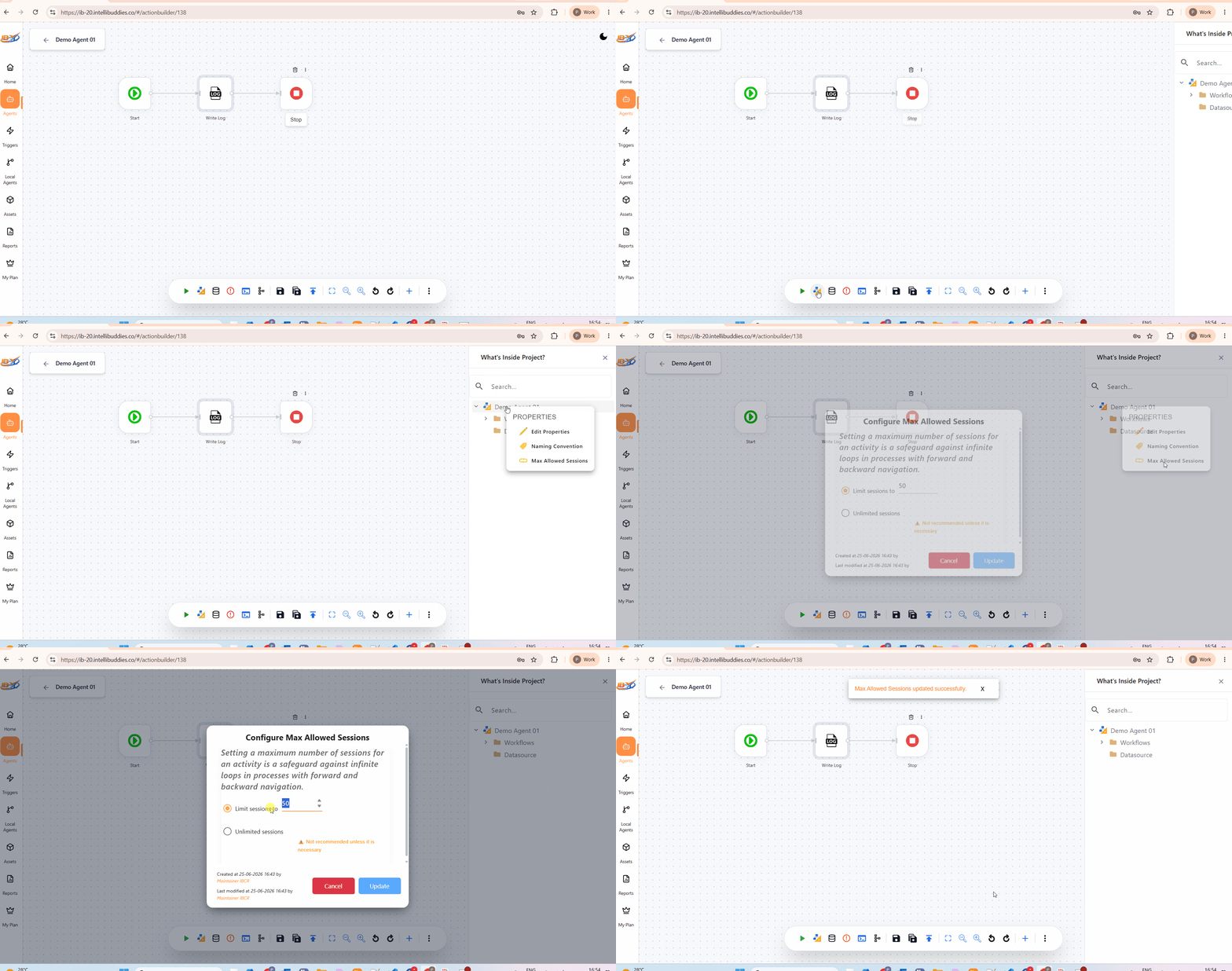
By default, an automation can create up to 50 activity sessions before reaching the configured limit.
If the session count exceeds the configured limit, the automation is automatically suspended.
After reviewing the execution, an administrator or designer can increase the limit if necessary and resume the automation.
Example
Consider a workflow containing a loop with a single Write Log activity.
Each time the loop executes, a new activity session is created for the Write Log activity.
If the workflow continues creating activity sessions and reaches the configured maximum session limit, the automation is suspended to prevent excessive resource consumption.
The Max Allowed Sessions setting is an important design consideration and should be reviewed before publishing an Agent.
Most Agents can use the default value. However, Agents that intentionally process large volumes of data, perform extensive iterations, or execute long-running workflows may require a higher limit.
Unlimited Sessions should only be used when necessary, as it removes this protection mechanism and may allow a misconfigured workflow to consume significant server resources.
Configure Automation Naming Convention
Automation naming conventions determine how automation instances created from an Agent are named.
A well-designed naming convention makes it easier to:
- Search for automations
- Identify specific executions
- Troubleshoot issues
- Monitor long-running business processes
- Correlate automations with business entities such as customers, orders, invoices, or requests
For many Agents, the default naming convention is sufficient. However, Agents that execute frequently or process large volumes of business transactions often benefit from a custom naming convention.
To configure the naming convention:
- Open the Agent in Agent Builder
- Open the Project Explorer Drawer
- Right-click the Agent node
- Select Properties > Naming Convention
Naming Convention Options
| Option | Description |
|---|---|
| Default | Uses the pattern AgentName_Timestamp as the automation name. |
| Custom | Allows you to define a custom automation naming pattern using text and variables. |
Custom Naming Options
When Custom is selected, you define an automation naming pattern using the Instance Name Format field.
The naming pattern can contain:
- Static text
- Model Data fields
- System Data values
- Enterprise Variables
- Activity Outputs
You can insert values from the Process Data panel to construct meaningful automation names based on business data.
Examples:
| Pattern | Example Result |
|---|---|
Invoice_{InvoiceNumber} | Invoice_100234 |
Customer_{CustomerId} | Customer_ABC001 |
Order_{OrderId}_{Region} | Order_50012_US |
Handling Duplicate Names
After the automation name is resolved, the platform checks whether an automation with the same name already exists.
If a duplicate name is detected, one of the following actions is applied:
| Option | Description |
|---|---|
| Append a Timestamp to the Name | Appends the current timestamp to create a unique automation name. |
| Append a GUID to the Name | Appends a globally unique identifier (GUID) to create a unique automation name. |
| Use Default Naming Convention | Uses the default AgentName_Timestamp naming pattern instead. |
| Throw an Exception | Prevents automation creation and raises an exception indicating that the automation name already exists. |
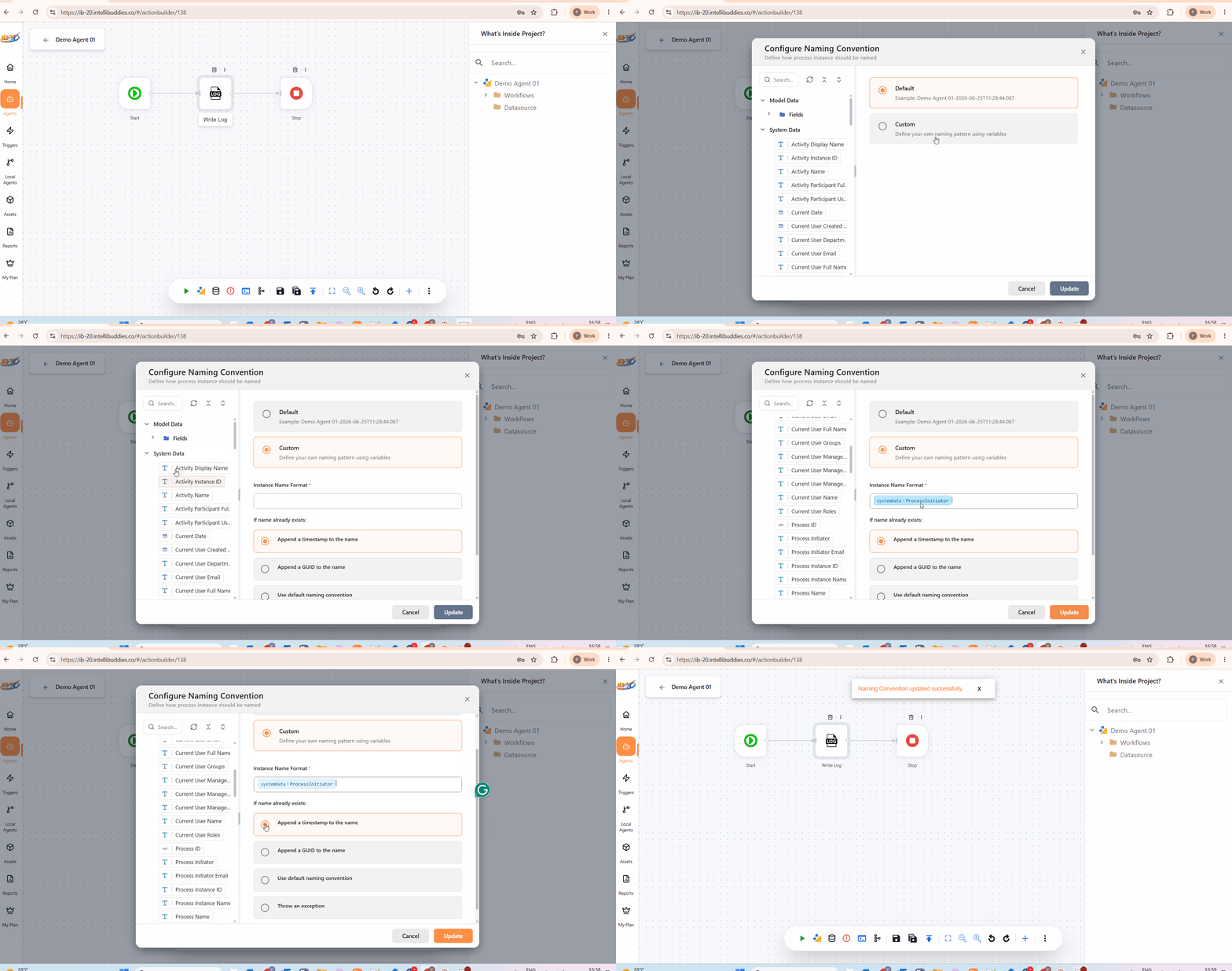
Examples
| Original Name | Duplicate Handling Option | Result |
|---|---|---|
Invoice_100234 | Append Timestamp | Invoice_100234_2026-06-25T09:31:44.996 |
Invoice_100234 | Append GUID | Invoice_100234_0375c46c-a7ba-4a80-b2d6-66a5279e33dc |
Invoice_100234 | Use Default Naming Convention | InvoiceProcessing_2026-06-25T09:31:44.996 |
Invoice_100234 | Throw Exception | Automation creation fails with a duplicate-name error. |
Automation naming conventions should be reviewed before publishing an Agent. A meaningful naming strategy can significantly simplify monitoring, searching, auditing, and troubleshooting automation executions in production environments.
If a custom naming convention uses variables that resolve to empty values at runtime, the platform automatically falls back to the default automation naming pattern.
Testing an Agent
Before publishing an Agent, you can validate its behavior directly from Agent Builder by creating a debug automation instance.
To test an Agent:
- Save the Agent
- Click Run from the Main Toolbar
- Review the results once execution is completed
- Make any required changes and repeat the process as needed
Testing allows you to validate workflow logic, integrations, AI behavior, business rules, and data mappings before publishing the Agent.
Viewing Debug Execution Results
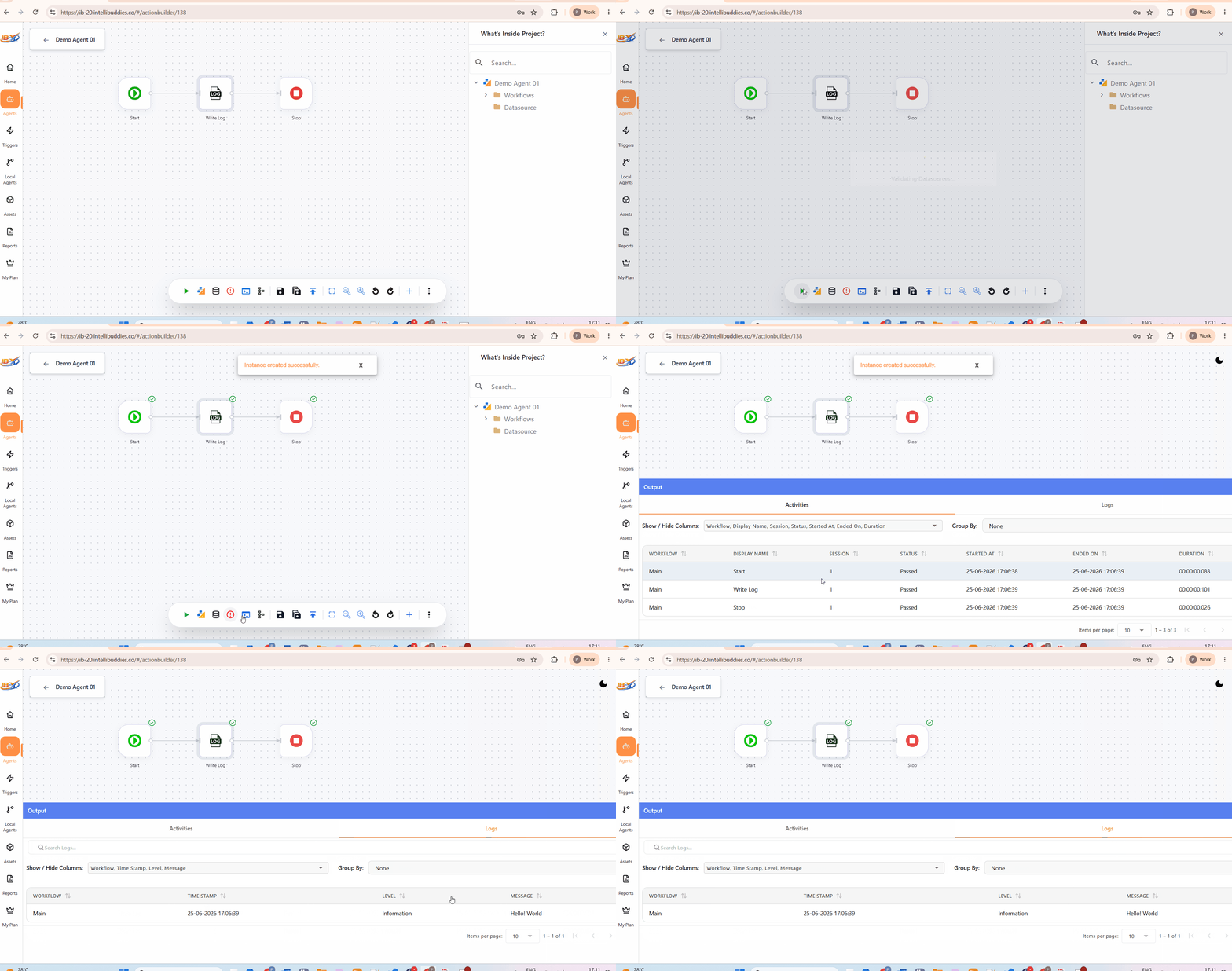
Running an Agent from Agent Builder creates a debug automation instance using the current draft version of the Agent.
After the debug automation completes, click Output from the Designer Canvas to review the execution details.
The Output view provides information such as:
- Activities executed
- Activity inputs and outputs
- Execution logs
- Errors and exceptions
- Execution path information
This information can be used to troubleshoot workflow behavior and verify that the Agent is functioning as expected.
Viewing Debug Automations in Reports
Debug automations are also available through the reporting experience.
To view debug automations:
- Navigate to Reports → Automations
- Enable the Include Debug toggle
- Locate the desired debug automation
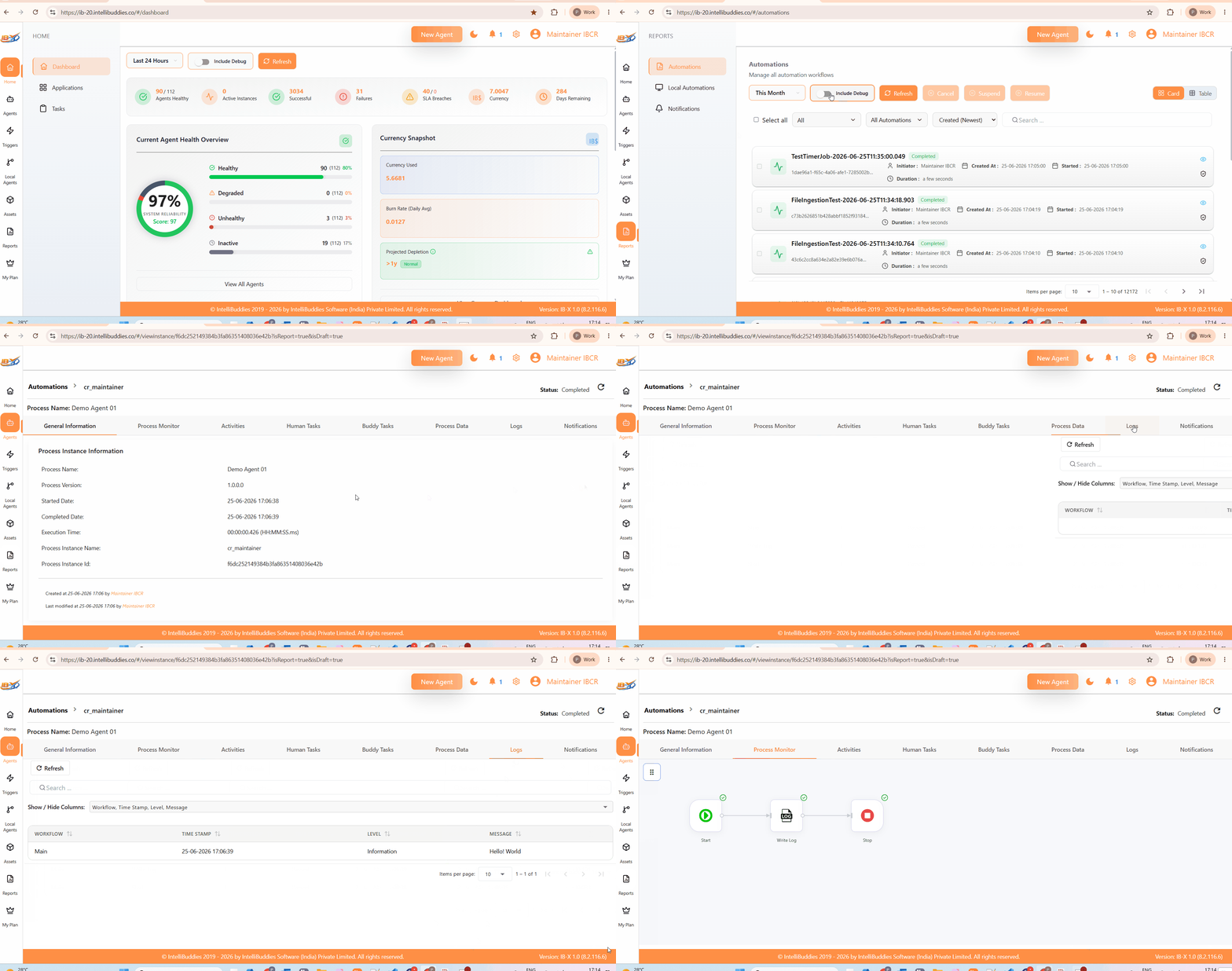
The automation details provide the same execution history, logs, and diagnostic information available during testing.
Debug automations are created using the current draft version of the Agent and are intended for validation and troubleshooting before publishing. They are excluded from standard automation views unless Include Debug is enabled.
Publishing an Agent
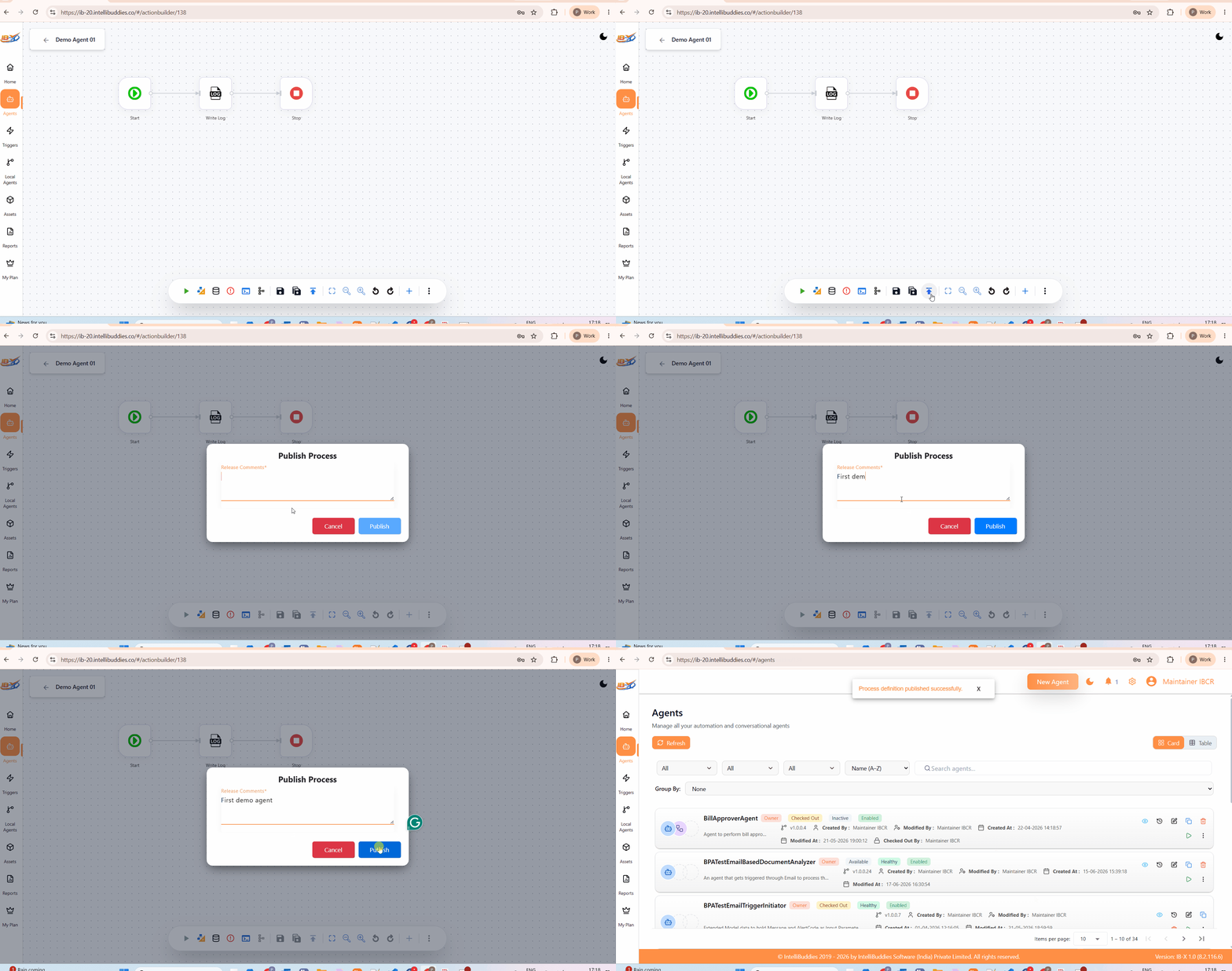
Once an Agent has been tested and is ready for use, publish it to the AI Command Center by clicking Publish from the Main Toolbar.
Publishing makes the current version of the Agent available for execution and creates a new version in the Agent's version history.
Each time an Agent is published, a new version is created, allowing changes to be tracked and managed over time.
Changes made while editing an Agent remain in your draft until they are published. Other users and automations continue to use the currently published version until a newer version is published.
Running an Agent
Published Agents can be executed automatically through configured triggers or manually on demand.
For example, an Agent may start automatically when:
- A schedule is triggered
- A file is received
- An email arrives
- A webhook is invoked
- A conversational message is received
- Any other configured trigger condition occurs
In addition to trigger-based execution, you can manually start an Agent from the Agents page.
To manually run an Agent:
- Navigate to Agents
- Locate the Agent
- Click Run
Each execution creates a new Automation instance.
Viewing Execution History
To review previous executions:
- Navigate to Agents
- Locate the Agent
- Click History
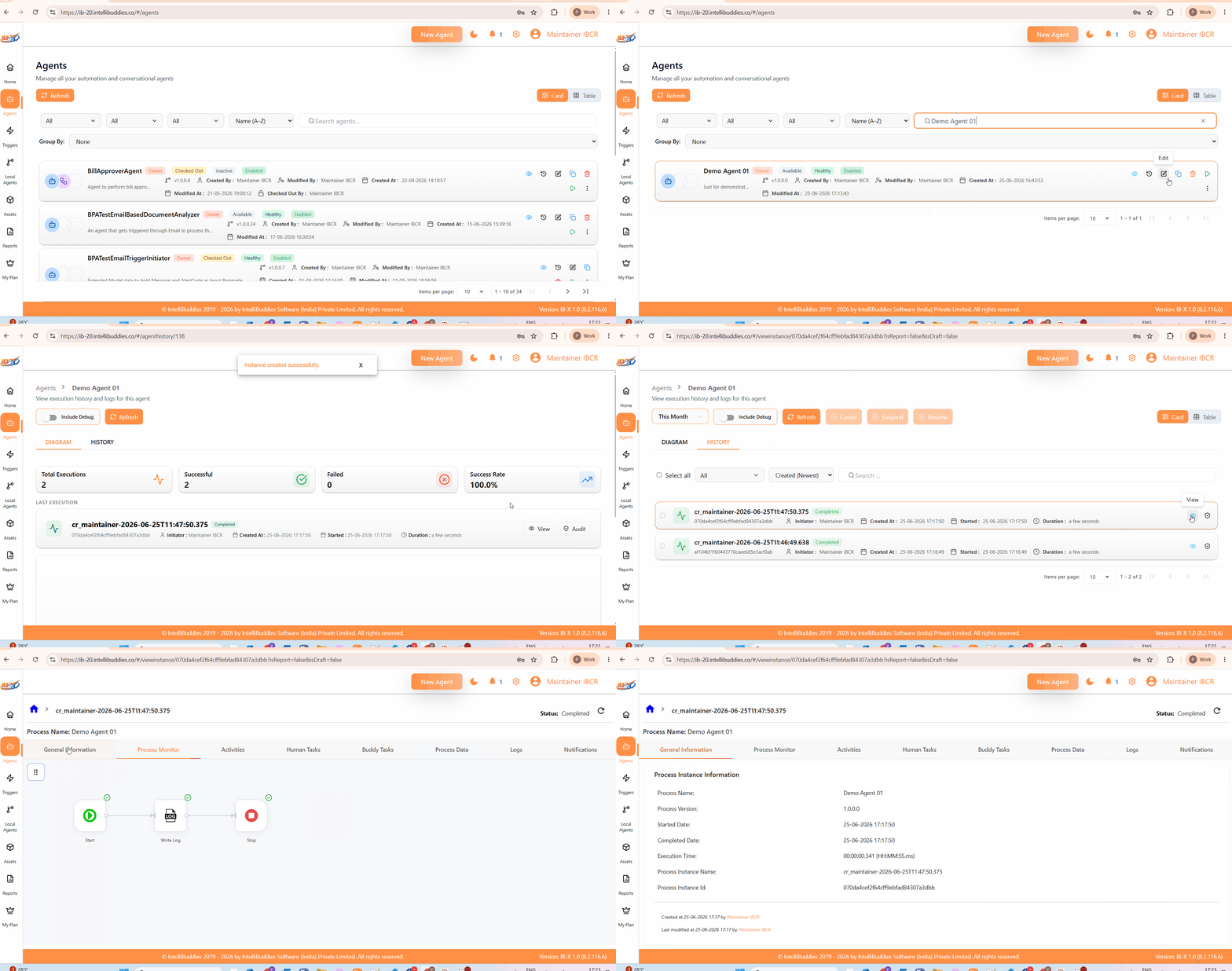
The History view displays all automation instances created from the Agent.
From the History view, you can access detailed execution information, including:
- Process Monitor
- Execution Logs
- Activity Execution History
- Inputs and Outputs
- Errors and Exceptions
- Automation Status
The History view provides a complete execution trail for troubleshooting, auditing, and monitoring Agent behavior over time.
Running an Agent from the Agents page creates an automation on demand. Trigger-based executions and manually started executions are both recorded in the Agent's execution history.
Editing an Agent
To modify an existing Agent:
- Open the Agents page
- Locate the Agent you want to edit
- Click Edit
- The Agent is checked out under your name and opened in Agent Builder
- Make the required changes
- Save the Agent
When an Agent is checked out, your changes are stored as a draft. The draft remains associated with your user account until it is published.
Other users continue to use the currently published version until a newer version is published.

Editing Agent Properties
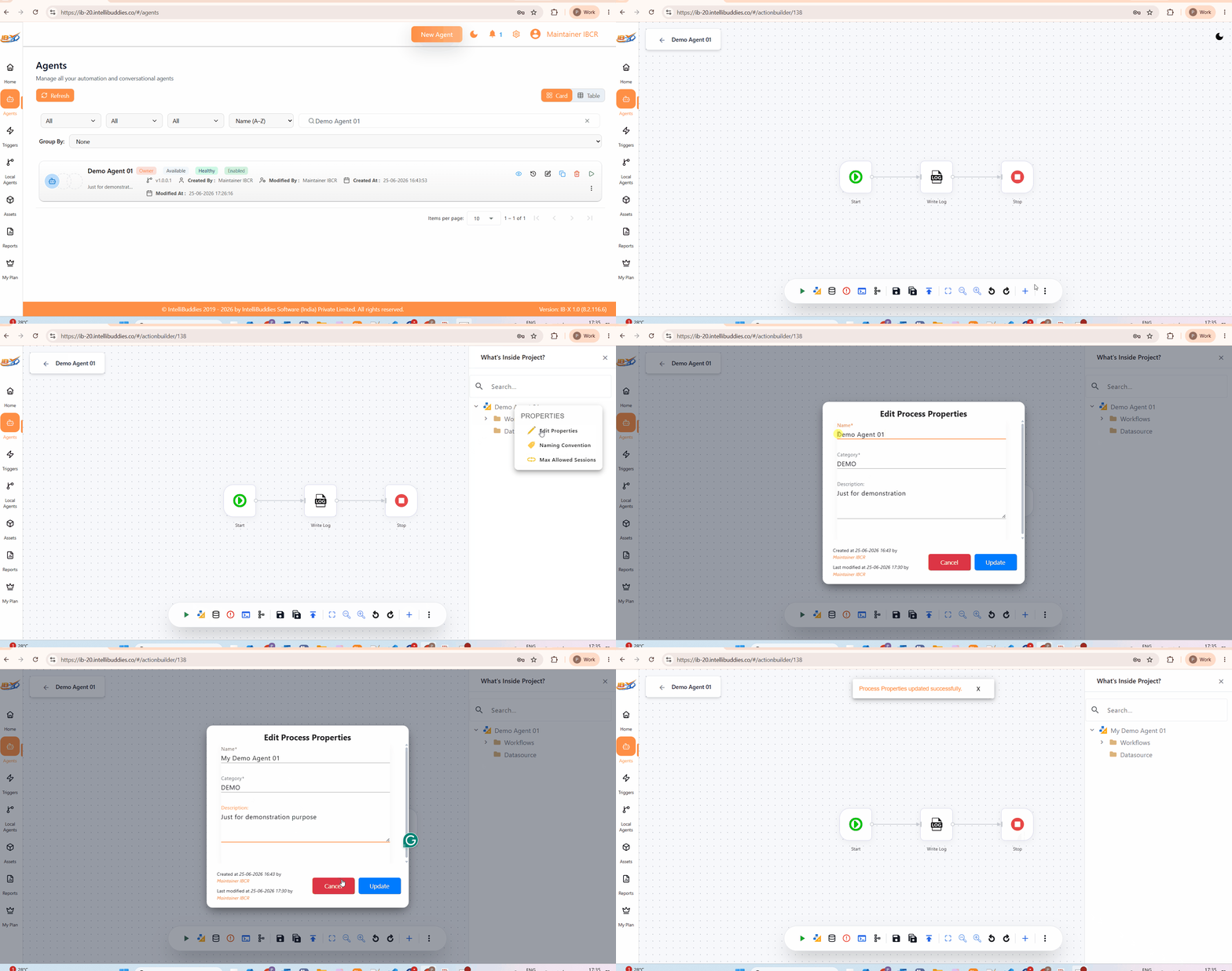
To edit Agent properties:
- Open the Agent in Agent Builder
- Open the Project Explorer Drawer
- Right-click the Agent node
- Select Properties > Edit Properties
- Update the Agent name, category, or description
- Click Update
Version Management
Each time an Agent is published, a new version of the Agent is created.
Version management allows you to review previously published versions and control which version is used when new automation instances are started.
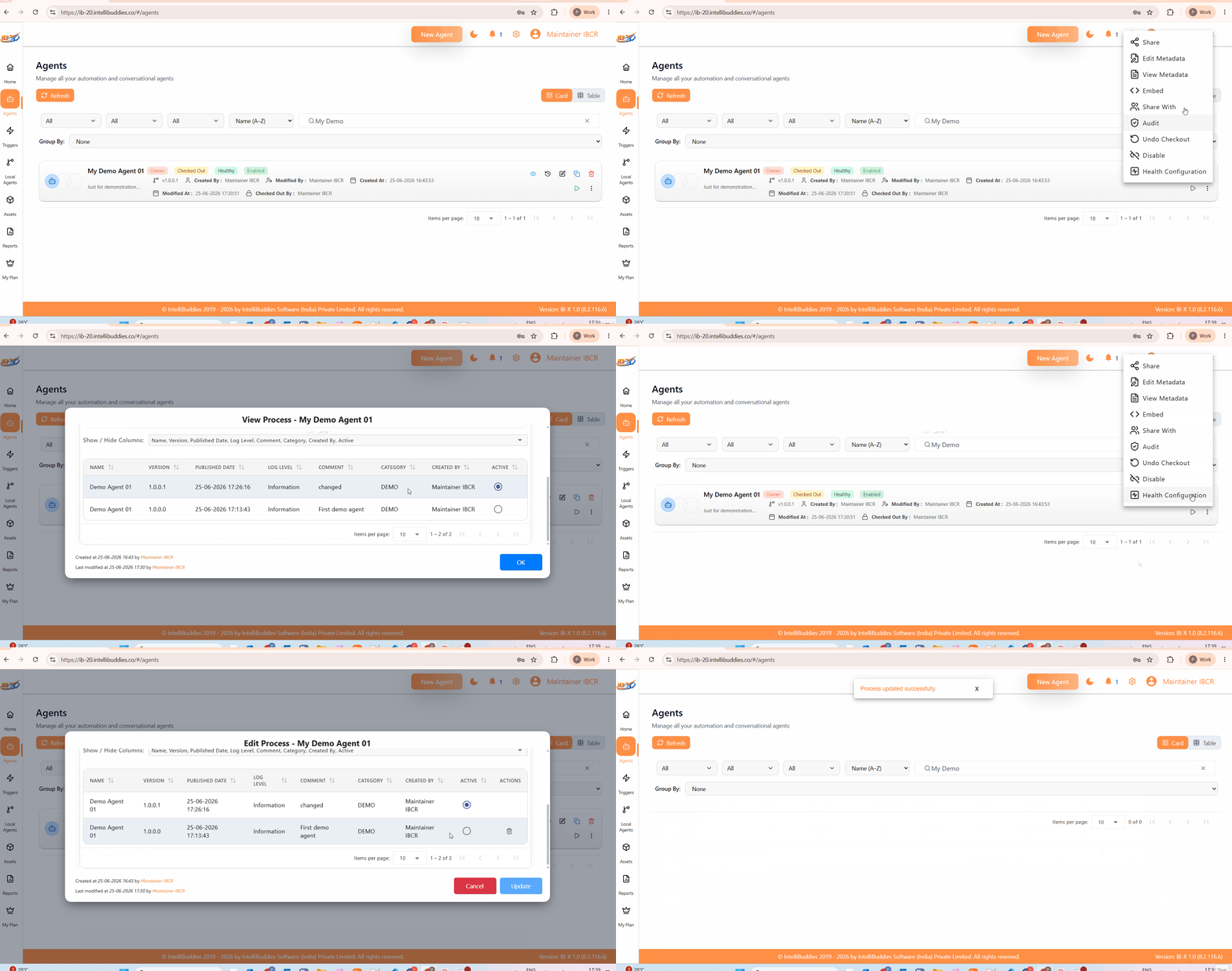
Viewing Version Information
To view version information in read-only mode:
- Open the Agents page
- Click View Metadata
The metadata view displays:
- Current active version
- Published versions
- Version history
- Agent metadata
This view is intended for reviewing version information without making changes.
Managing Active Versions
To manage Agent versions:
- Open the Agents page
- Click Edit Metadata
- Navigate to the version management section
- Select the version that should be used for future automation instances
- Save the changes
Changing the active version affects only newly created automation instances.
Existing automation instances continue to execute using the version from which they were originally created unless they are explicitly migrated.
The active version determines which Agent version is used whenever a new automation is started.
Changing the active version does not automatically affect existing automation instances.
Migration
Long-running automations may continue executing for days, weeks, or even months after an Agent has been published.
When a new version of an Agent is published, existing automation instances continue to execute using the version from which they were originally created. In some scenarios, you may want those running automations to use the newer Agent definition instead.
IB-X supports migration of running automation instances to a newer version of an Agent.
During migration:
- Running automation instances are suspended.
- The automation instances are migrated to the selected Agent version.
- The automation instances are resumed.
This capability allows long-running automations to adopt updated workflow definitions without requiring the automations to be restarted from the beginning.
Common reasons for performing a migration include:
- Workflow improvements
- Bug fixes
- Configuration updates
- Business rule changes
- Process data model updates
Migration should be performed carefully, particularly when workflow structure, process data definitions, or execution paths have changed between Agent versions.
It is recommended to review the impact of the changes before migrating active automation instances.
For detailed information about migration capabilities, supported scenarios, limitations, and best practices, see the Migration Guide.
Sharing an Agent
Agents can be shared with other AI Command Center users to allow collaboration, execution, and administration based on assigned permissions.
Viewing Shared Users
To view users who currently have access to an Agent:
- Open the Agents page
- Locate the Agent
- Open the More Actions (...) menu
- Click Shared With
The Shared With view displays all users who have access to the Agent together with their assigned permission levels.
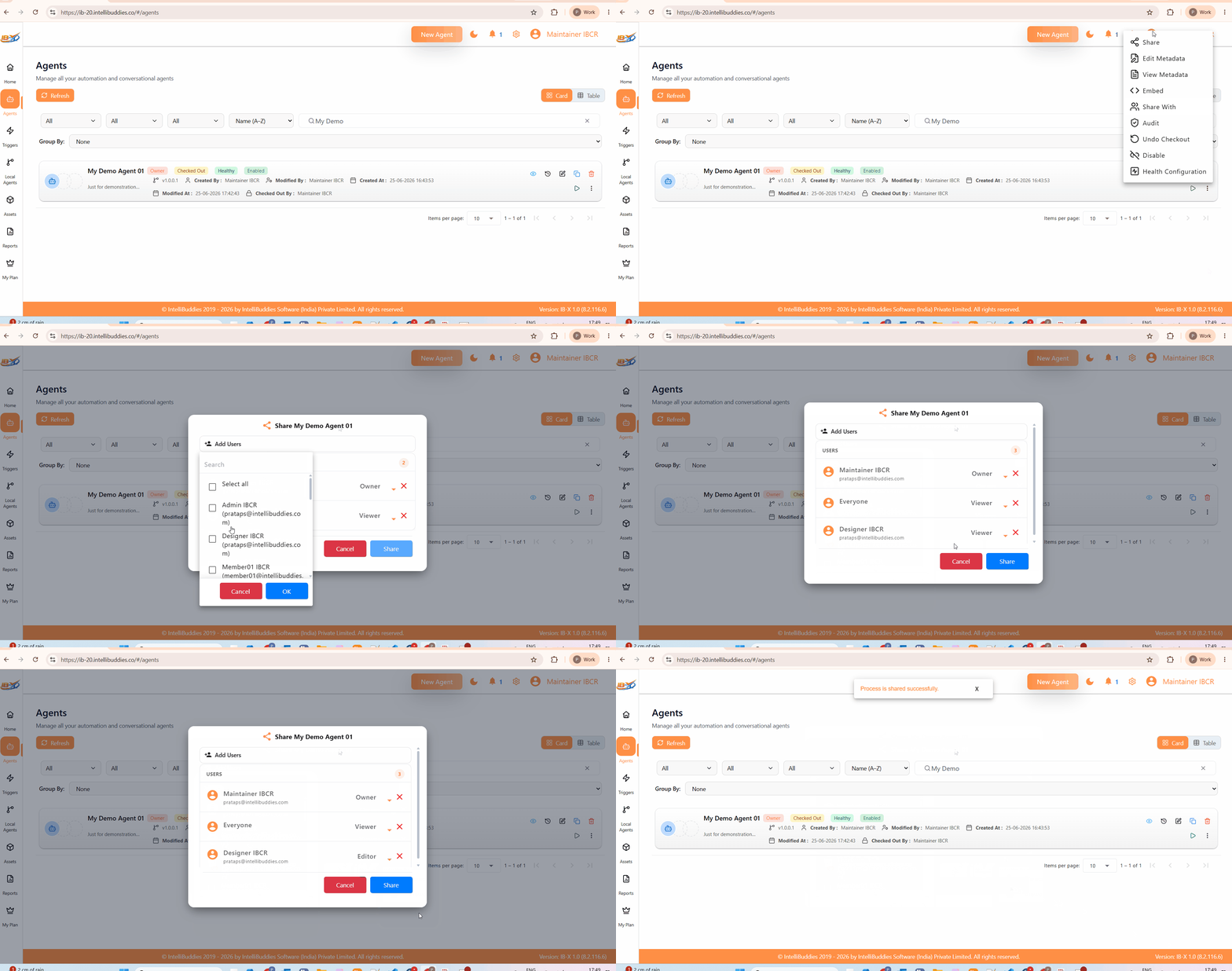
Managing Shared Users
To add new users or modify existing permissions:
- Open the Agents page
- Locate the Agent
- Open the More Actions (...) menu
- Click Share
- Select one or more users
- Assign the desired permission level
- Click Share or Update
The Share dialog can be used to:
- Share the Agent with new users
- Change permissions for existing users
- Review current sharing assignments
Permission Types
| Permission Type | Description |
|---|---|
| Viewer | Can view and execute the Agent. |
| Editor | Can view, execute, edit, and publish the Agent. |
| Owner | Has full control over the Agent, including sharing, administration, and version management. |
Users can only perform actions that are permitted by their assigned permission level.
Importing and Exporting Agents
Agents can be moved between AI Command Center environments using the platform's Export and Import capabilities.
Typical scenarios include:
- Promoting Agents between development, test, and production environments
- Sharing Agents between tenants
- Backing up Agent configurations
- Migrating solutions between AI Command Center installations
Depending on the export options selected, an exported package may include the Agent together with its dependent assets, such as connections, forms, lists, templates, and other related configuration artifacts.
Exported packages use the .nupkg format and can be imported into another AI Command Center environment.
For detailed instructions, see: