Export
Overview
The Export tab allows administrators to generate export packages containing selected processes and associated configuration resources from the AI Command Center.
Exporting packages enables:
- Migration of automation assets between environments
- Backup of processes and configurations
- Deployment of solutions across multiple AI Command Centers
- Controlled version distribution of automation assets
The Export tab is available to users with the appropriate export management permissions.
How to access: From the AI Command Center, open Settings (⚙️) in the top-right corner and navigate to Migration → Export.
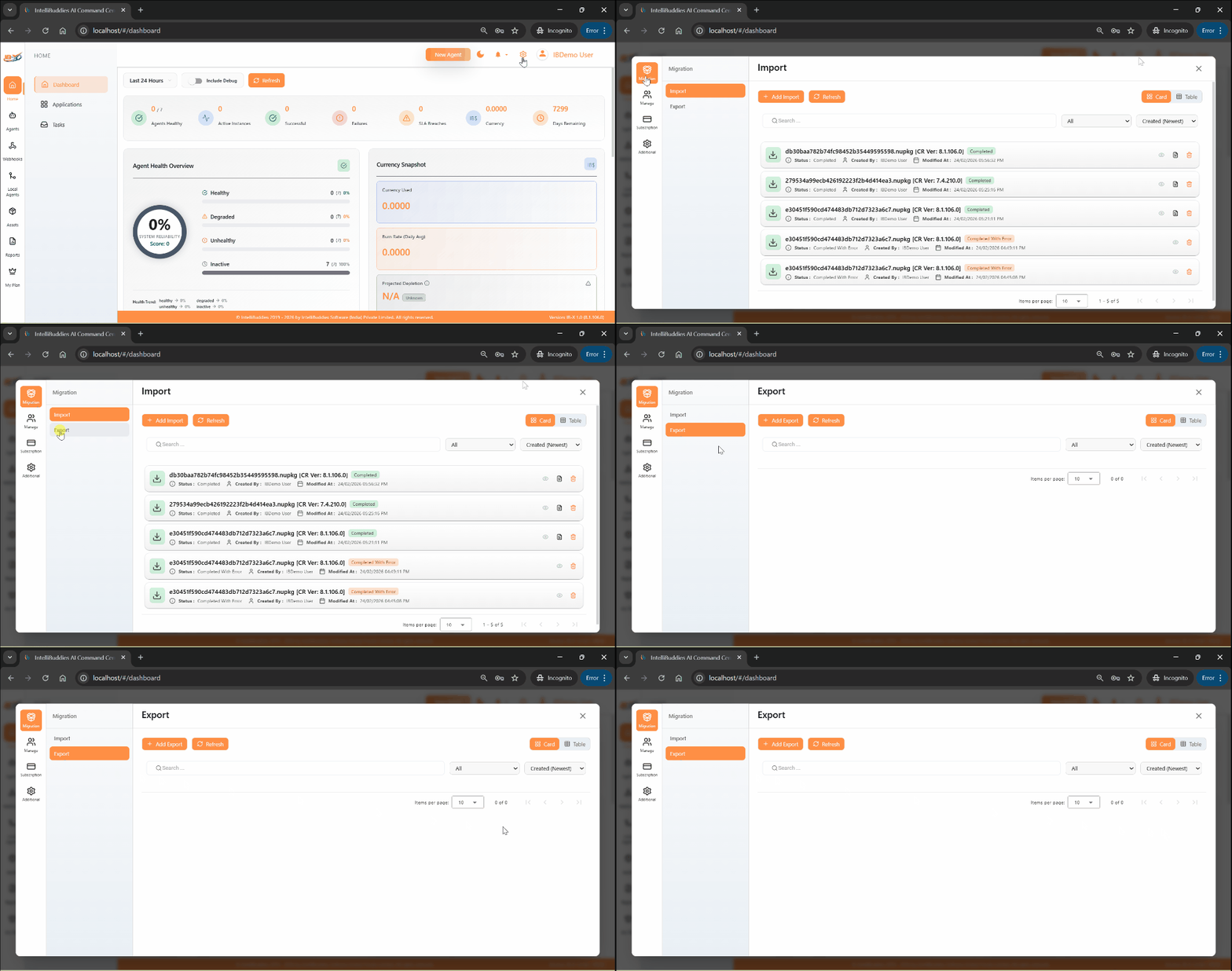
Creating an Export Job
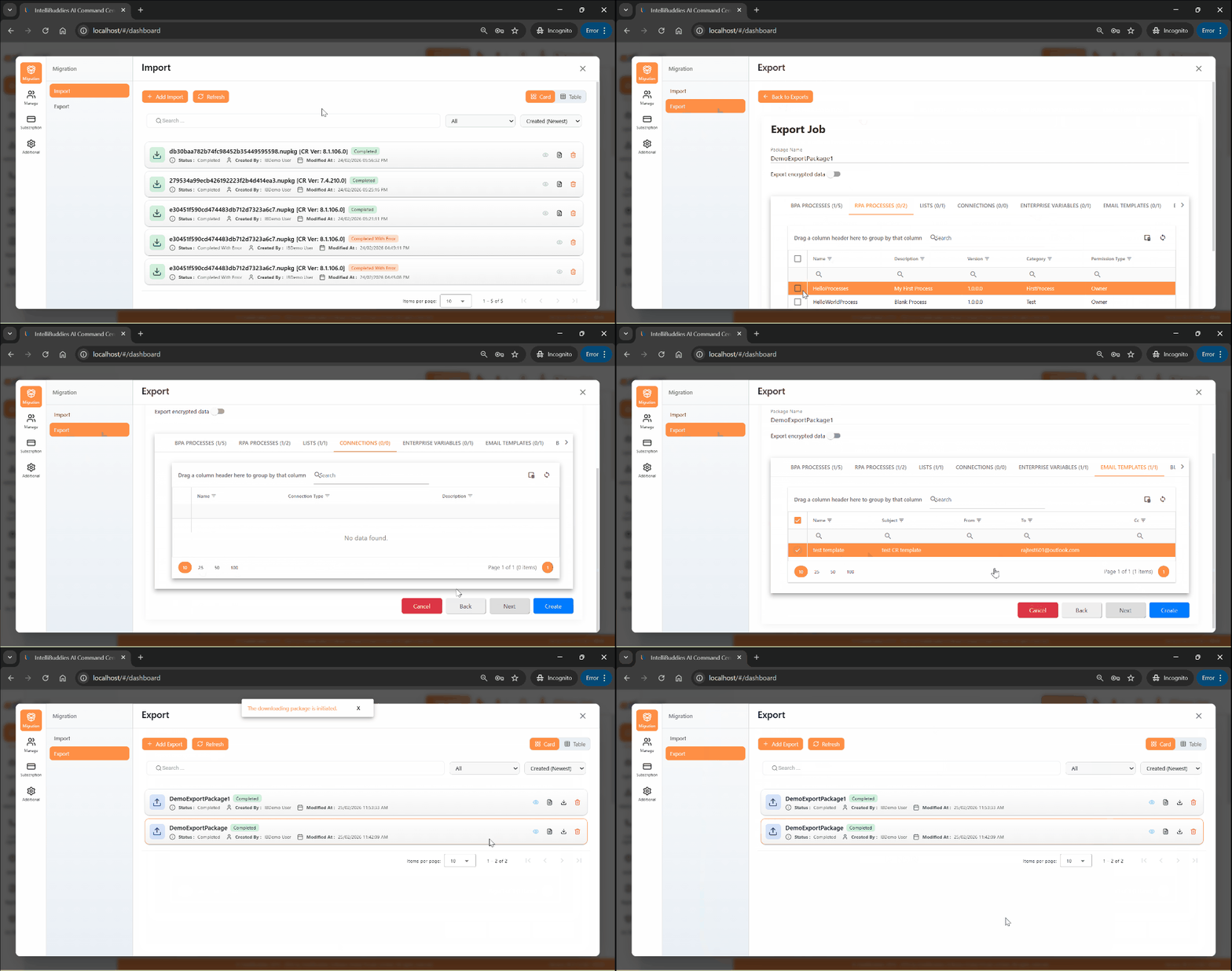
To create a new export job:
- Open the Export tab.
- Click Add Export.
- Enter a Package Name.
- Select the entities to export under the respective tabs.
- Use Next and Back to review selections.
- Click Create to start the export job.
At least one entity must be selected to create an export job.
Export Actions
From the Export tab, the following actions are available (based on permissions):
| Action | Description |
|---|---|
| View | Opens job details in read-only mode. |
| View Report | Displays detailed export results for each selected entity. |
| Download Package | Downloads the generated export package (.nupkg). |
| Delete | Permanently removes the selected export job record. |
Viewing an Export Job
To view job details:
- Open the Export tab.
- Select the job.
- Choose View.
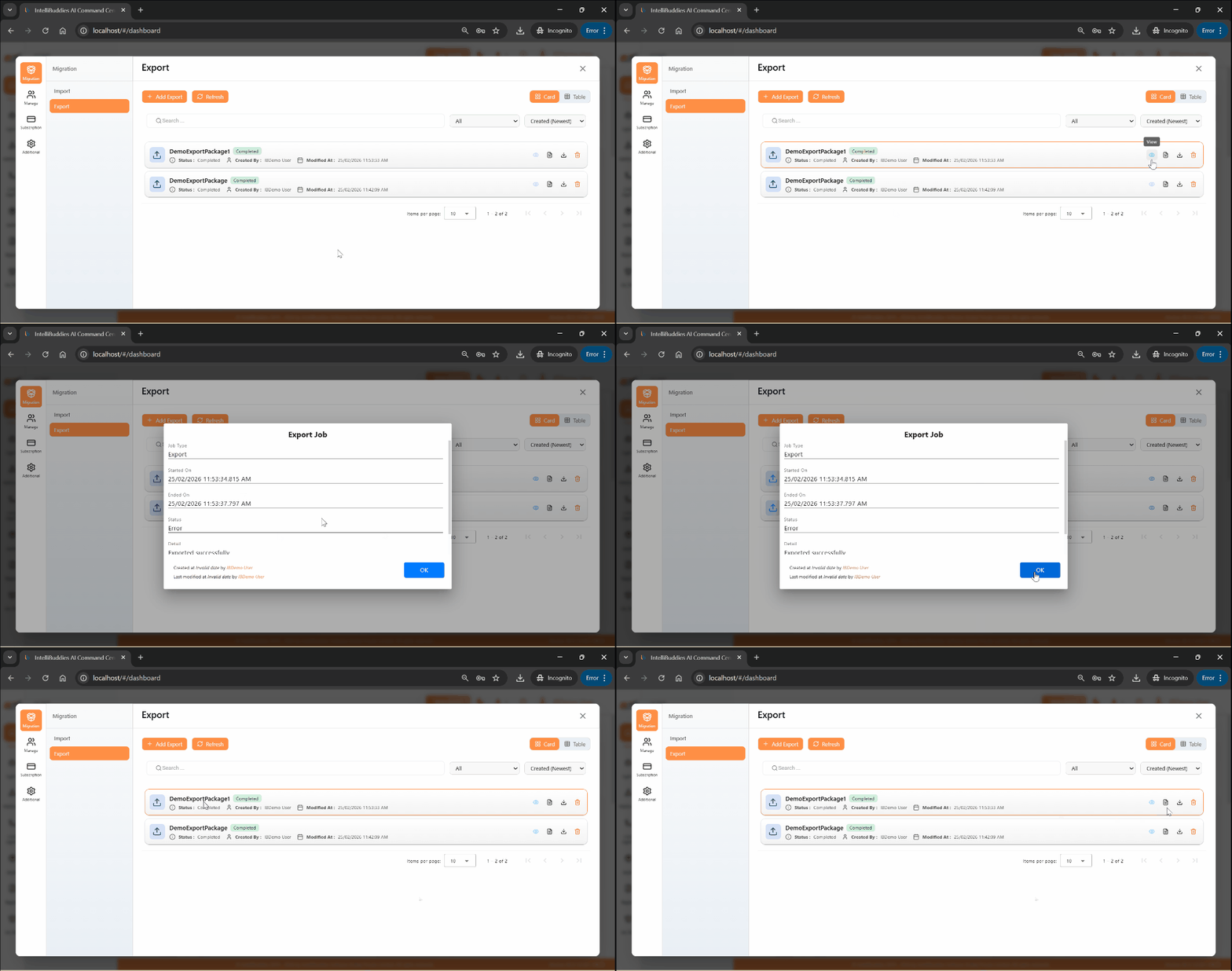
This view displays the selected entities and configuration included in the export package.
Viewing Export Report
To view export results:
- Open the Export tab.
- Select the job.
- Choose View Report.
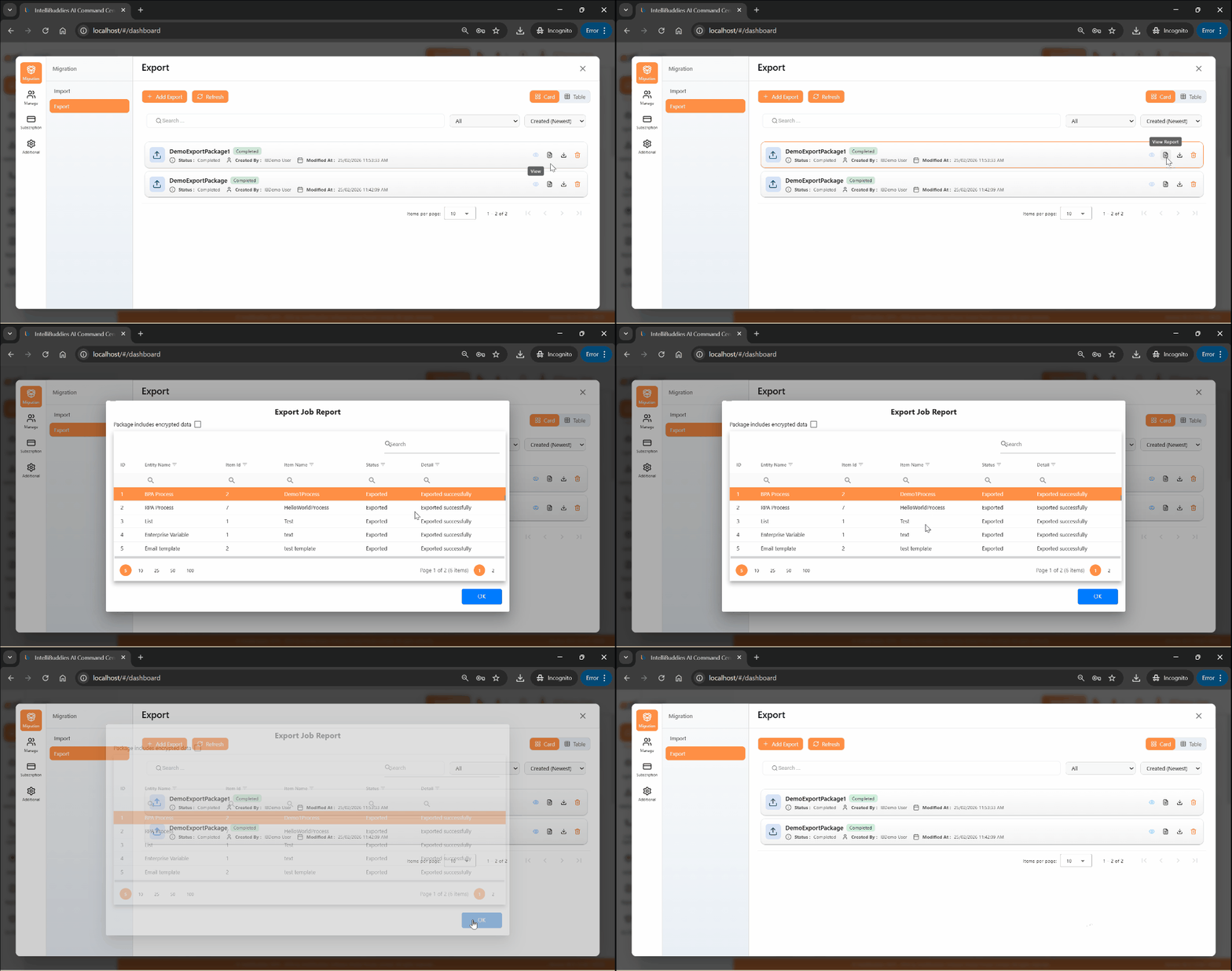
The report displays the export result for each selected entity.
Entity Export Status
The following table explains the export result statuses:
| Status | Description |
|---|---|
| Exported | The entity has been successfully included in the export package. |
| Error | The entity failed to export. Refer to the Details column for more information about the failure. |
Downloading Export Package
To download the generated package:
- Open the Export tab.
- Select the completed job.
- Choose Download Package.
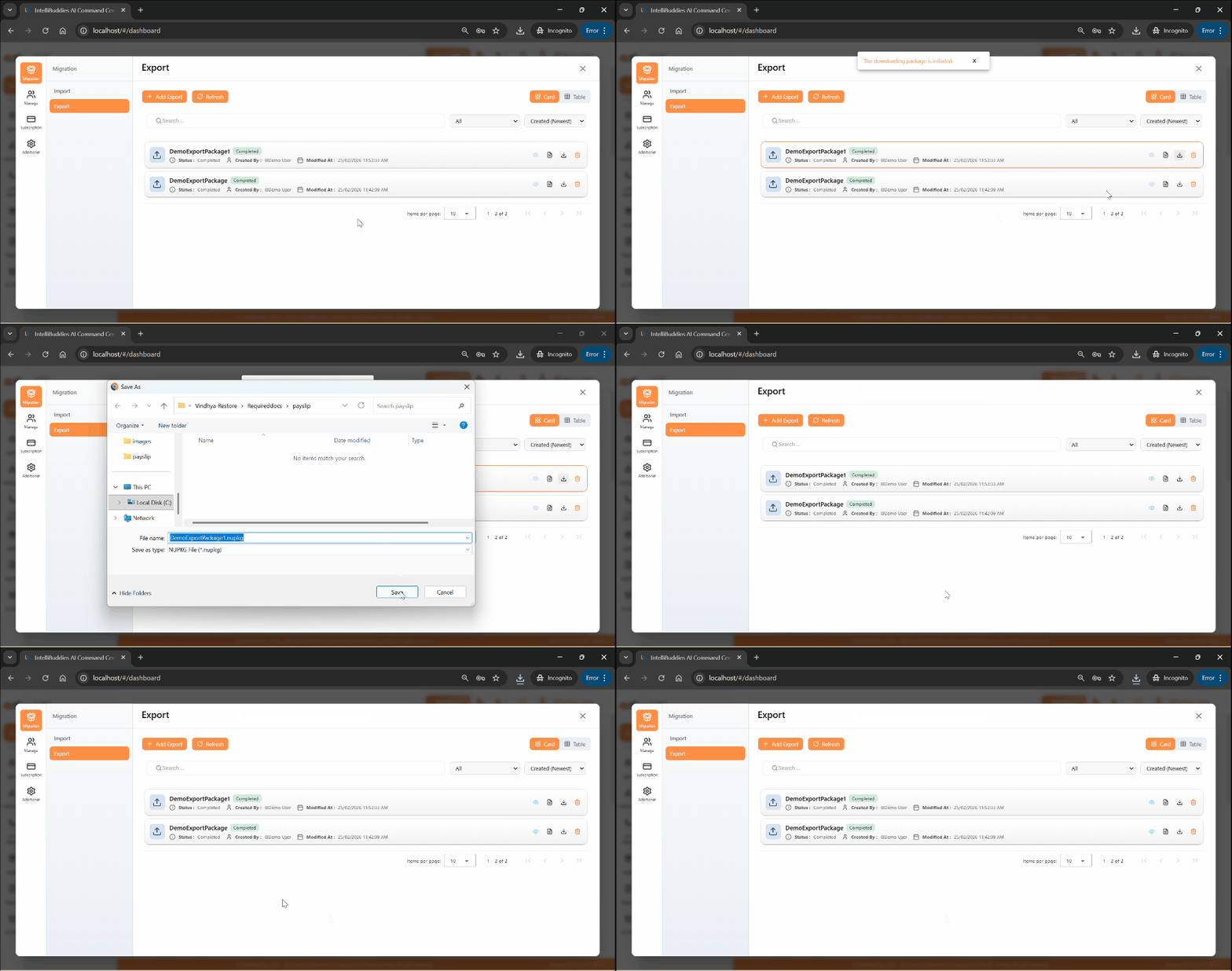
The package can be downloaded only after the export job reaches the Completed or CompletedWithError status. If the job status is Error, the package will not be available.
The downloaded file can be imported into another AI Command Center environment.
Job Status
The table below explains the various statuses of an export job:
| Status | Description |
|---|---|
| Pending | The job is pending execution. |
| Running | The job is currently executing. |
| Completed | The job has successfully exported all selected entities without errors. |
| CompletedWithError | The job completed with errors. You can find more information in the job details. |
| Error | The job was faulted due to an unexpected error. |