Migration of Automation
Overview
The Automation Migration feature allows you to move suspended automation instances from one agent version to another.
This is especially useful for:
- Long-running automations
- Human-in-the-loop processes
- Scenarios where a newer agent version contains fixes or enhancements
Instead of restarting automation from scratch, migration ensures that existing suspended instances continue execution on the newer version.
Accessing Migration
To access the Migration feature:
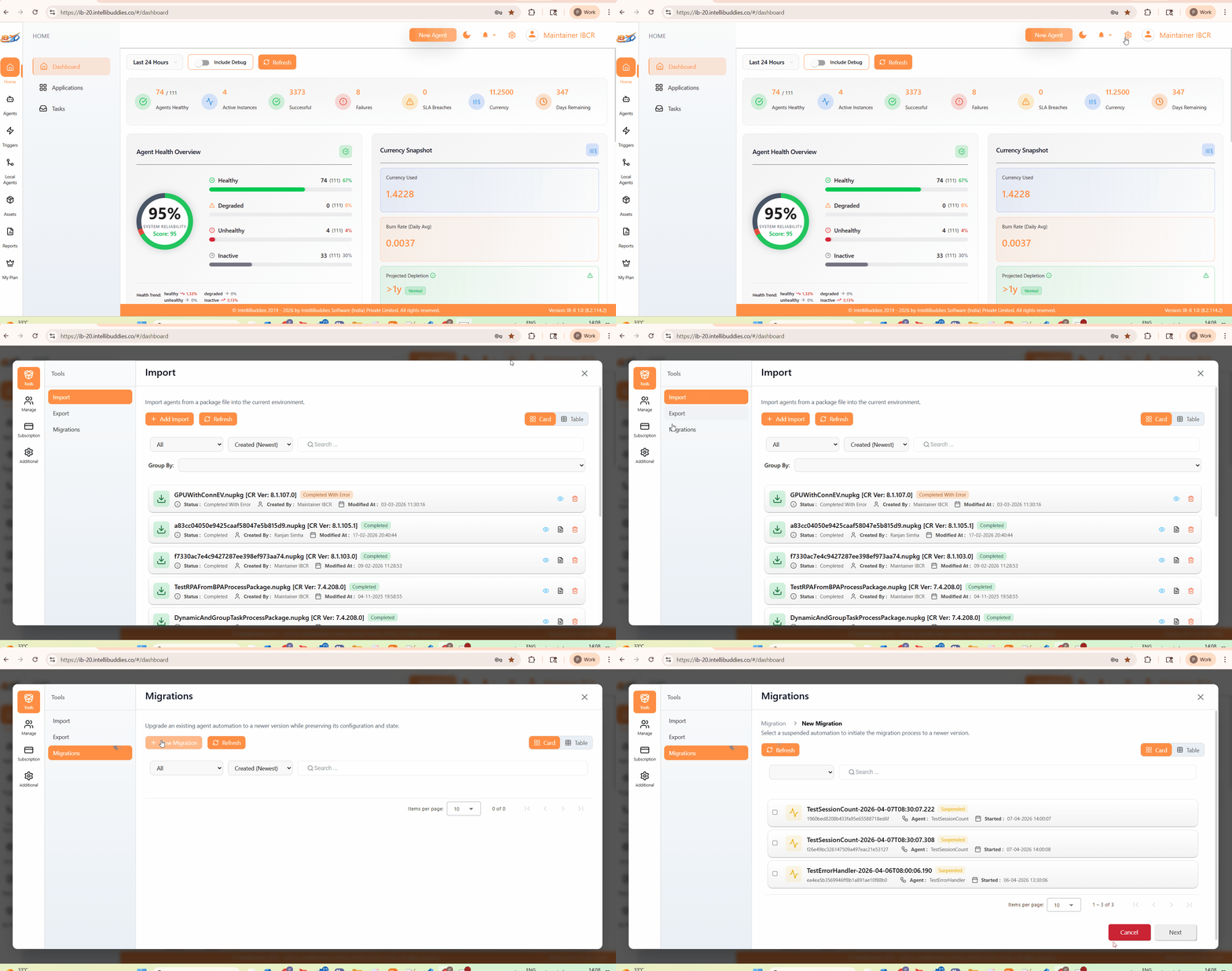
- Click on the Settings (⚙️) icon in the top-right corner.
- Navigate to Tools → Migrations.
Permissions
To perform automation migration, a user must have:
- Migrate Automation → Allows creating and executing migrations
Related Permissions
- View BPA Process
- View Process Instance Details
Key Concepts
Migration
A Migration defines how automation instances move from one version to another, including:
- Source Version
- Target Version
- Activity Mapping
Activity Mapping
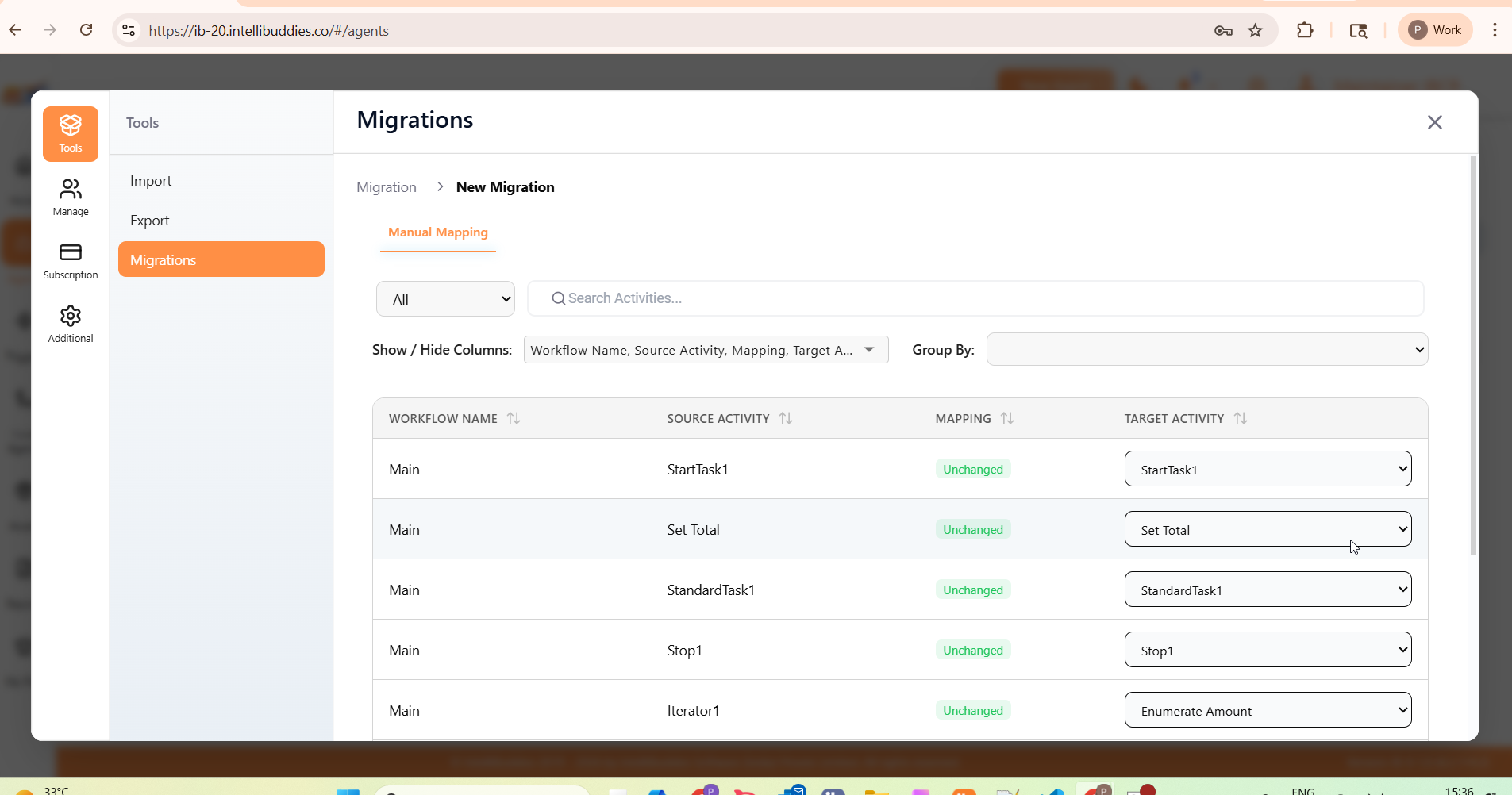
Activity mapping determines how execution resumes in the target version.
-
Auto Mapping
- Based on internal IDs or activity names
-
Manual Mapping
- Required when activities are renamed, removed, or restructured
Migration Instance
Each automation selected for migration is tracked individually:
- Pre-migration state
- Migration status
- Errors (if any)
Prerequisites
Before migrating:
- Automation must be in Suspended state
- Must NOT be in Debug mode
- Source version must match the automation version
- Target agent version must exist
Creating a Migration
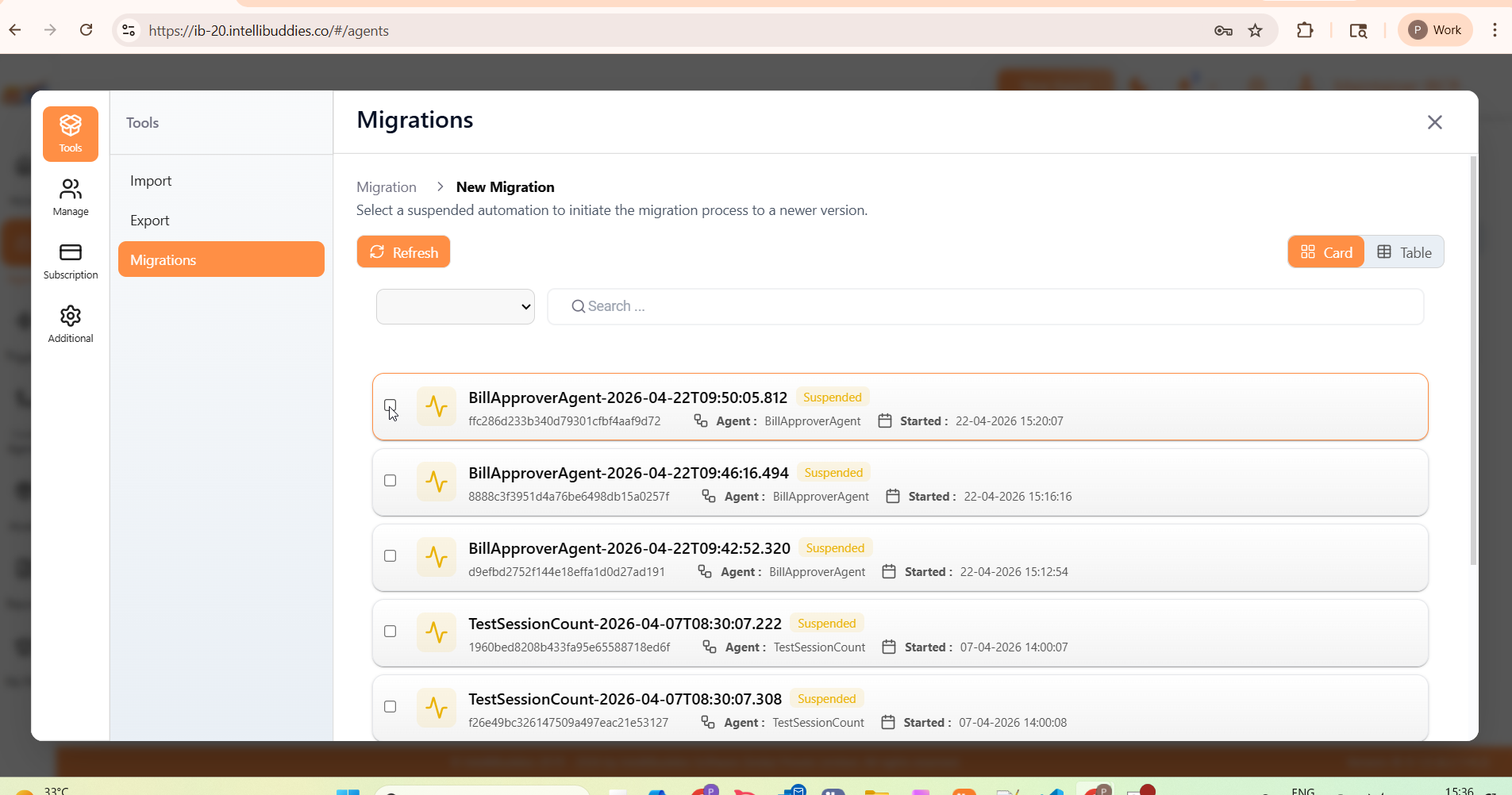
Step 1: Select Automations
- Click New Migration
- Select one or more suspended automations
Step 2: Configure Migration
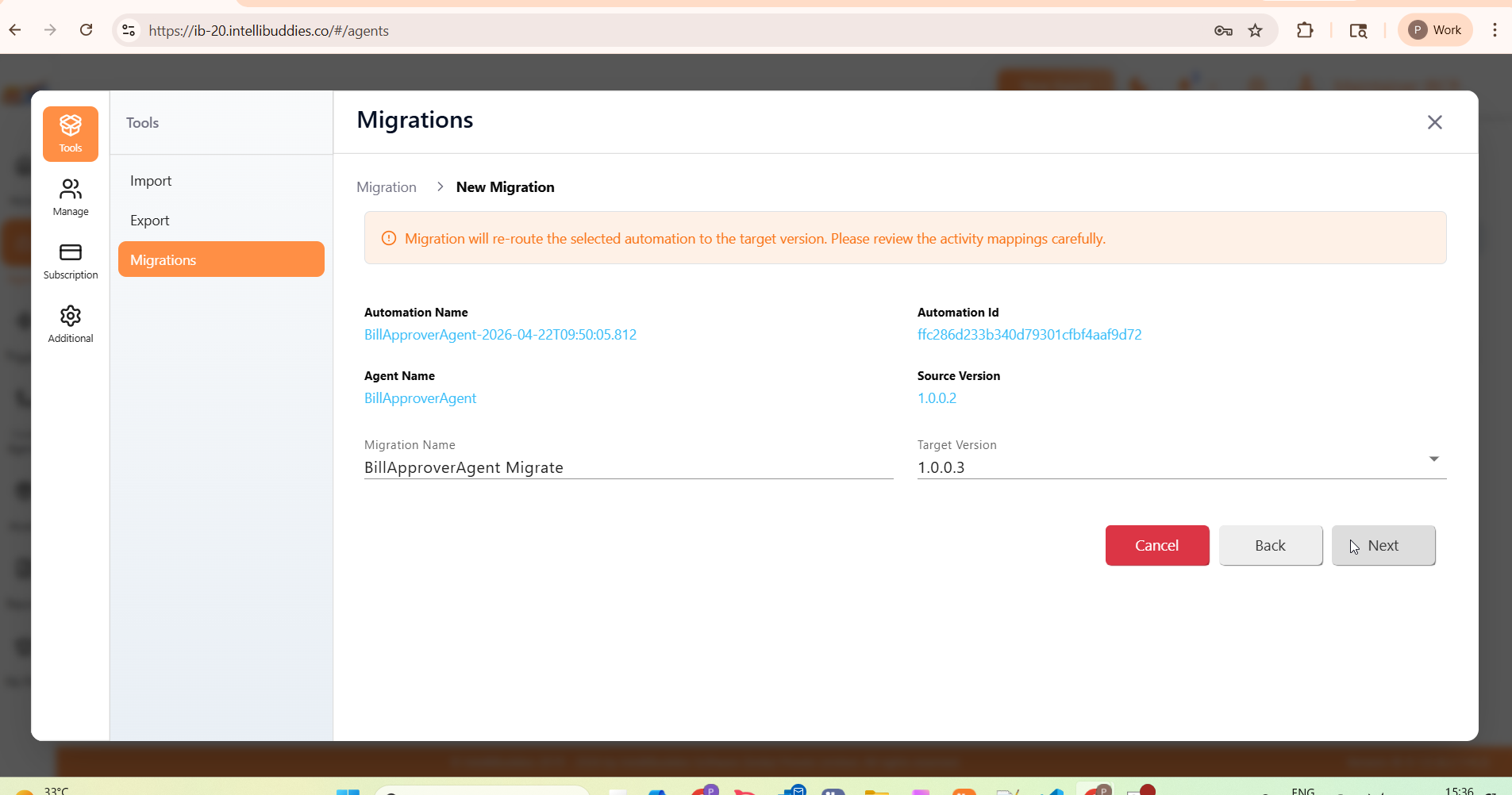
Provide:
- Migration Name
- Target Version
System auto-fills:
- Automation Name
- Agent Name
- Source Version
Step 3: Review Activity Mapping
- Validate auto-generated mappings
- Adjust mappings if required
⚠️ Migration will re-route execution to the mapped activity in the target version. Incorrect mapping can lead to inconsistent behavior.
Step 4: Create or Migrate
- Create → Saves migration configuration (Pending state)
- Migrate → Immediately executes migration
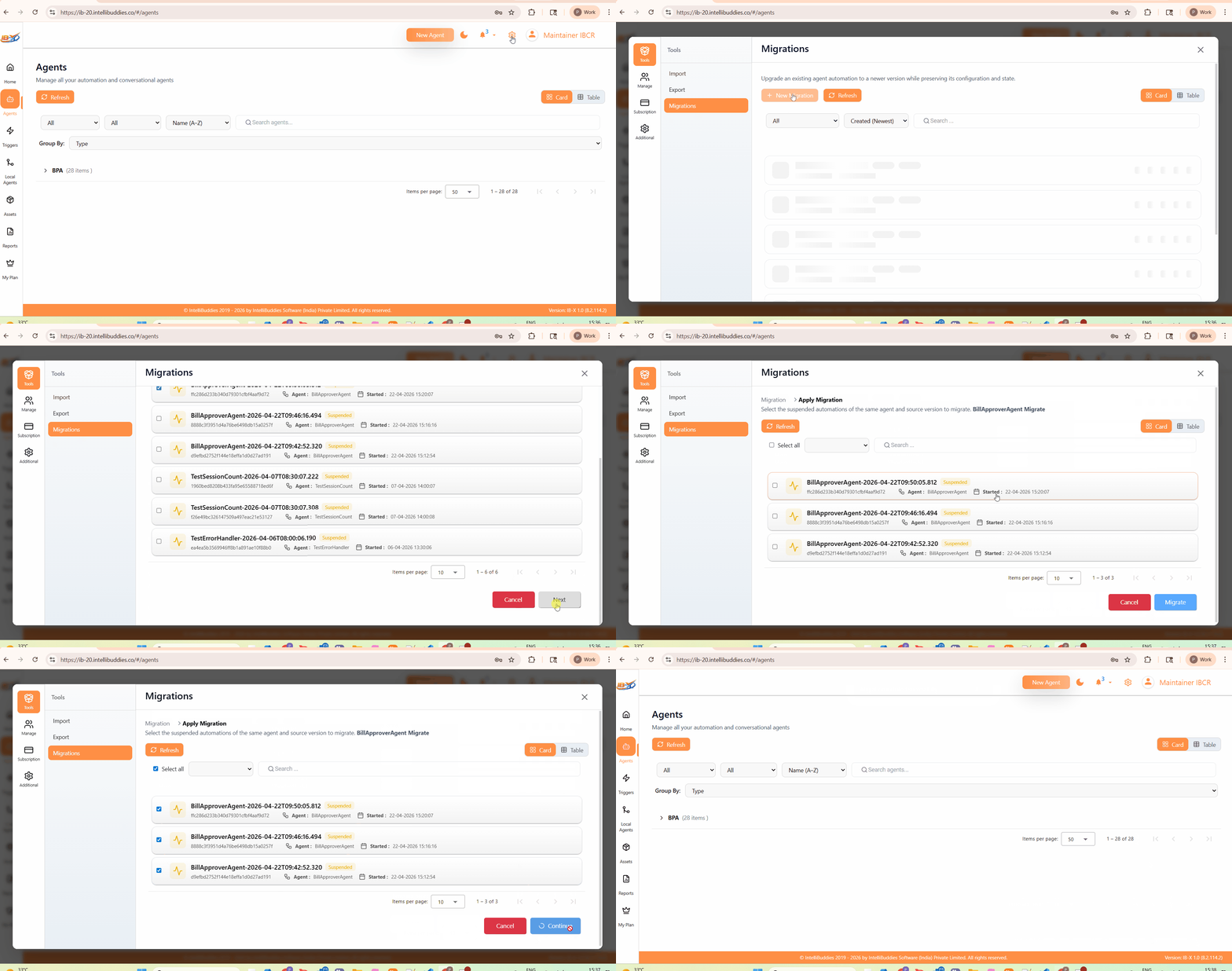
Creating vs Executing Migration
| Action | Description |
|---|---|
| Create | Saves migration configuration without executing |
| Migrate | Executes migration immediately |
| Apply Migration (later) | Executes a previously created migration |
Migration Templates (Bulk Migration)
When multiple automations of the same agent need migration:
- Create a migration once
- Reuse it as a template
- Apply it to multiple automation instances
This enables:
- Consistent mappings
- Faster bulk migration
- Reduced manual effort
Migration List Page
The Migrations page shows all migrations.
You can view in:
- Card View
- Table View
Available Actions
| Action | Description |
|---|---|
| View | View migration configuration |
| Apply Migration | Execute pending migration |
| Reports / Details | View migration results |
| Delete | Remove migration record |
Migration Execution
Once triggered, migration runs in the background.
What Happens Internally
-
State Snapshot
- Backup of current execution state
-
Version Update
- Instance updated to target version
-
Recursive Update
- Includes sub-processes
-
Entity Remapping
- Logs
- Tasks
- Bookmarks
-
Execution Continuity
- Missing steps are marked as Skipped
Validation
Before execution, system validates:
- Automation is suspended
- Version alignment
- Mapping correctness
- Target activity availability
Migration Summary
Provides execution insights:
Metrics
- Total
- Success
- Failed
- Running
- Progress %
Refresh
- Re-syncs migration data with the latest execution state
- Instantly updates metrics (Total, Success, Failed, Running, Progress %)
- Reloads instance statuses and error logs without page reload
Instance Details
- Status per automation
- Error logs (if failed)
Activity Mapping View
- Shows actual source → target mapping per instance
Post Migration
- Automation resumes from mapped activity
- Runs under the new agent version
⚠️ If migration fails:
- Review error logs
- Fix mapping or structural issues
- Retry migration
Important Notes
- Migration is only supported for Suspended automations
- Always review activity mappings carefully
- Structural changes between versions may require manual mapping
- Use templates for bulk and consistent migrations