Tools and Actions
Overview
Tools enable Conversational Agents to perform actions in addition to answering questions.
While a Conversational Agent can generate responses using its instructions, conversation history, and enterprise knowledge, tools allow the agent to interact with systems, execute workflows, retrieve data, and perform business operations.
By connecting tools to a Conversational Agent, the agent can move beyond informational conversations and actively participate in business processes.
How Tools Work
The Conversational Agent activity provides a dedicated Tools connector.
Activities connected to this connector become available for tool execution by the agent.
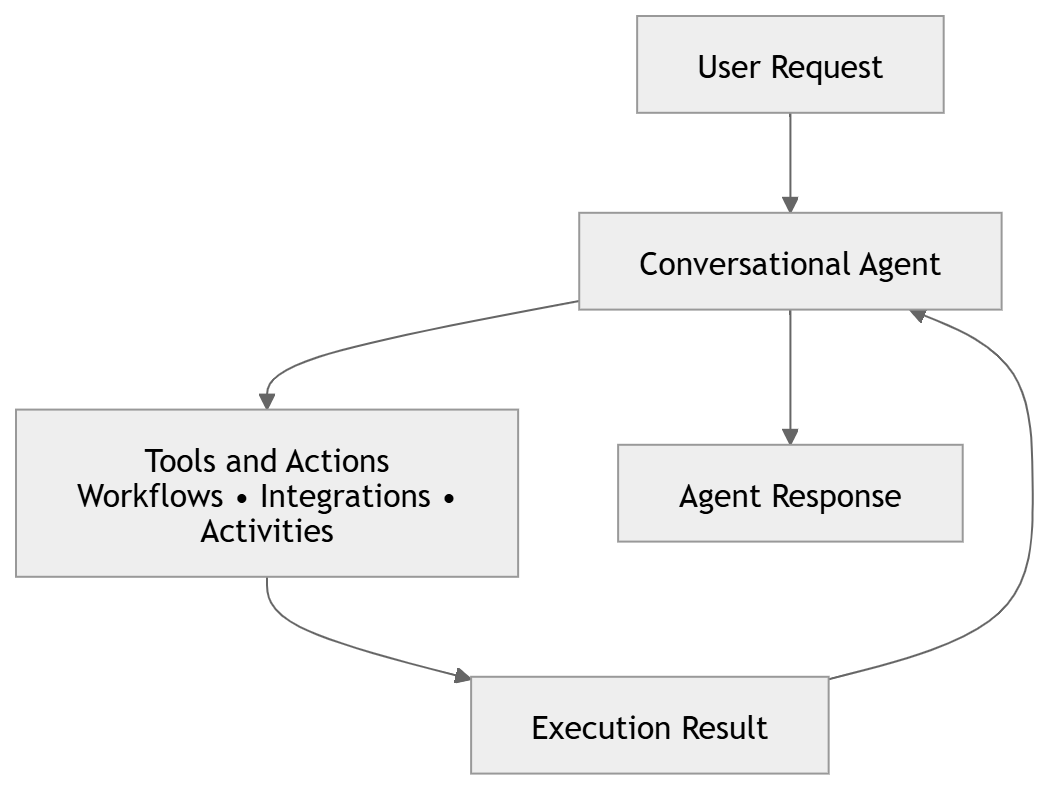
During a conversation, the AI model can determine when a tool is required and invoke the appropriate activity to fulfill the user's request.
Typical flow:
Adding a Tool
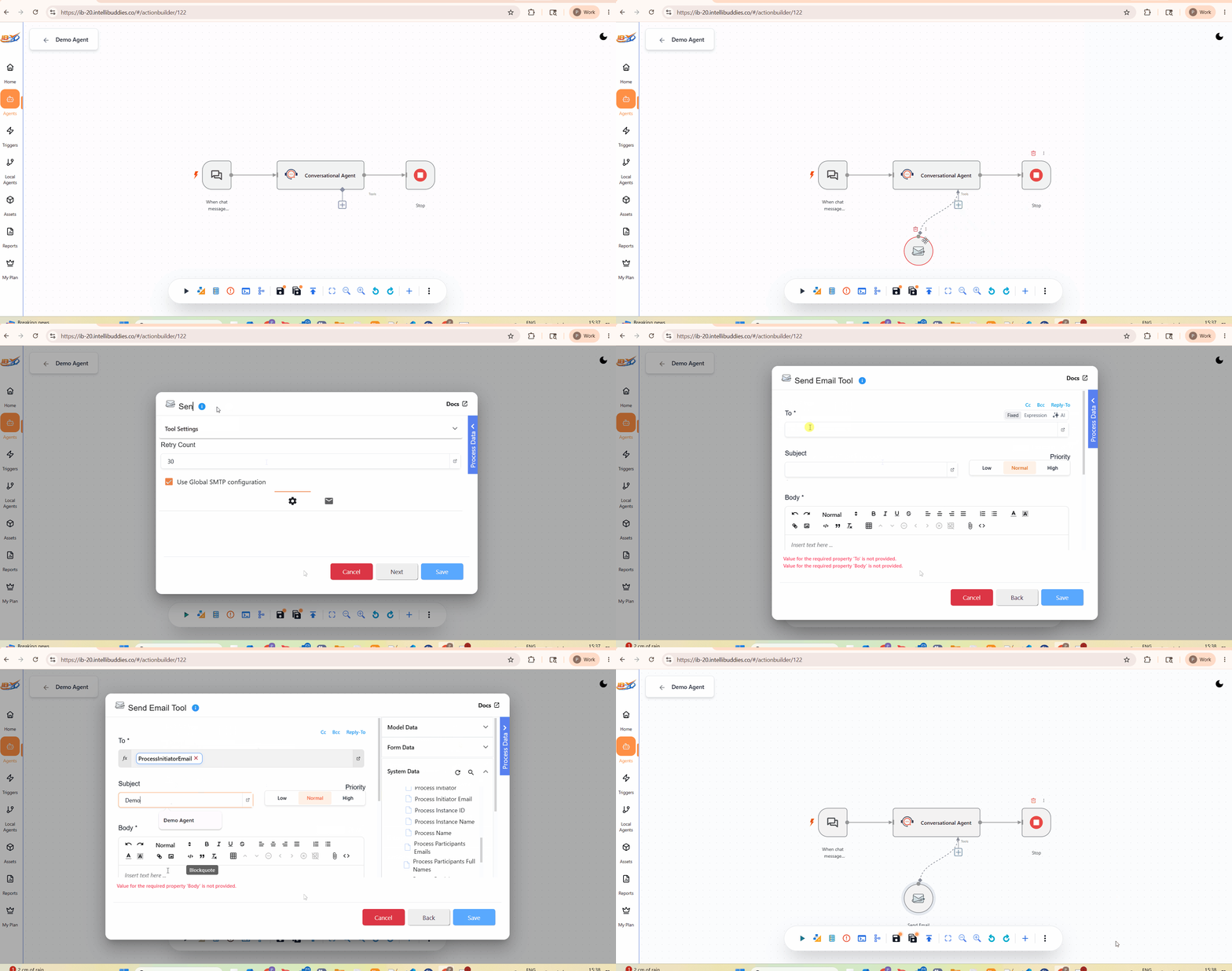
To add a tool:
- Add a Conversational Agent activity to the workflow.
- Select the activity.
- Use the Tools connector.
- Connect one or more activities to the connector.
- Configure the connected activities as required.
Once connected, the activities become available for tool execution during conversations.
Supported Tool Activities
Any activity that performs an action or retrieves information can be used as a tool.
Examples include:
- HTTP Request
- Database Activities
- Email Activities
- File Activities
- AI Activities
- Integration Activities
- ERP Integrations
- CRM Integrations
- Custom Activities
The specific tool set available to the agent depends entirely on the activities connected through the Tools connector.
Tool Selection
When multiple tools are connected, the Conversational Agent determines which tool to invoke based on:
- User request
- Conversation context
- Agent instructions
- Tool descriptions
- Available inputs
The AI model automatically decides whether a tool is required and which tool is most appropriate for the requested operation.
Returning Results
After a tool completes execution, its outputs are returned to the Conversational Agent.
The agent uses the returned information to generate a response for the user.
Example:
User:
What is the status of ticket 12345?

Agent:
Invokes Ticket Lookup Tool

Tool:
Returns ticket information

Agent:
Ticket 12345 is currently assigned to the Infrastructure Team and is in progress.
Building Multi-Step Tools
Some business operations require multiple activities to complete.
In these scenarios, it is recommended to encapsulate the logic inside a workflow and expose the workflow as a single tool.
This approach simplifies tool management and keeps the Conversational Agent workflow easier to maintain.
Typical examples include:
- Customer onboarding
- Invoice processing
- Employee provisioning
- Order fulfillment
- Approval workflows
Using Sub Workflows as Tools
A common approach for implementing complex tools is to use a Sub Workflow.
The Sub Workflow contains all activities required to perform the business operation, while the parent conversational workflow exposes the functionality through a single tool connection.
Typical structure:
Conversational Agent
        │
        ▼
Call Sub Workflow
        │
        ▼
Sub Workflow
        │
        ├── Activity A
        ├── Activity B
        ├── Activity C
        └── Activity D
This approach provides:
- Better maintainability
- Reusability
- Simplified Agent workflows
- Easier testing
- Separation of concerns
Designing Effective Tools
When designing tools:
Keep Tools Focused
Each tool should perform a single business function.
Good examples:
- Create Ticket
- Lookup Customer
- Retrieve Invoice
- Send Email
Avoid creating tools with multiple unrelated responsibilities.
Return Meaningful Results
Tool outputs should contain the information required for the agent to generate a useful response.
Well-structured outputs improve response quality and reduce ambiguity.
Handle Errors Gracefully
Tools should return meaningful error information whenever possible.
This allows the agent to provide useful feedback to users when an operation cannot be completed.
Use Sub Workflows for Complex Logic
If a business process requires multiple activities, approvals, integrations, or branching logic, encapsulate the implementation inside a Sub Workflow and expose it through a Call Sub Workflow activity.
This keeps conversational workflows simple and easier to understand.
Example Scenarios
Customer Support Agent
Available tools:
- Create Ticket
- Get Ticket Status
- Escalate Ticket
HR Assistant
Available tools:
- Submit Leave Request
- Check Leave Balance
- Retrieve Employee Information
Finance Assistant
Available tools:
- Create Invoice
- Retrieve Invoice
- Check Payment Status
Best Practices
- Connect only the tools required by the agent.
- Use descriptive activity names.
- Keep tool responsibilities focused.
- Prefer Sub Workflows for complex business processes.
- Validate tool outputs before using them in downstream operations.
- Test tool execution paths thoroughly.
- Limit access to sensitive operations where appropriate.
Related
- Building a Conversational Agent
- Conversational Agent Activity
- Knowledge Grounding
- Call Sub Workflow Activity