Building a Conversational Agent
Overview
In IB-X, a Conversational Agent is implemented as a standard Agent workflow.
Unlike platforms that provide separate chatbot or assistant artifacts, IB-X uses the same Agent model for conversational, automation, and AI-driven workloads. A conversational experience is created by combining a conversational trigger with the Conversational Agent activity and any additional workflow activities required to perform business operations.
This approach enables conversational experiences to seamlessly integrate with workflow automation, enterprise systems, approvals, and human-in-the-loop processes.
Creating an Agent
To create a new Agent:
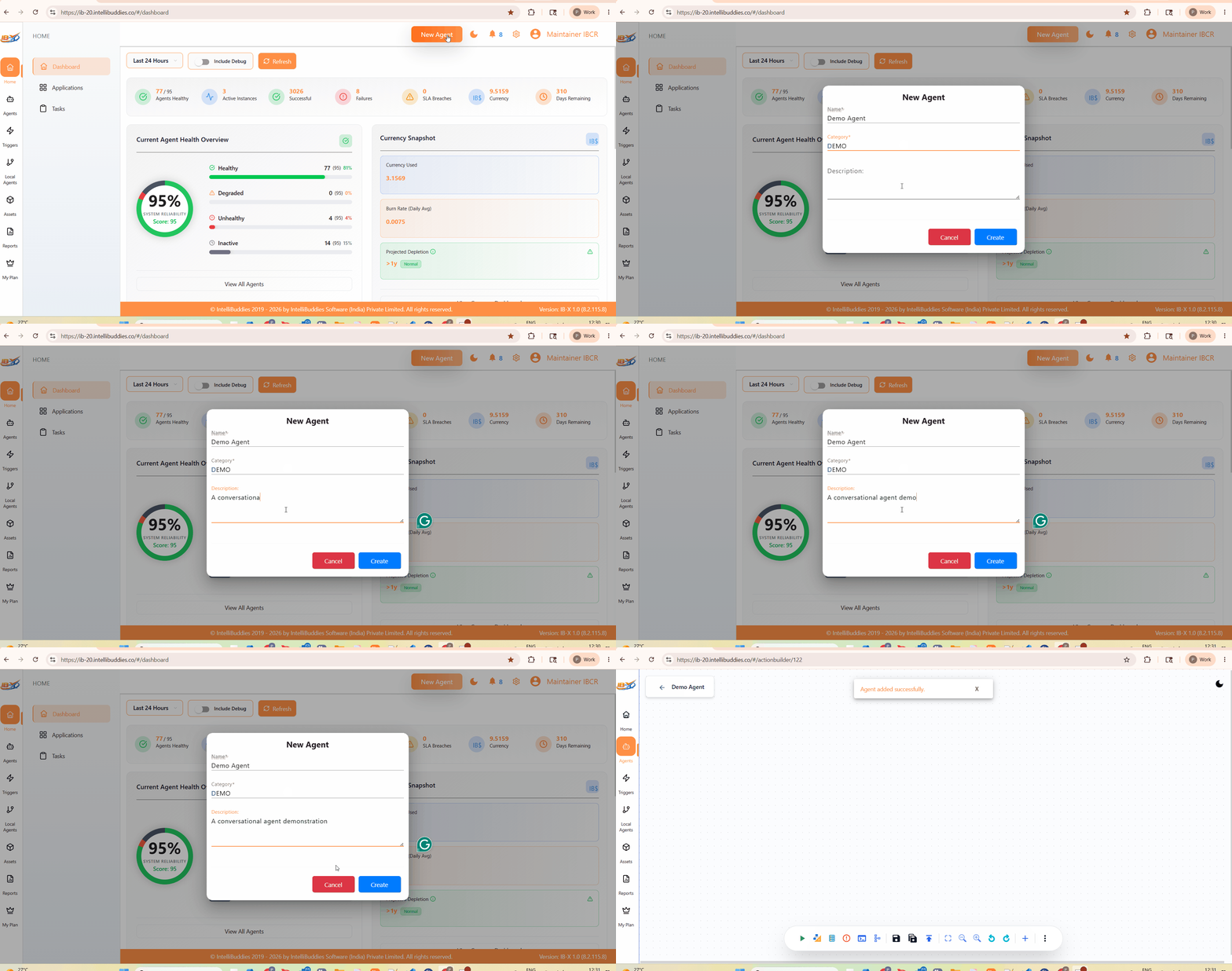
- Open AI Command Center.
- Click New Agent.
- Enter the Agent details.
- Click Create.
The Agent Builder opens with a blank workflow canvas.
Designing the Workflow
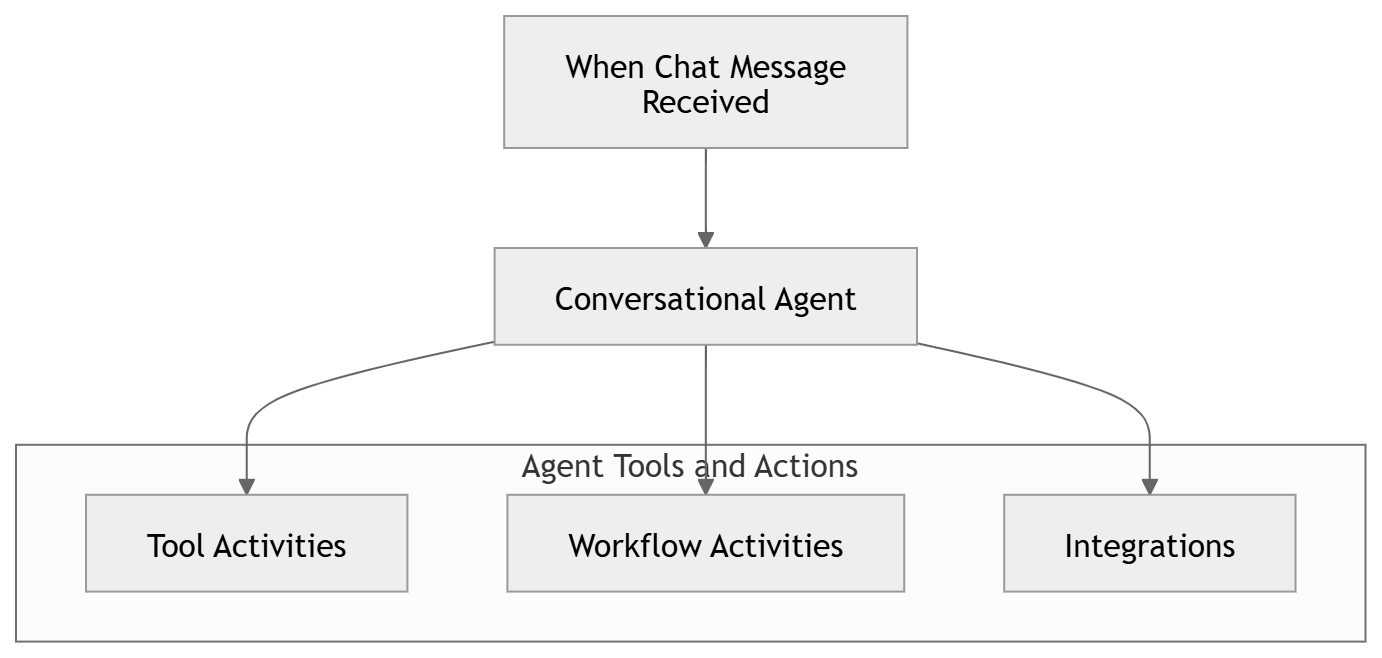
A Conversational Agent workflow typically consists of:
- A conversational trigger activity.
- A Conversational Agent activity.
- Optional tool and workflow activities.
- Optional response, logging, notification, or integration activities.
Typical workflow structure:
Adding a Conversational Trigger
Every conversational workflow begins with a conversational trigger.
The trigger is responsible for:
- Receiving incoming conversation requests
- Creating or resuming conversation sessions
- Initializing conversation context
- Launching workflow execution
IB-X supports the following conversational triggers:
- Web Chat Trigger
- WhatsApp Trigger with the Message Received event
- Phone Call Trigger for incoming telephone calls
Choose the trigger for the channel your users will use and configure its required connection. For channel-specific guidance, see Supported Trigger Activities.
Add the trigger activity to the workflow canvas from the Triggers category.

Configuring the Conversational Experience
The conversational experience is configured through the trigger activity.
The trigger provides configuration options that control:
- Agent identity
- Welcome experience
- Greeting behavior
- Chat capabilities
- Voice capabilities
- File attachments
- Conversation downloads
- Speech services
- User interface appearance
The configuration is organized into the following sections:
- AI Persona
- Welcome
- Greeting
- Features
- Voice
- Transcriber
These settings determine how users interact with the conversational experience across supported channels.
For detailed information, see: Web Chat Trigger
Adding the Conversational Agent Activity
After adding the conversational trigger, add the Conversational Agent activity from the AI category.
The Conversational Agent activity is responsible for:
- Understanding user requests
- Processing conversational context
- Generating responses
- Maintaining conversation memory
- Invoking tools and actions
- Interacting with enterprise knowledge
The activity acts as the intelligence layer of the conversational workflow.

Configuring Agent Behavior
Agent behavior is primarily controlled through instructions configured in the Conversational Agent activity.
Instructions can be used to define:
- Agent responsibilities
- Communication style
- Response formatting
- Business rules
- Tool usage guidance
- Compliance requirements
- Safety restrictions
Well-defined instructions help ensure consistent and predictable agent behavior.
Configure idle messages and conversation timeouts separately under Advanced > Inactivity & Session Settings in the Conversational Agent activity. See Inactivity & Session Settings for channel support, prompt behavior, and a timing example.
For detailed guidance, see:
Selecting an AI Model
The Conversational Agent requires an AI model to understand requests, generate responses, reason over available context, and determine when tools or actions should be invoked.
AI models may be configured using:
- Customer-managed AI provider connections (Bring Your Own Key)
- Integration Gateway managed AI services
The selected model influences:
- Response quality
- Reasoning capabilities
- Knowledge-grounded responses
- Tool and action invocation
- Latency and performance
- Supported modalities and features
Different models may provide different capabilities, performance characteristics, and cost profiles. Organizations should select a model that aligns with their business requirements and conversational objectives.
The AI model is configured through the Conversational Agent activity.
The available configuration options depend on the selected AI provider and model. These settings allow organizations to select the model that best aligns with their functional, performance, and cost requirements.
For detailed information about configuring AI models, see:
Configuring Memory
Conversation Memory enables the Conversational Agent to maintain context across multiple interactions.
Memory settings can be used to:
- Preserve conversation history
- Maintain conversational continuity
- Manage token consumption
- Support long-running conversations
- Automatically summarize older conversation context
Proper memory configuration helps balance conversation quality, context retention, and AI model utilization.
Memory is configured through the Conversational Agent activity.
Available settings allow administrators to control conversation history retention, context summarization behavior, token usage, and memory optimization strategies.
For detailed information, see:
Adding Tools and Actions
Conversational Agents can invoke tools to perform actions in addition to answering questions.
Tools allow the agent to interact with business systems, execute automations, retrieve information, and perform work on behalf of users.
Tools may invoke:
- Business Process Automation (BPA) workflows
- Robotic Process Automation (RPA) automations
- Enterprise integrations
- External services and APIs
- Custom business actions
Typical examples include:
- Creating tickets
- Retrieving customer information
- Sending emails
- Updating records
- Generating reports
- Processing approvals
- Executing business workflows
- Launching automation processes
Tool execution enables Conversational Agents to move beyond information retrieval and actively participate in business operations and enterprise automation.
Tools are configured through the Conversational Agent activity.
For detailed information about configuring tools and actions, see:
Connecting Enterprise Knowledge
Conversational Agents can retrieve information from enterprise knowledge sources through the Knowledge Ingestion Service.
Knowledge grounding enables the agent to answer questions using:
- Product documentation
- Websites
- Knowledge bases
- Policies and procedures
- Internal business content
Grounded responses help improve response accuracy and reduce unsupported or incomplete answers.
Knowledge is made available to the Conversational Agent through the Knowledge Base Tool, which retrieves relevant information from configured knowledge sources during conversations.
Knowledge sources are configured and managed through the Knowledge Ingestion Service, while knowledge access is enabled through the Conversational Agent activity.
For more information, see:
Using Enterprise Knowledge in Conversations
Ingesting knowledge sources makes enterprise content available to the Agent, but the Conversational Agent must still be configured to retrieve and use that knowledge during conversations.
To enable knowledge retrieval:
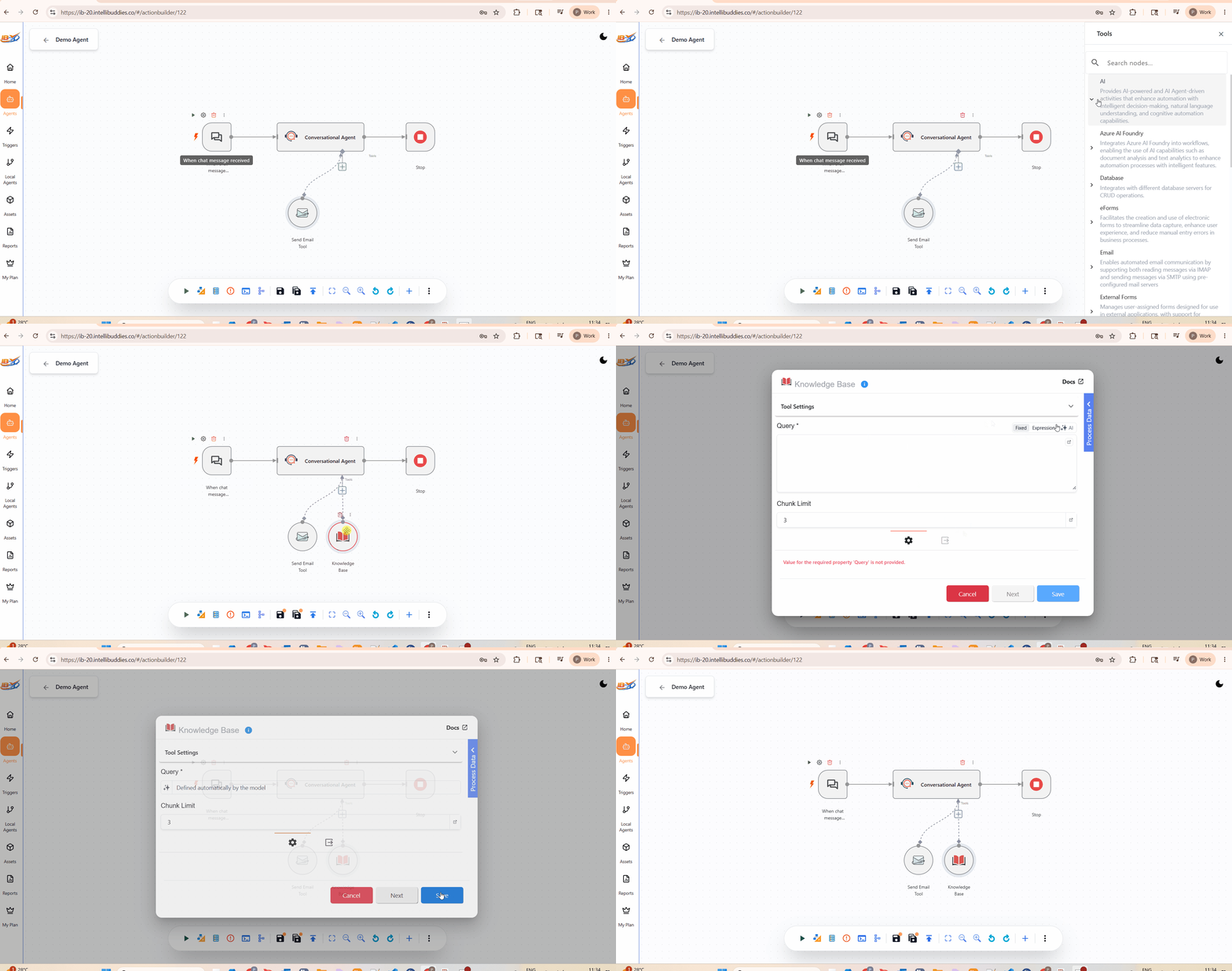
- Add a Knowledge Base activity from the AI category.
- Connect the activity to the Tools connector of the Conversational Agent activity.
- Configure the Query property to be generated by the AI model.
- Save the configuration.
When configured in this manner, the Conversational Agent can dynamically invoke the Knowledge Base activity during conversations and retrieve relevant information from the Agent's ingested knowledge sources.
The retrieved content is then used by the Conversational Agent when generating responses.
Query Configuration
The Query property should be configured for AI-generated input.
This allows the Conversational Agent to automatically formulate knowledge retrieval queries based on the user's request and conversation context.
Without this configuration, the Knowledge Base activity cannot be effectively used as a conversational retrieval tool.
Testing the Agent
IB-X provides built-in testing capabilities that allow you to validate conversational behavior directly from the Agent Builder.
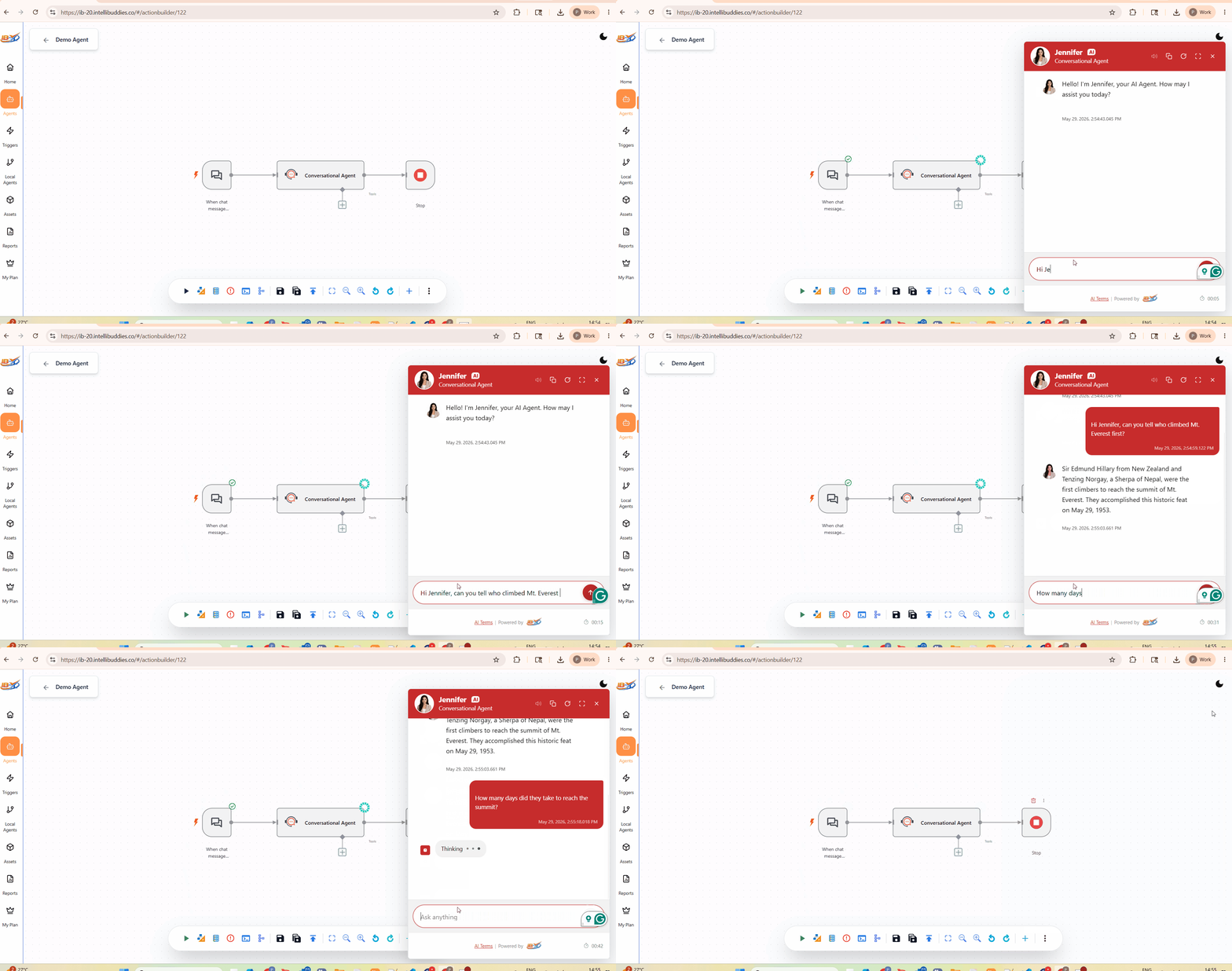
To test an Agent:
- Open the Agent in the Agent Builder.
- Click Run from the bottom of the designer canvas.
- The conversational interface opens using the currently configured chat experience.
- Interact with the Agent using text chat or voice, depending on the configured capabilities.
The testing experience uses the configured conversational settings, including:
- AI Persona
- Welcome configuration
- Greeting behavior
- Knowledge grounding
- Tool execution
- Voice configuration
Reviewing Execution History
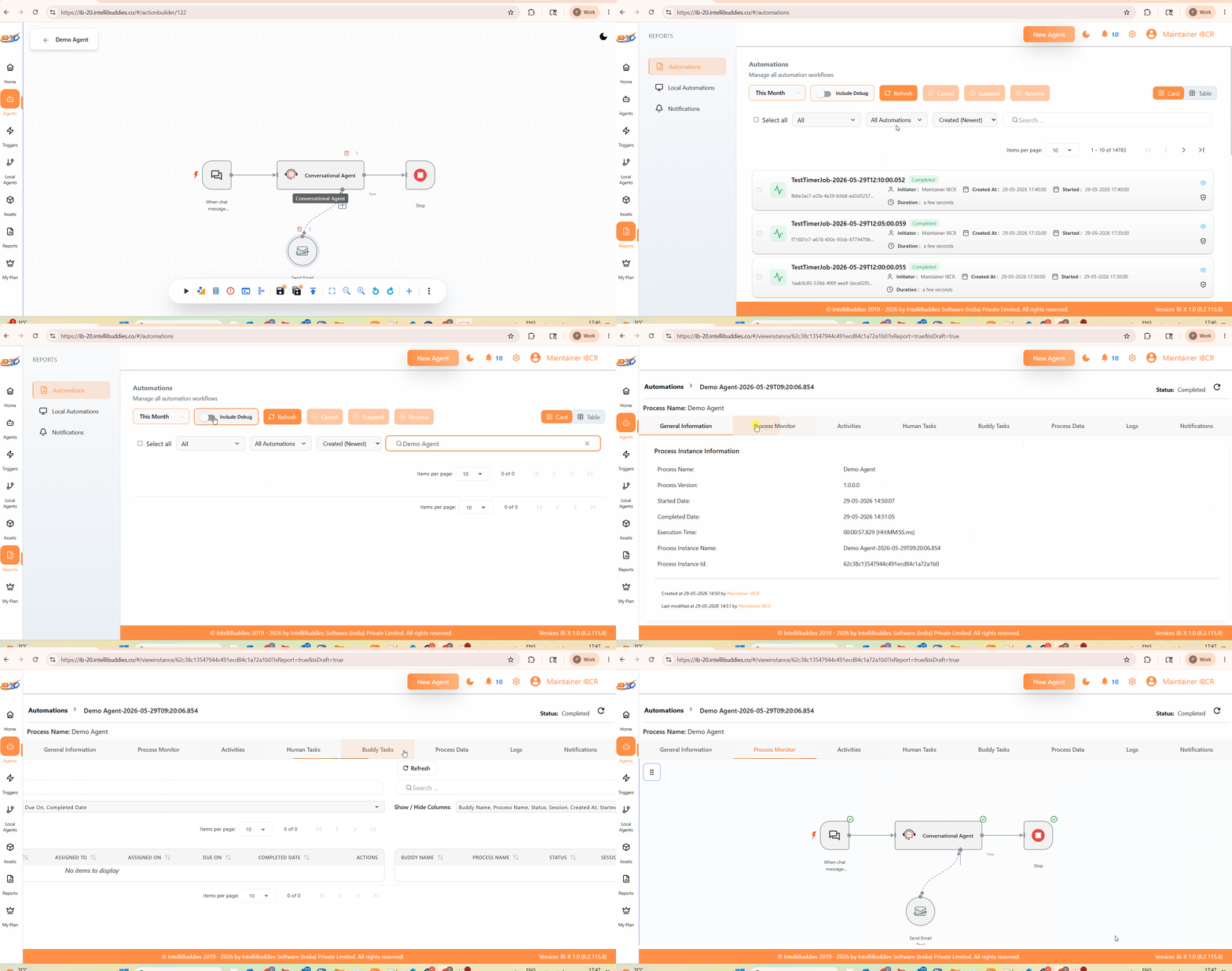
All Conversational Agent executions are tracked in the same way as any other Agent execution within IB-X.
Execution details can be reviewed from:
- Reports → Automation
This view provides visibility into:
- Agent execution status
- Workflow execution details
- Activity execution history
- Tool execution
- Errors and troubleshooting information
- Execution performance metrics
When troubleshooting a Conversational Agent, you can also enable and review Debug Runs from the Automation page to obtain additional execution details.
Reviewing Conversation History
In addition to workflow execution history, Conversational Agents maintain conversation history.
Conversation history allows administrators to review the actual interactions between users and the Agent.
To view conversation history:
- Navigate to Agents.
- Locate the required Agent.
- Click the Chat History icon.
Conversation history provides visibility into:
- User messages
- Agent responses
- Conversation flow
- User interactions
- Historical chat sessions

Recommended Validation
Before publishing an Agent, validate:
- Conversational behavior
- Knowledge retrieval accuracy
- Tool execution scenarios
- Voice interactions
- Error handling paths
- Response quality and consistency
Testing and reviewing execution history helps ensure that the Agent behaves as expected before being exposed to end users.
Publishing and Sharing
Once the workflow is complete, the Agent can be published.
Depending on the configured trigger and channel capabilities, users can interact with the Agent through supported conversational interfaces.
Testing and production URLs are available through the trigger configuration.
The conversational experience can also be embedded into external applications and websites when supported by the selected channel.
Best Practices
- Keep instructions focused and specific.
- Connect only the tools required by the Agent.
- Ground responses using trusted enterprise knowledge.
- Configure conversation memory appropriately.
- Validate tool execution scenarios thoroughly.
- Test both normal and exceptional conversation paths.
- Continuously monitor and improve the conversational experience after deployment.
Next Steps
After building your first Conversational Agent, explore:
- Architecture
- AI Persona
- Knowledge Grounding
- Tools and Actions
- Voice Capabilities
- Operations