Vobiz Connection
Overview
The Vobiz connection stores the account credentials used by IB-X to connect to the Vobiz telephony provider. Select this connection in Phone Call Trigger for incoming conversations or Make Phone Call for outbound calls.
The connection contains the Auth ID and Auth Token. The incoming phone number, webhook URLs, greeting, and ringing settings are configured in the trigger.
Before you begin
- Create a Vobiz account and obtain its Auth ID and Auth Token. Follow Configure a Vobiz Account for account registration and credential retrieval.
- Ensure you have permission to create connections in IB-X. See Connections.
- For incoming calls, prepare a voice-enabled Vobiz phone number and configure its application routing as described in Phone Call Trigger.
Create a Vobiz connection
- In the AI Command Center, open Assets → Connections.
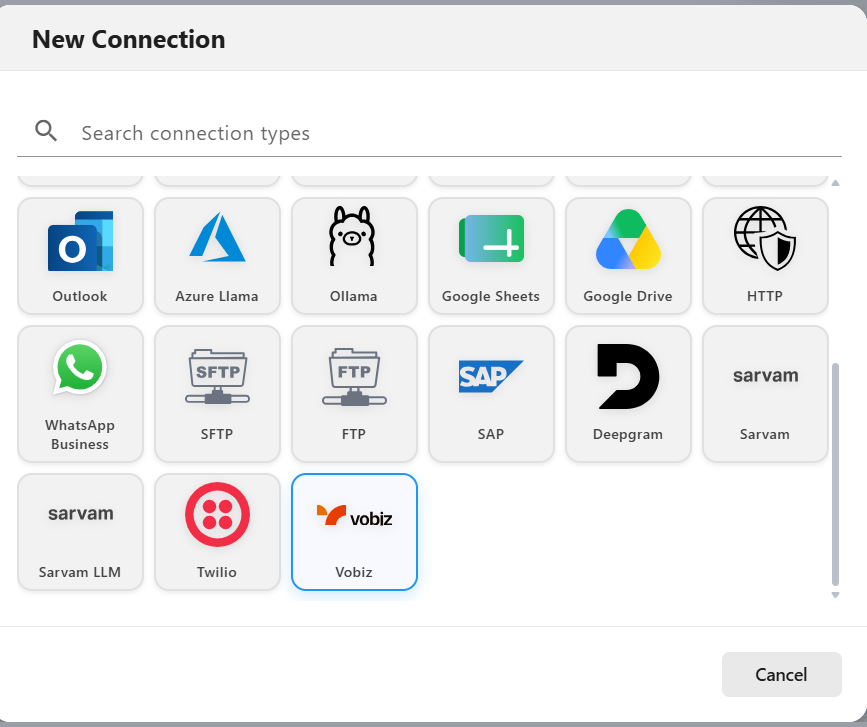
- Click Add Connection to open New Connection.
- Search for Vobiz using Search connection types, or locate the Vobiz tile in the list.
- Select Vobiz to open New Vobiz Connection.
- Enter the connection properties described below.
- Click Test Connection and review the result. If it fails, correct the credentials or connectivity issue and test again.
- Click Add to save the connection.
Connection properties
| Property | Required | Description |
|---|---|---|
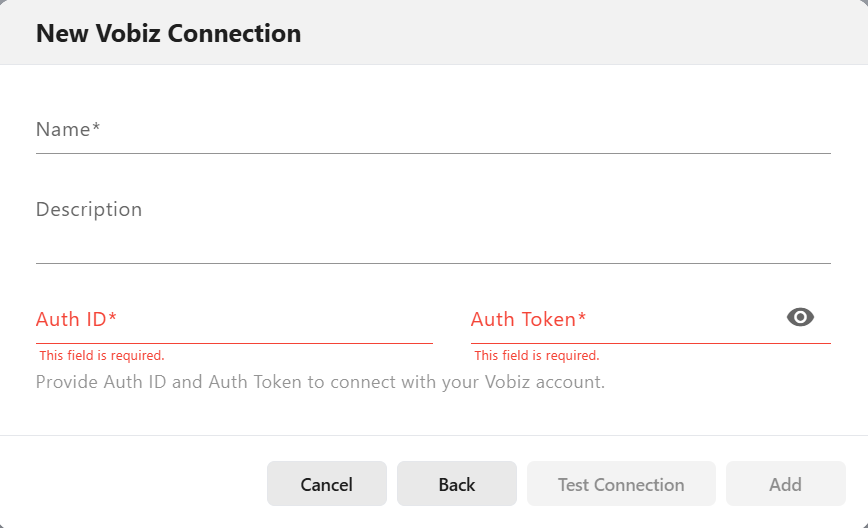
| Name | Yes | A descriptive name used to identify and select the connection in the designer, such as Vobiz Support Line. |
| Description | No | Explain the connection's purpose or account ownership to help other designers select it. |
| Auth ID | Yes | The Vobiz account's API identifier. Copy it from the Vobiz dashboard into this field. |
| Auth Token | Yes | The API secret associated with that Auth ID. Copy the complete token from the same Vobiz account. Use the eye icon to reveal or hide the entered value when checking it. |
The required fields are marked with an asterisk. The screenshot shows validation messages for empty Auth ID and Auth Token fields. Supply the required values before testing or adding the connection.
Use Back to return to connection-type selection, or Cancel to close the creation dialog.
Test and use the connection
Test Connection checks the supplied connection configuration. A successful test does not verify the complete incoming-call workflow: the phone number and its Answer URL must also be configured correctly, and the agent's voice and transcriber settings must work.
After saving:
- Open Phone Call Trigger in the designer.
- Select Vobiz as the Telephony Provider.
- Select the saved connection in Connection and specify the Vobiz phone number.
- Complete the trigger configuration and provider-side routing, then make a test call. See the Phone Call Trigger walkthrough.
You can also use the + button beside the trigger's Connection field to add a connection while designing the workflow.
Troubleshooting
| Issue | What to check |
|---|---|
| Required-field validation is displayed. | Supply Name, Auth ID, and Auth Token. |
| Connection test fails. | Copy both credentials again from the intended Vobiz account. Check for extra spaces, incomplete values, or a token that was replaced. Check connectivity to Vobiz and review the test error. |
| The connection works, but an incoming call does not reach the agent. | Verify the phone number belongs to the configured account, is assigned to the correct Vobiz XML Application, and that the application's Answer URL points to the intended trigger endpoint. |
| A previously working connection fails after token rotation. | Update the saved connection with the current Auth Token, test it again, and verify the workflows that use it. |
Maintain the connection
Use Connections to edit and audit the saved connection. Keep its description current so designers can identify the correct account.
Treat Auth Token as a secret. Do not include it in workflow instructions, documentation, screenshots, or logs. If the token is replaced in Vobiz, update the IB-X connection before using it again. See Credential maintenance.
Related pages
- Configure a Vobiz Account — Register, find API credentials, and prepare a phone number.
- Phone Call Trigger — Configure the incoming call workflow and webhooks.
- Make Phone Call — Configure originating and destination numbers for outbound calls.
- Conversational Agent — Configure the model, voice, and speech recognition.