Email Trigger Management
Description
The Email Trigger Management page displays all published email triggers associated with BPA workflows.
Use this page to:
- View registered email triggers
- Monitor trigger status
- Enable or turn off triggers without modifying the workflow
- Open the Agent Builder to update trigger configuration
- Review trigger execution configuration details
This page provides centralized management for all deployed email-based workflow triggers within the AI Command Center.
How to Access
From the AI Command Center, navigate to:
Triggers → Email Triggers
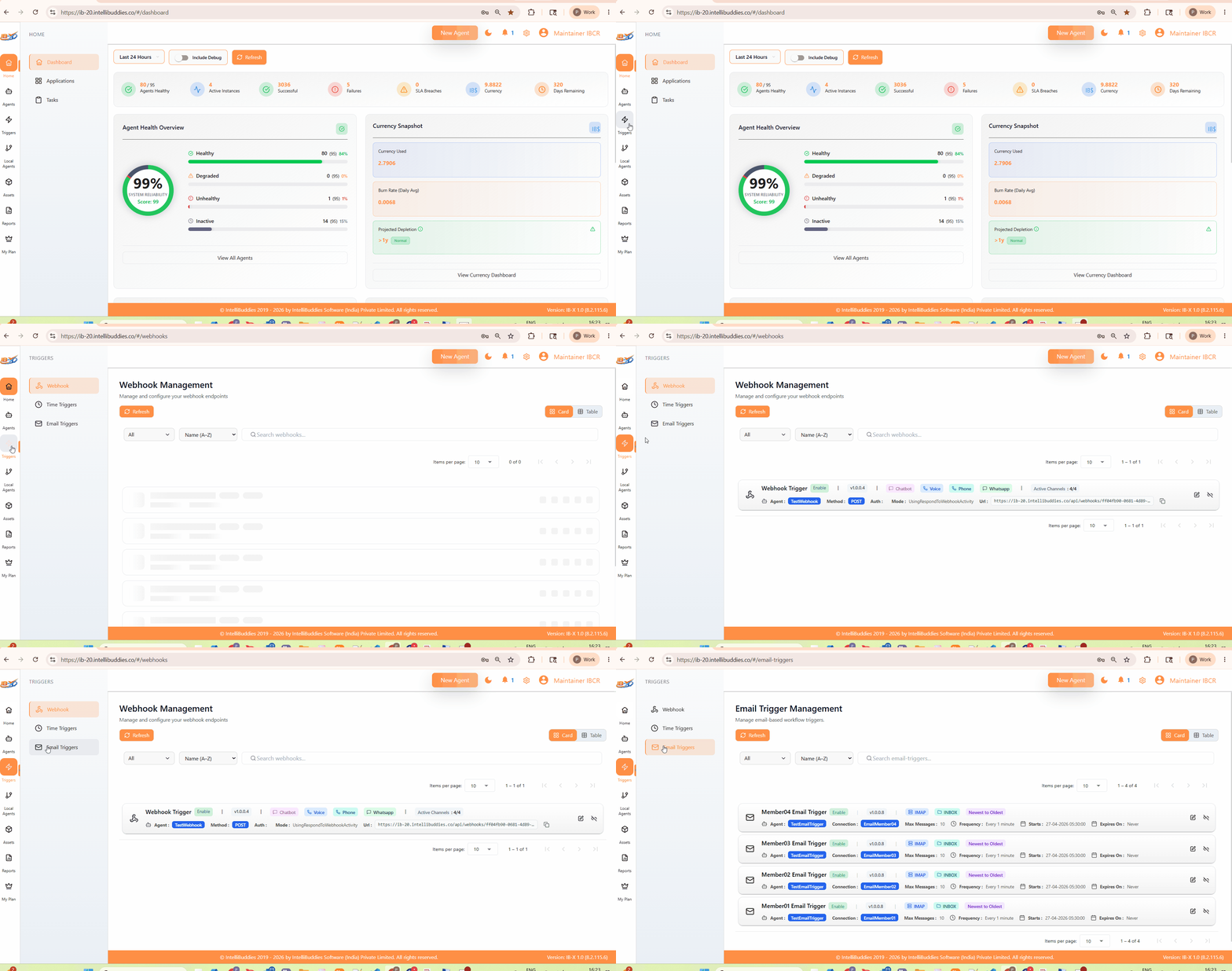
Controls and Filters
The Email Trigger Management page provides multiple controls for searching, filtering, and managing triggers.
Refresh
Reloads the email trigger list and retrieves the latest trigger configuration and status information.
Filters and Sorting
Use the available filter and sorting options to narrow down the displayed triggers.
Supported operations may include:
- Filter by trigger status
- Sort alphabetically
- Sort by creation or update order
- Filter enabled or disabled triggers
Search
Use the search box to locate email triggers by name quickly.
View Toggle
Switch between the available display modes based on your preference.
| Option | Description |
|---|---|
| Card View | Displays triggers using a card-based visual layout. |
| Table View | Displays triggers using a structured tabular layout. |
Trigger Information
Only published email triggers appear in the Email Trigger Management page.
Each trigger entry may display the following information.
| Property | Description |
|---|---|
| Name | Represents the name of the trigger and associated workflow process. |
| Status | Indicates whether the trigger is currently enabled or disabled. |
| Version | Represents the published version of the workflow associated with the trigger. |
| Protocol | Displays the email protocol or provider used by the configured connection. |
| Folder | Displays the mailbox folder being monitored for incoming emails. |
| Sort Order | Displays the configured email processing sequence. |
| Connection | Displays the configured email connection associated with the trigger. |
| Max Messages | Displays the maximum number of emails processed during a trigger execution cycle. |
| Frequency | Displays how frequently the mailbox is checked for new emails. |
| Starts | Displays the configured trigger activation date and time. |
| Expires On | Displays the configured expiration date and time, if applicable. |
| Actions | Provides management actions such as edit, enable, or disable. |
Enable and Disable Triggers
Disable
Turning off a trigger stops mailbox monitoring for new emails.
While disabled:
- Incoming emails are not processed
- The associated workflow is not triggered
- Existing workflow configuration remains unchanged
Enable
Enabling a trigger resumes mailbox monitoring based on the configured trigger settings.
Once enabled, matching emails automatically trigger workflow execution again.
Republishing the workflow is not required when only turning a trigger on or off.
Edit Trigger Configuration
Use the Edit action to open the workflow in the BPA designer.
The designer automatically focuses the Email Trigger activity, allowing you to modify:
- Email connection settings
- Mail folder configuration
- Polling frequency
- Processing behavior
- Filters and expiration settings
After making changes, publish the workflow again to register the updated trigger configuration.
Notes
- Only published workflows register email triggers.
- Saving or updating a draft workflow does not update the registered trigger configuration.
- Trigger enable or disable operations do not modify the workflow definition.
- Email trigger execution depends on the availability and permissions of the configured email connection.
- Trigger polling frequency may impact monitoring responsiveness and resource usage.
Related
- Email Trigger – Configure email-based workflow triggers in the BPA designer.