Agent Notifications
Overview
Agent Notifications are email notifications generated during Agent Automation execution. They keep users and stakeholders informed about important lifecycle events related to agents and tasks.
These notifications are typically configured by Agent Builders and are triggered by events such as:
- Agent initiation or completion
- Task creation, reassignment, or completion
- Approvals and user actions
- Overdue tasks or reminders
- Agent or task failures
Agent Notifications provide visibility into automation execution, enabling timely action, improved accountability, and effective monitoring of agent workflows.
How to Access
From the AI Command Center, navigate to:
Reports → Notifications
Managing Notifications
The AI Command Center maintains a notification queue to manage all outgoing agent-related email notifications.
You can view and manage these notifications from the Notifications page.
Viewing Notifications
To view agent notifications:
- Open the Notifications page.
- Notifications are displayed in chronological order (from oldest to most recent).
- Click the View column of a notification to open the notification dialog and view its details.
Notification Dialog
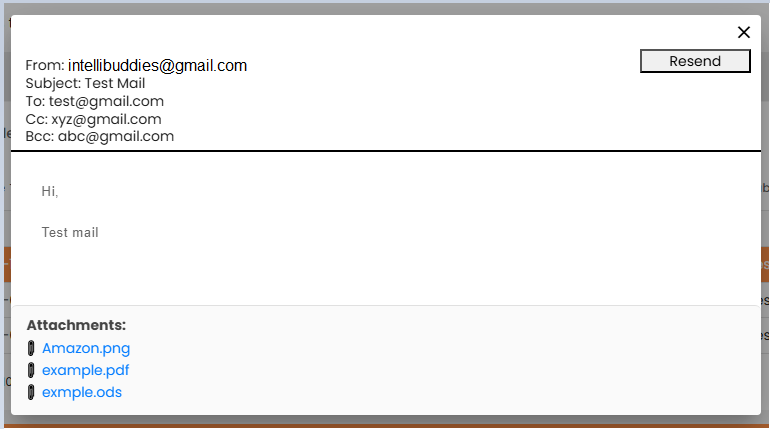
The Notification Dialog displays detailed information for a selected notification.
To open the dialog:
- Open the Notifications page.
- Click the To Address column of the required notification.
The dialog displays:
- The complete email body
- Email headers
- A list of attachments, if available
To download an attachment, click the attachment name.
Notification Statuses
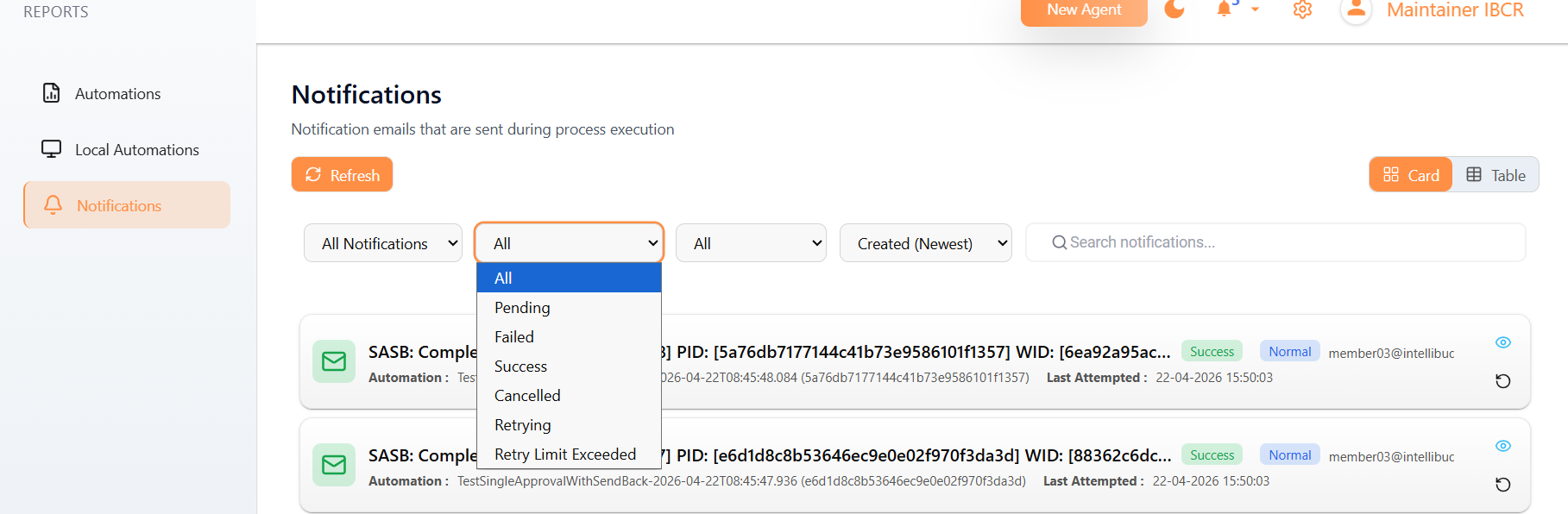
The Notifications page allows you to filter notifications based on their delivery status.
Use the status filter to quickly locate notifications that are pending, successfully delivered, or require attention.
| Status | Description |
|---|---|
| All | Displays all notifications regardless of their current delivery status. |
| Pending | The notification has been queued and is waiting to be processed for delivery. |
| Failed | Delivery failed due to an error, such as SMTP issues or invalid recipient information. |
| Success | The notification was successfully delivered to the recipient. |
| Cancelled | The notification delivery was cancelled before completion. |
| Retrying | The system is currently attempting to resend the notification after a previous failure. |
| Retry Limit Exceeded | The notification could not be delivered after reaching the configured maximum number of retry attempts. |
Resending Failed Notifications
To manually resend a failed notification:
- Open the Notifications page.
- Select the notification to resend.
- Choose Send Now.
The selected notification is immediately queued for delivery.
Supported Views
Use the View dropdown in the top-right corner of the Notifications page to filter the notification list.
These views are available only to users with the Manage All Process Instances permission.
| View | Description |
|---|---|
| All Notifications | Displays all process notifications generated by the AI Command Center. |
| My Notifications | Displays only notifications addressed to the logged-in user. |