Local Automation
Overview
A Automation represents a single execution of a Agent performed by a Buddy.
Automation allow users to run Agent tasks either manually, through triggers, or via APIs.
The AI Command Center provides centralized visibility into automation execution, status, and logs.
Automations can be executed by:
- Assistant Buddy
- Smart Buddy
How to Access
From the AI Command Center, navigate to: Reports → Local Automation
Local Automation Types
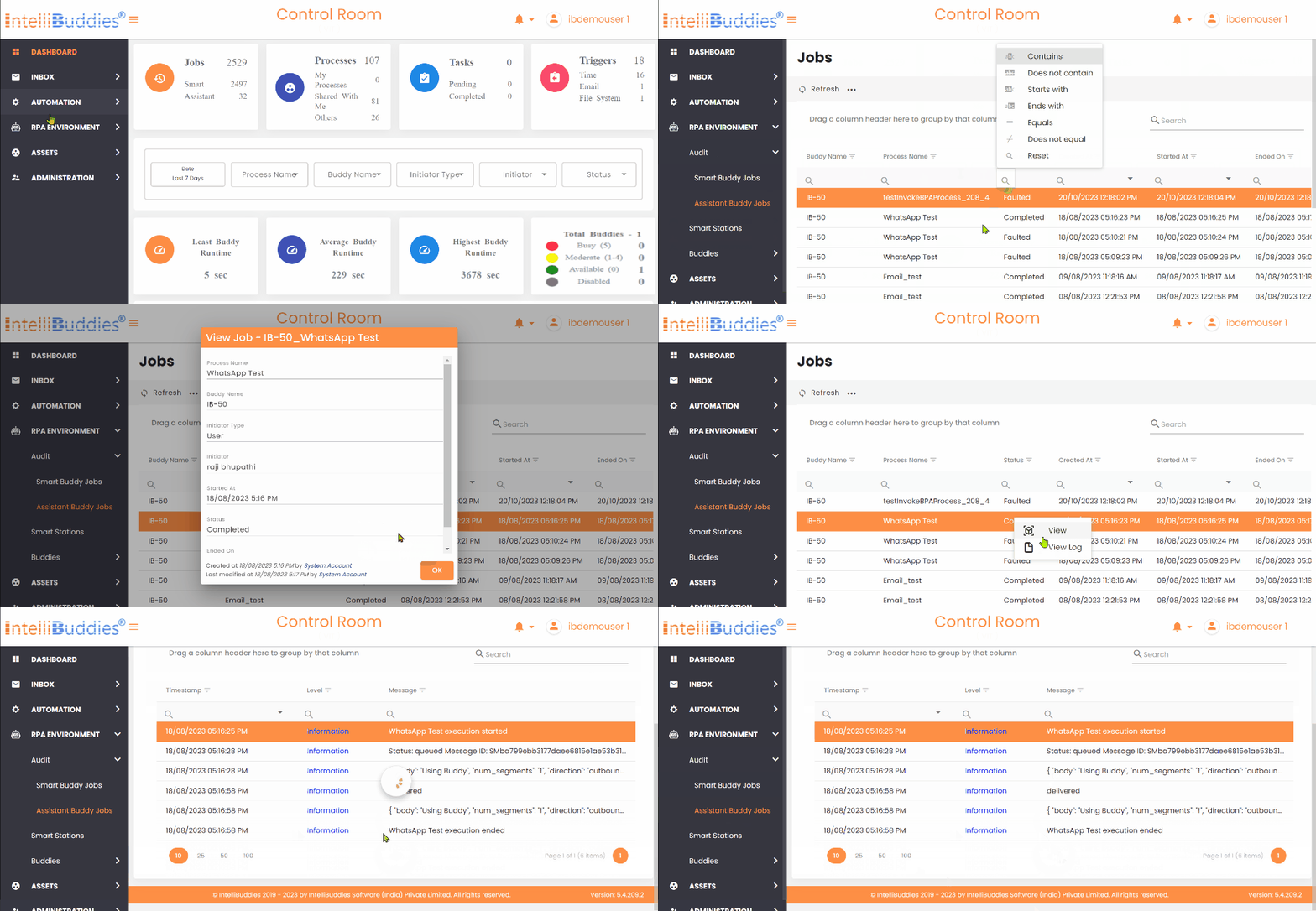
Assistant Buddy
Automations executed by Assistant Buddies can be triggered in the following ways:
- Manually from the Assistant Buddy user interface
- Through configured triggers
Depending on the configuration, execution logs and automation details may be:
- Stored locally in the configured database
- Pushed to the AI Command Center
Smart Buddy
Automations executed by Smart Buddies can be triggered from multiple locations:
- Local Automation page
- Triggers page
- Agents page
- External applications using IntelliBuddies Client APIs.
Local Automation Submission Mechanisms
Smart Buddy automations can be triggered using the following mechanisms.
| Submission Mechanism | Description |
|---|---|
| Manual | Run automation directly from the Local Automation or Agents page. Please refer: Manually Submitting for Execution. |
| Triggers | Automations can run automatically using configured triggers such as Time, Email, or File System triggers. Please refer: Triggers |
| API | External systems can trigger automation using IntelliBuddies Client APIs. |
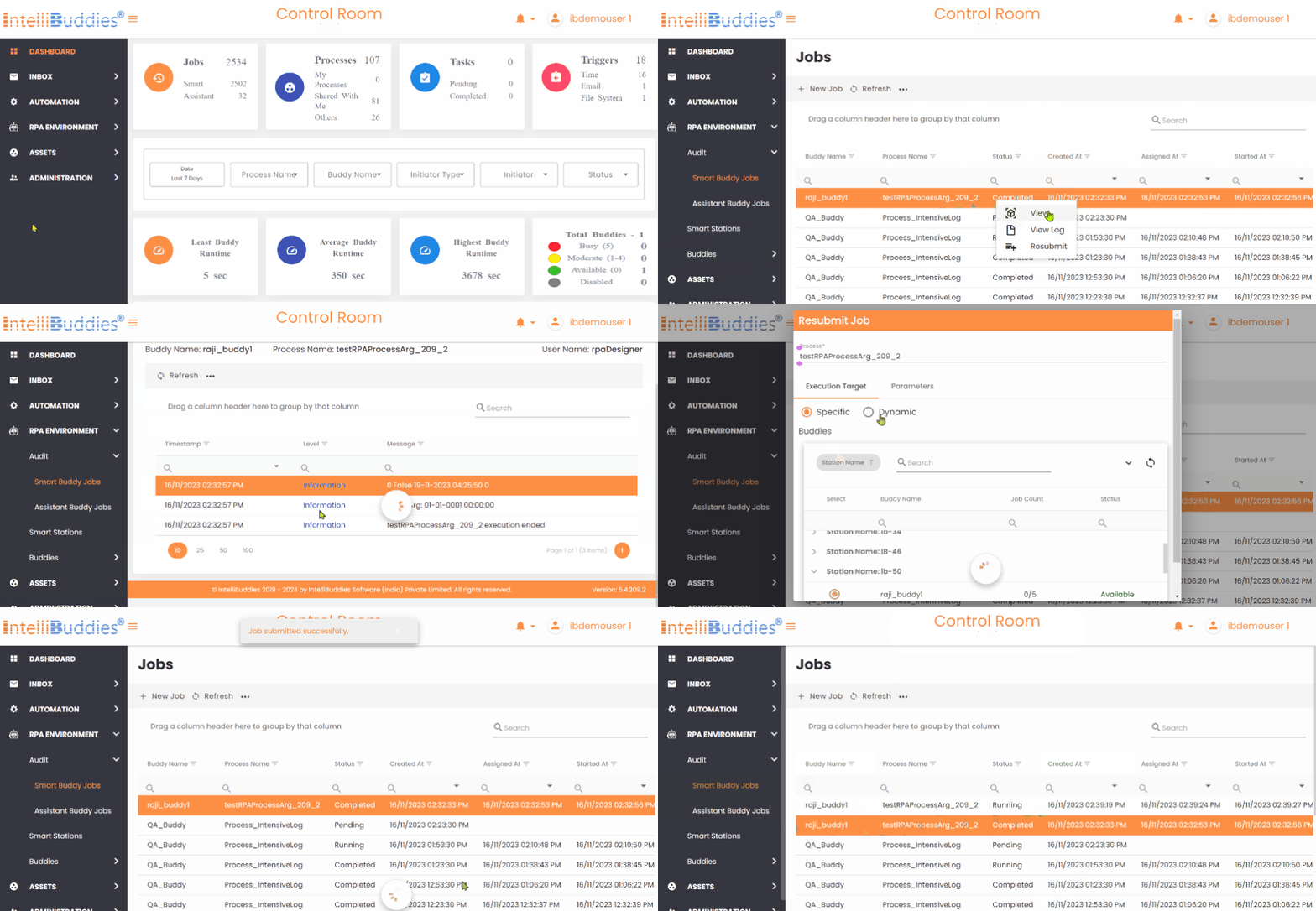
Running Local Automation Manually
You can manually run automation from the Local Automation page or the Local Agents page.
From the Local Automation Page
- Open the Local Automation page.
- Click New Automation from the toolbar.
- Select the Agent to execute.
- Select the Smart Buddy that should run the automation.
Selecting Dynamic allows any available Smart Buddy to pick up the automation for execution.
- Provide required input parameters in the Parameters tab.
- Click Run.
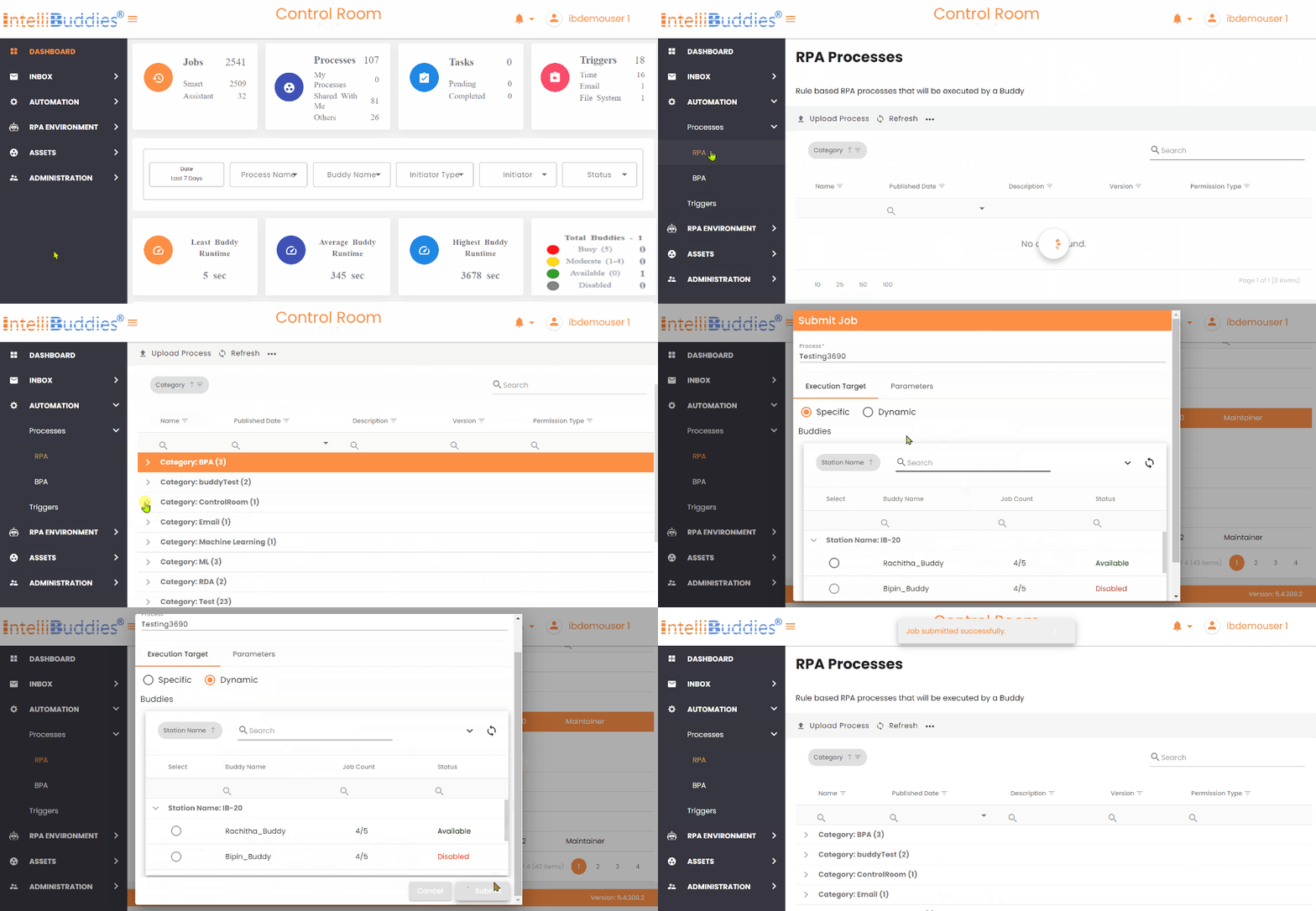
From Local Agents Page
- Open the Local Agents page.
- Select the desired agent.
- Select Run Automation.
- Choose the Smart Buddy.
Selecting Dynamic allows any available Smart Buddy to pick up the automation for execution.
- Provide input parameters in the Parameters tab.
- Click Run.
Viewing Local Automation Logs
The automations our buddies execute will log the required information for auditing purposes. By default, the IntelliBuddies platform logs certain needed information for every other Automation. Users can extend the logging capabilities by pushing logs through WriteLog activity.
IntelliBuddies supports the severity levels while logging a message. Users can also specify the severity level the Automation needs to execute. Based on the severity level of the Automation, only those log messages whose severity level is higher or equal to the automation severity level would be logged and displayed.
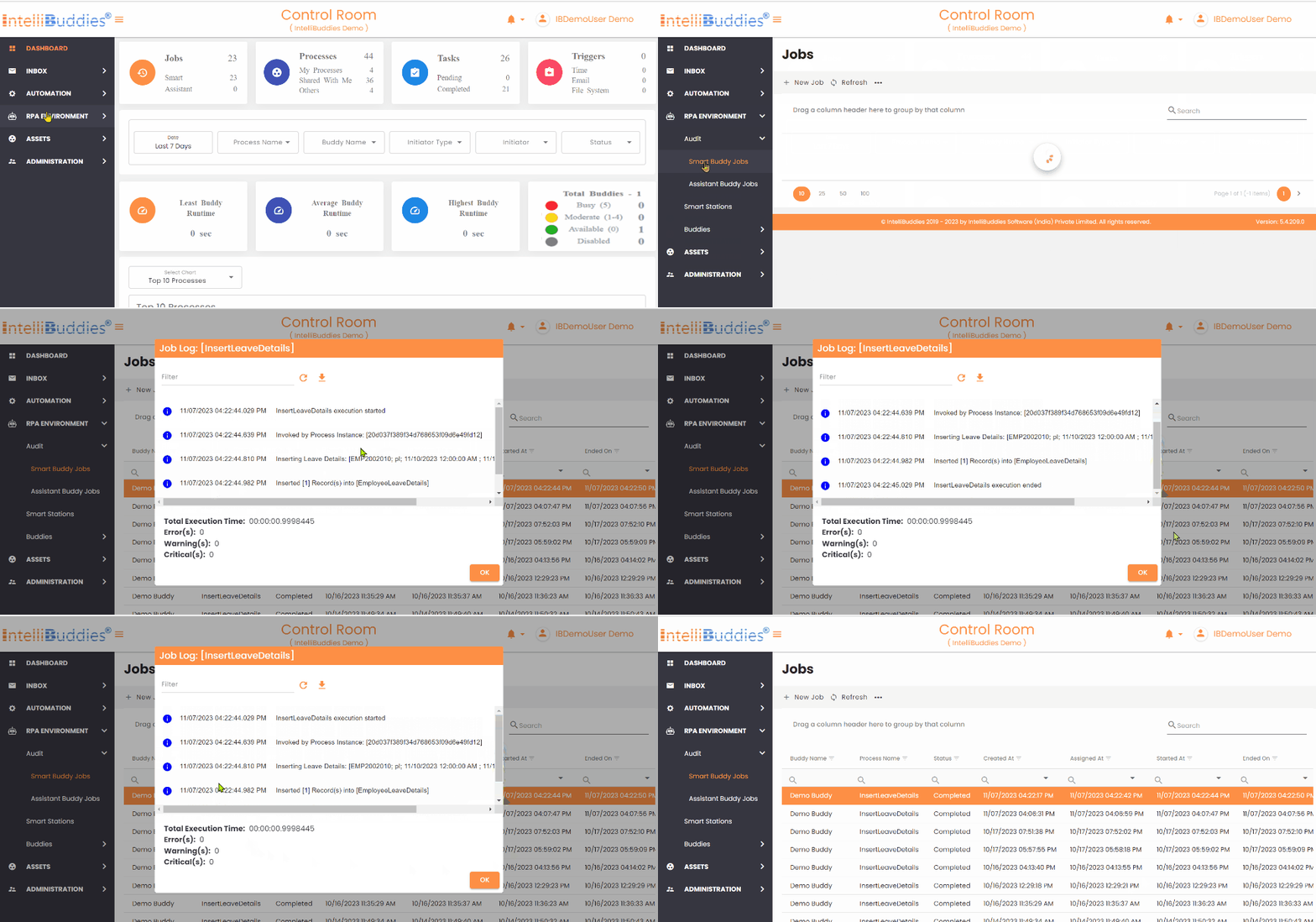
Pop-Up View
It will show the Automation log more compactly and contextually and provide Agent execution statistics. You can double-click on the Automation to view the log in this mode.
Logs will be automatically added to this dialog as the automation progresses without requiring a manual refresh.
Cancel Automation
To cancel a automation, go to the Local Automations page, select the Automation, and click on Cancel. To cancel multiple automations in bulk, choose the automations by checking the checkboxes in those automation rows and clicking the Cancel button in the toolbar.
-
By canceling the Pending Automation, its status is set to Canceled
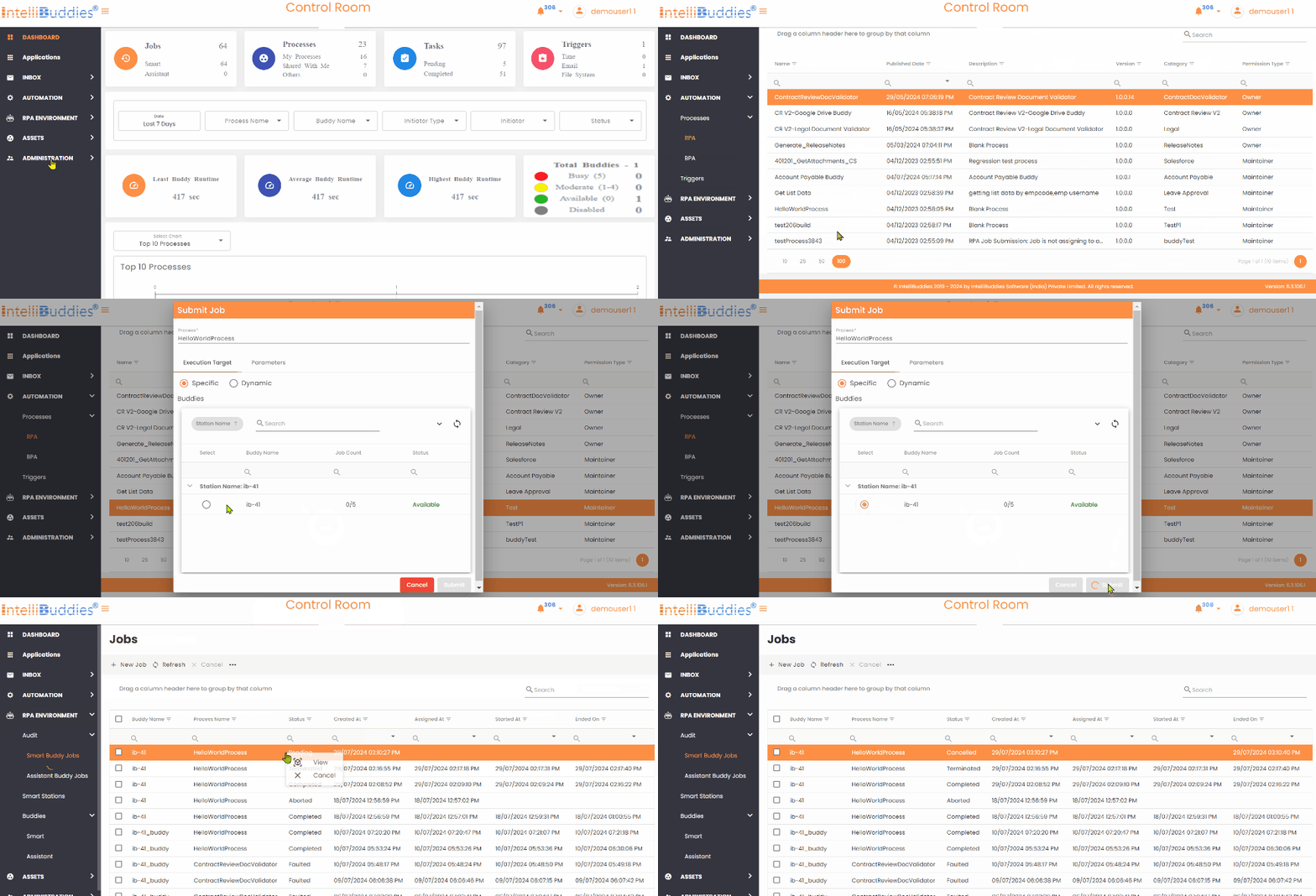
-
By canceling the Running Automation, its status is set to Terminated
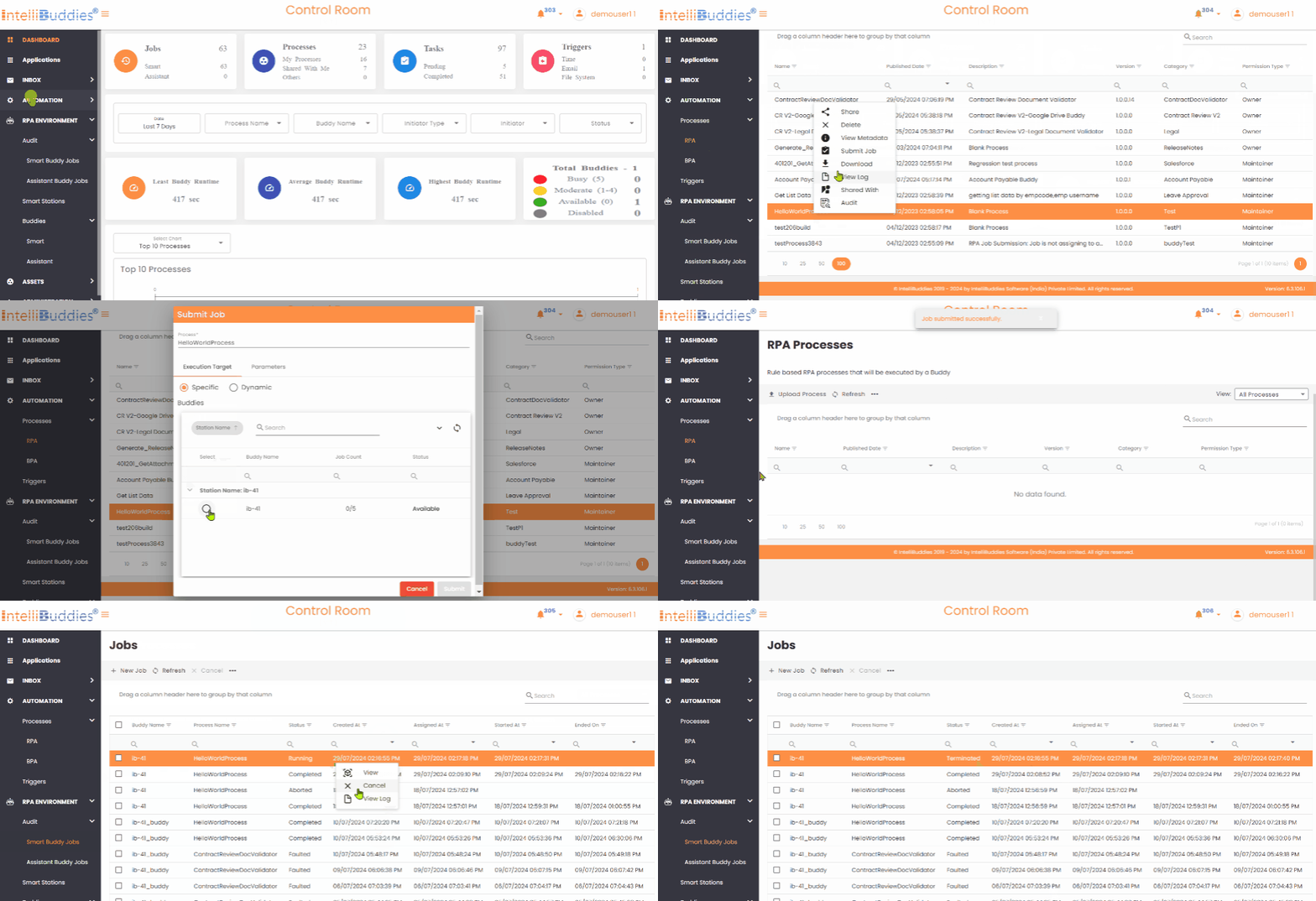
Local Automation Status
Each Local Automation progresses through different lifecycle states during execution.
| Status | Description |
|---|---|
| Pending | The automation is queued and waiting to be picked up for execution. |
| Starting | The automation has been picked up by a Smart Buddy but execution has not started yet. |
| Running | The Smart Buddy is currently executing the automation. |
| Completed | The automation finished successfully. |
| CompletedWithError | The automation completed but encountered recoverable errors. |
| Faulted | The automation failed due to an unhandled exception. |
| Cancelled | The automation was cancelled while still in the queue. |
| Terminating | A cancellation request has been issued and the system is stopping execution. |
| Terminated | The running automation was stopped by the user. |
| Aborted | Execution stopped unexpectedly due to system or communication issues. |
Auto Refresh
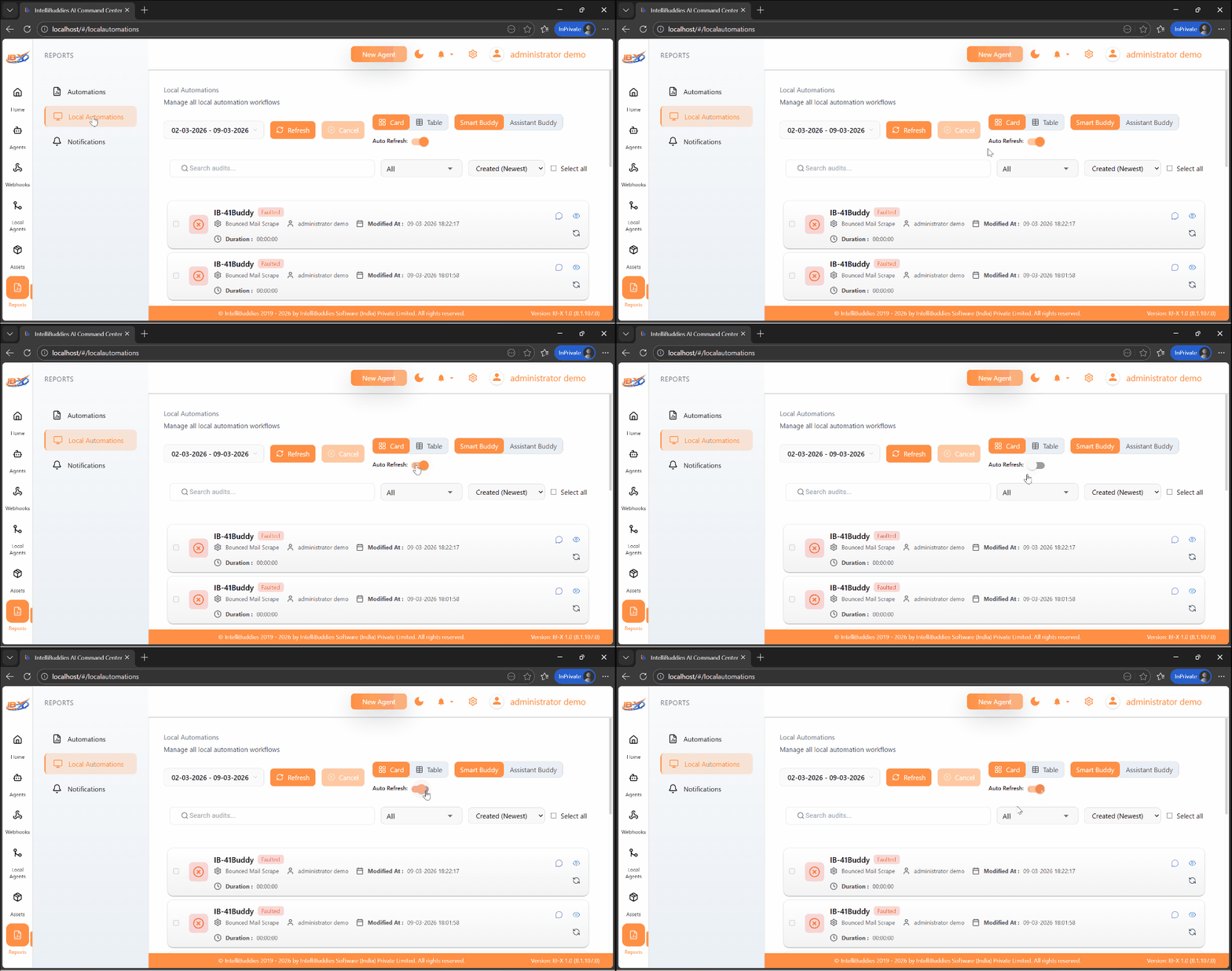
The Auto Refresh option automatically updates automation data in the grid when changes occur.
When enabled:
- Automation status updates automatically
- Log data refreshes in real time
When disabled:
- Users must manually refresh to see update
Filtering Automation by Creation Date
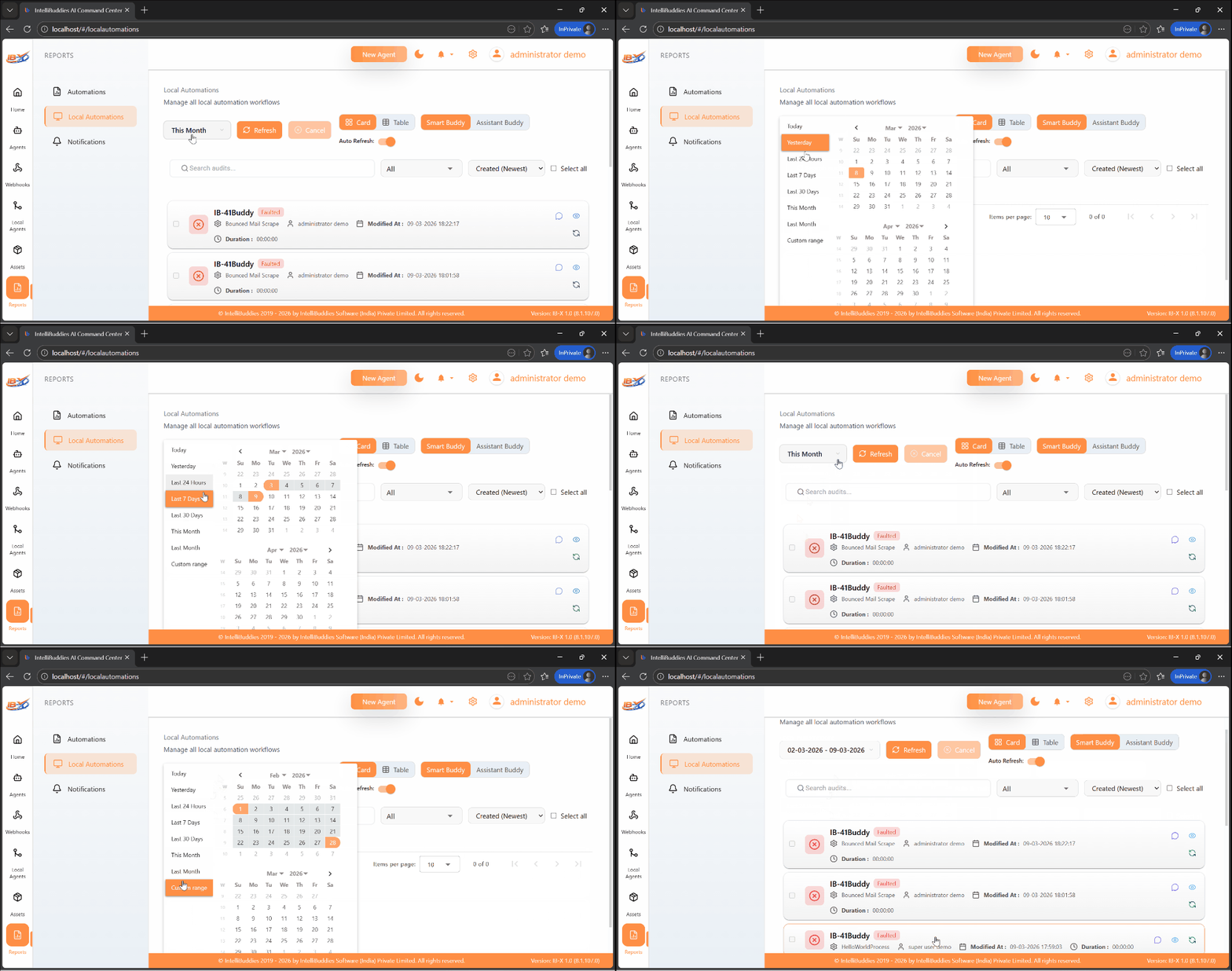
You can filter automations based on their creation date using the calendar filter.
| Options | Description |
|---|---|
| Today | Displays all automations created today. |
| Yesterday | Displays all automations created yesterday. |
| Last 24 Days | Lists all automations created within the last 24 hours. |
| Last 7 Days | Lists all automations created within the last 7 days. |
| Last 30 Days | Lists all automations created within the last 30 days. |
| This Month | Displays all automations created in the current month. |
| Last Month | Displays all automations created in the previous month. |
| Custom range | Allows users to define a specific date range for filtering automations. |