IB Drive
Introduction
IB Drive is the built-in document library in IntelliBuddies AI Command Center. It provides centralized, organization-level storage for files and folders that can be accessed and used by Agents and Automations within IB-X.
Organizations can use IB Drive to store documents, input files, reference files, generated outputs, and other content required by their Agents. Files can be organized using folder hierarchies based on Agents, projects, departments, business functions, or other organizational requirements.
IB Drive can be managed directly from the AI Command Center and is also integrated with workflows through dedicated activities and triggers, allowing Agents to programmatically work with files and respond to file and folder events.
Overview
| Capability | Description |
|---|---|
| Centralized storage | Organization-level document library for storing files and folders used by Agents and Automations. |
| Folder organization | Organize content using folder hierarchies based on Agents, projects, departments, or other business requirements. |
| Upload controls | Configure organization-level restrictions for files uploaded to IB Drive, including maximum file size and allowed or blocked file types. For more information, see IB Drive Settings. |
| Web file manager | Browse, upload, download, organize, and search files and folders directly from the AI Command Center. Learn more → Using IB Drive |
| Workflow activities | Perform file and folder operations programmatically from within workflows. For more information, see Using IB Drive Activities in Workflow. |
| Event-driven automation | Start Automations automatically when configured file or folder events occur in IB Drive. Learn more → Event Drive Automation. |
| Recycle bin | Soft-deleted files and folders can be managed through the AI Command Center Recycle Bin. For more information, see Recycle Bin. |
IB Drive is managed by IB-X and is separate from the local Windows file system and external storage providers such as Google Drive.
Paths displayed in IB Drive, such as /Agents/InvoiceProcessing/Input, are logical paths within the organization's IB Drive library and do not represent physical file system paths.
Scope and Current Limitations
IB Drive currently provides a shared document library at the organization level.
The current version of IB Drive has the following scope:
- Storage is available at the organization level.
- Personal or individual user drives are not currently supported.
- Item-level permissions for individual files and folders are not currently supported.
- File versioning is not currently supported.
These capabilities may be introduced in future releases.
Because IB Drive is currently organization-scoped, access is controlled through IB Drive permissions rather than permissions assigned to individual files or folders.
Organizations can use folder hierarchies to logically separate content for different Agents, projects, departments, or business purposes.
Permissions
Access to IB Drive is controlled through the following permissions:
| Permission | What users can do |
|---|---|
| View IB Drive | Open IB Drive, browse folders, search, download files, and view item details. |
| Manage IB Drive | Includes View capabilities, plus upload files, create folders, rename, move, and move items to trash. |
By default, the Administrator role receives both permissions.
::: note IB Drive permissions currently apply to the organization-level library. Permissions cannot currently be assigned to individual files or folders. :::
Using IB Drive
How to Access
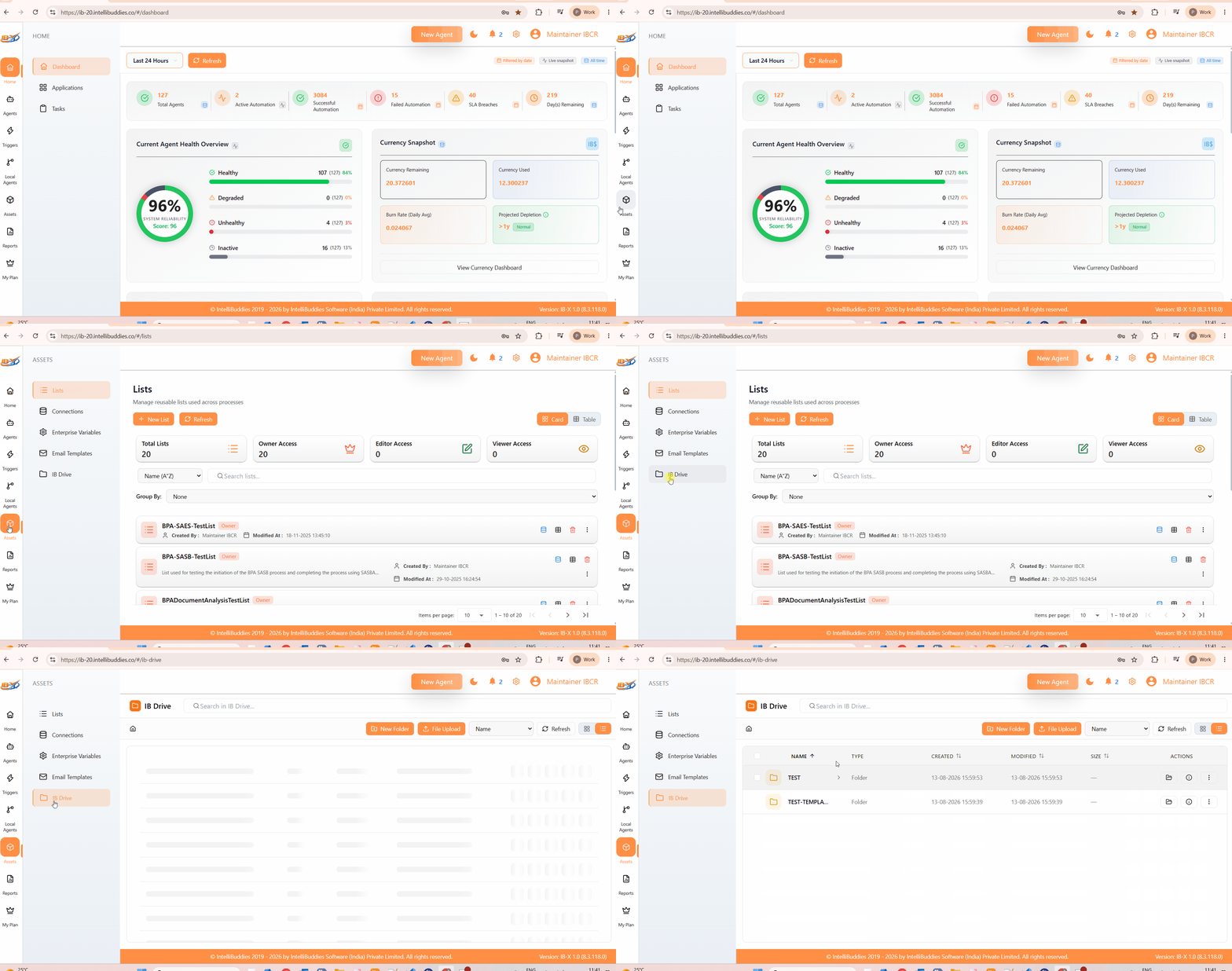
From the AI Command Center, navigate to: Assets → IB Drive
Browse and Organize
Open IB Drive from the AI Command Center navigation menu.
You can:
- Navigate through folders using breadcrumbs and folder navigation.
- Search for files and folders by name or item ID.
- Sort items by name, type, created date, modified date, or size.
- Create folder hierarchies to organize content according to your organizational requirements.
For example, you can organize files by Agent:
/Agents
    /InvoiceProcessing
        /Input
        /Reference
        /Output
    /EmployeeOnboarding
        /Documents
        /Templates
This is only an example. Organizations can define folder structures appropriate to their own requirements.
File Management Actions
Users with Manage IB Drive permission can perform the following actions:
- Upload -- Add one or more files to the current folder. Drag-and-drop upload is also supported.
- New Folder -- Create a subfolder in the current location.
- Rename -- Change the name of a file or folder.
- Move -- Move files or folders to another location within IB Drive.
- Download -- Download a file to the local computer.
- Move to Trash -- Soft-delete a file or folder. Deleted items appear in the AI Command Center Recycle Bin under the IB Drive category until permanently deleted.
Naming Rules
File and folder names:
- Are limited to 255 characters.
- Cannot contain invalid characters such as:
\ / : * ? " < > | - Cannot start or end with a space or period.
- Are case-insensitive within the same folder. For example,
Report.pdfandreport.pdfare treated as the same name.
IB Drive Settings
Administrators can configure upload restrictions for IB Drive, including the maximum allowed file size and the types of files that can be uploaded.
To configure IB Drive settings:
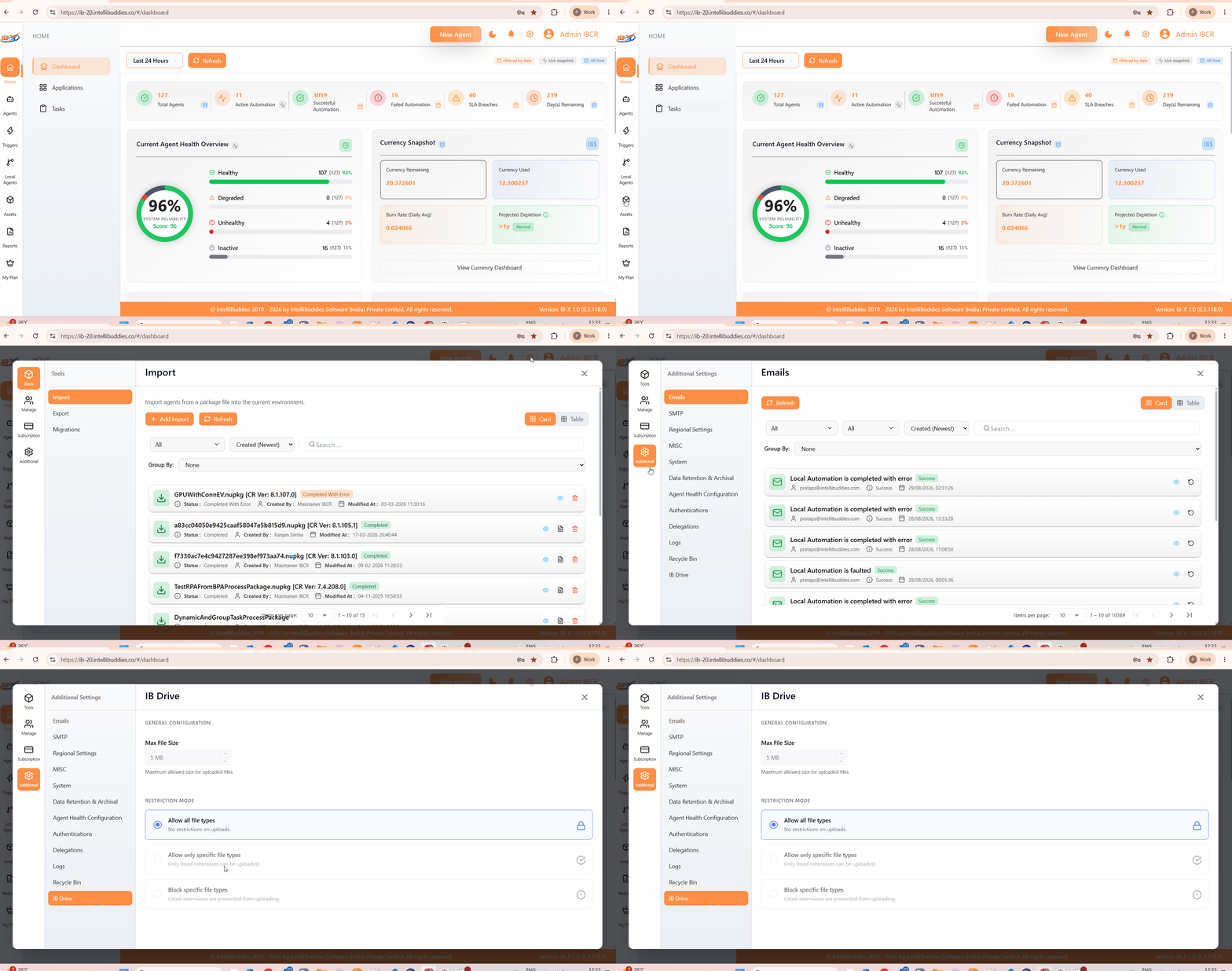
- Select the Settings gear icon in the AI Command Center.
- Select Additional.
- Select IB Drive.
General Configuration
Max File Size
Specifies the maximum size allowed for a file uploaded to IB Drive.
Files that exceed the configured maximum file size are not allowed to be uploaded.
For example, if Max File Size is set to 5 MB, files larger than 5 MB cannot be uploaded to IB Drive.
The maximum file size restriction applies to files uploaded to IB Drive, including files uploaded through IB Drive activities.
Restriction Mode
Controls which file types can be uploaded to IB Drive.
| Mode | Description |
|---|---|
| Allow all file types | Allows files of any extension to be uploaded. |
| Allow only specific file types | Allows only the configured file extensions, such as .pdf or .docx. All other file types are rejected. |
| Block specific file types | Prevents files with the configured extensions from being uploaded. All other file types are allowed. |
When Allow only specific file types or Block specific file types is selected, administrators can add or remove file extensions from the configured list.
For example, enter png and select Add to include the .png extension in the applicable restriction list.
The configured file size and file type restrictions apply at the organization level and help administrators control the types and sizes of files that can be stored in IB Drive.
Using IB Drive in Workflows
IB Drive is integrated with IB-X workflows through dedicated activities and triggers.
This allows Agents to work with files stored in IB Drive without requiring an external document storage provider.
IB Drive Activities
IB-X provides dedicated activities for performing file and folder operations within workflows.
These activities can be used to perform operations such as:
- Uploading files
- Downloading files
- Retrieving files and file information
- Copying and moving files
- Renaming files and folders
- Creating folders
- Deleting files and folders
- Searching and browsing IB Drive content
This enables files produced or consumed by an Automation to remain within the organization's IB-X environment.
For detailed information, see the IB Drive Activities Guide.
Event-Driven Automation
IB Drive triggers allow Automations to start automatically when configured events occur within the document library.
File Trigger
The IB Drive File Trigger can monitor file events such as:
- File creation
- File modification
- File rename
- File deletion
- File movement
Folder Trigger
The IB Drive Folder Trigger can monitor folder events such as:
- Folder creation
- Folder rename
- Folder deletion
- Folder movement
These triggers enable event-driven scenarios such as starting an Automation when a document is uploaded to a designated input folder.
Typical Use Cases
IB Drive can be used for scenarios such as:
- Storing input files required by Agents.
- Maintaining reference documents used during Automation execution.
- Storing files generated by Automations.
- Creating dedicated input and output folders for individual Agents.
- Exchanging files between different workflows within an Agent.
- Starting an Automation when a file is uploaded to a designated folder.
- Maintaining organization-level documents that need to be accessed by multiple Agents.