SMTP Settings
Introduction
The SMTP Settings page allows you to configure the email server details used by the AI Command Center to send system-generated notifications, such as alerts and subscription-based messages.
SMTP settings configured during setup can be viewed and updated later from Administration → Settings → SMTP within the AI Command Center.
SMTP Configuration
Configuring SMTP settings during setup is optional.
- These settings are used by the AI Command Center to send alerts and notification emails.
- If you prefer to configure SMTP at a later time, click Skip to continue with the setup process.
Authentication Types
The AI Command Center supports the following SMTP authentication methods:
| Authentication Type | Description |
|---|---|
| Password | Configures SMTP using a server, port, username, and password. |
| Outlook | Configures SMTP using OAuth-based authentication for secure email delivery through Microsoft Outlook. |
Authentication Configuration
The sections below describe the configuration fields for each supported authentication type.
Password Authentication
Use this option to configure SMTP with traditional username–and–password–based authentication.
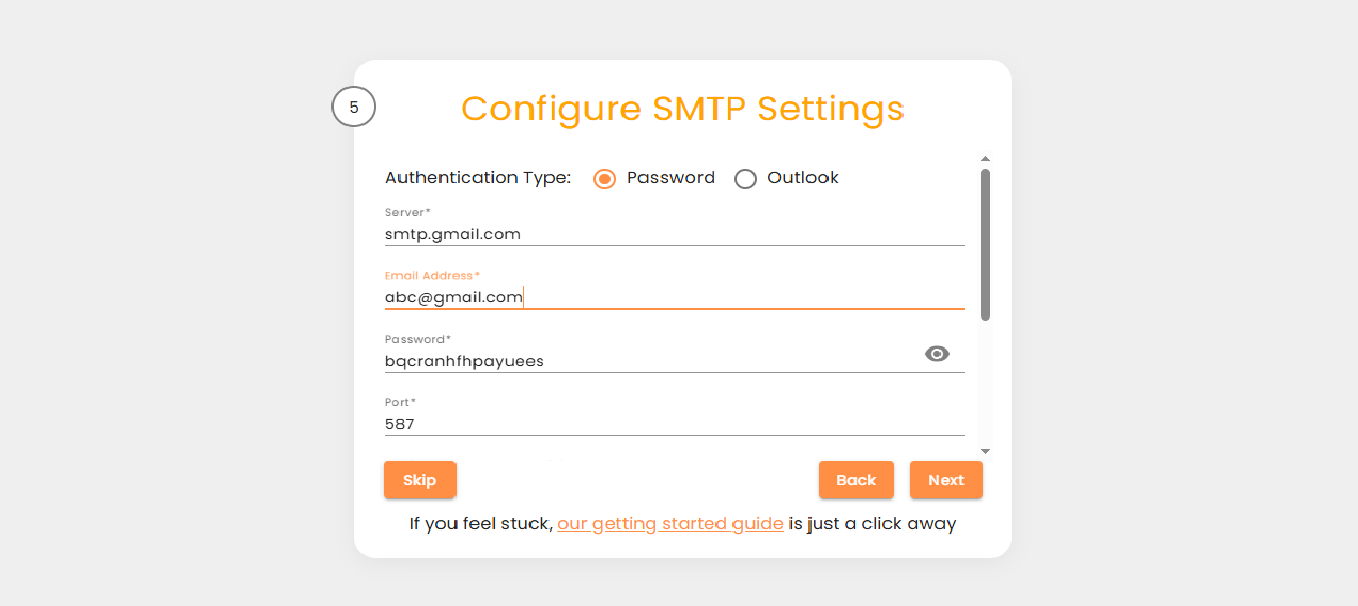
| Setting | Description |
|---|---|
| Server | Hostname or address of the SMTP server. |
| Email Address | Email account used to authenticate with the SMTP server. |
| Password | Password for the specified email account. |
| Port | Port number on which the SMTP server listens. |
| Maximum Retry Count on Failure | Number of retry attempts in case of email delivery failure. The system uses a 30-minute retry interval by default. |
| Display Name | Name displayed in the From field of outgoing emails. |
| Use SSL | Enables secure email transmission using SSL. |
| Allow Untrusted Certificate | Allows email delivery through servers that use untrusted SSL certificates. |
Outlook Authentication
Use this option to configure SMTP using OAuth authentication with Microsoft Outlook.
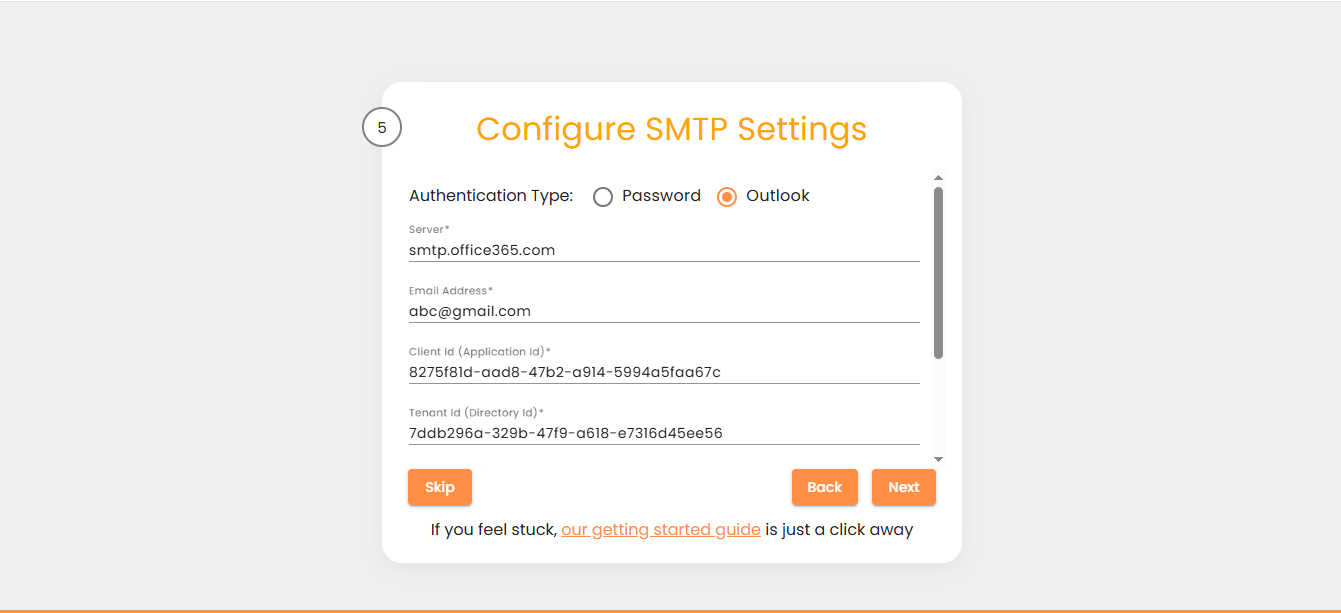
| Setting | Description |
|---|---|
| Server | Hostname or address of the SMTP server. |
| Email Address | Email account used for sending emails. |
| Client ID (Application ID) | Client ID of the registered Azure application. |
| Tenant ID | Tenant ID associated with the Azure application. |
| Client Secret | Client secret generated for the Azure application. |
| Maximum Retry Count on Failure | Number of retry attempts in case of email delivery failure. The system uses a 30-minute retry interval by default. |
For Outlook authentication, ensure that the Mail.Send permission is enabled for the Microsoft Graph API in the Azure application.
Verifying Your Configuration
- Click Send Test Mail to verify the SMTP configuration.
- The AI Command Center sends a test email to the configured email address to confirm successful connectivity and authentication.
Saving Your Configuration
- Click Next to save the SMTP settings.
- The setup process then continues to the following configuration step.