Business Calendars
Overview
A Business Calendar defines business hours, holidays, and working days to ensure accurate calculation of business time for metrics such as task deadlines, SLAs, delays, and overdue processing.
You can manage Business Calendars from Administration → Business Calendars in the side panel. This page displays all existing calendars and allows administrators to create, update, and manage them.
The system does not ship with a default Business Calendar.
If no Business Calendar is designated as default, the system operates without applying any Business Calendar, and calendar-based constraints (such as working days or holidays) are not enforced.
How to access:
From the AI Command Center, open Settings (⚙️) in the top-right corner and navigate to Manage → Business Calendars.
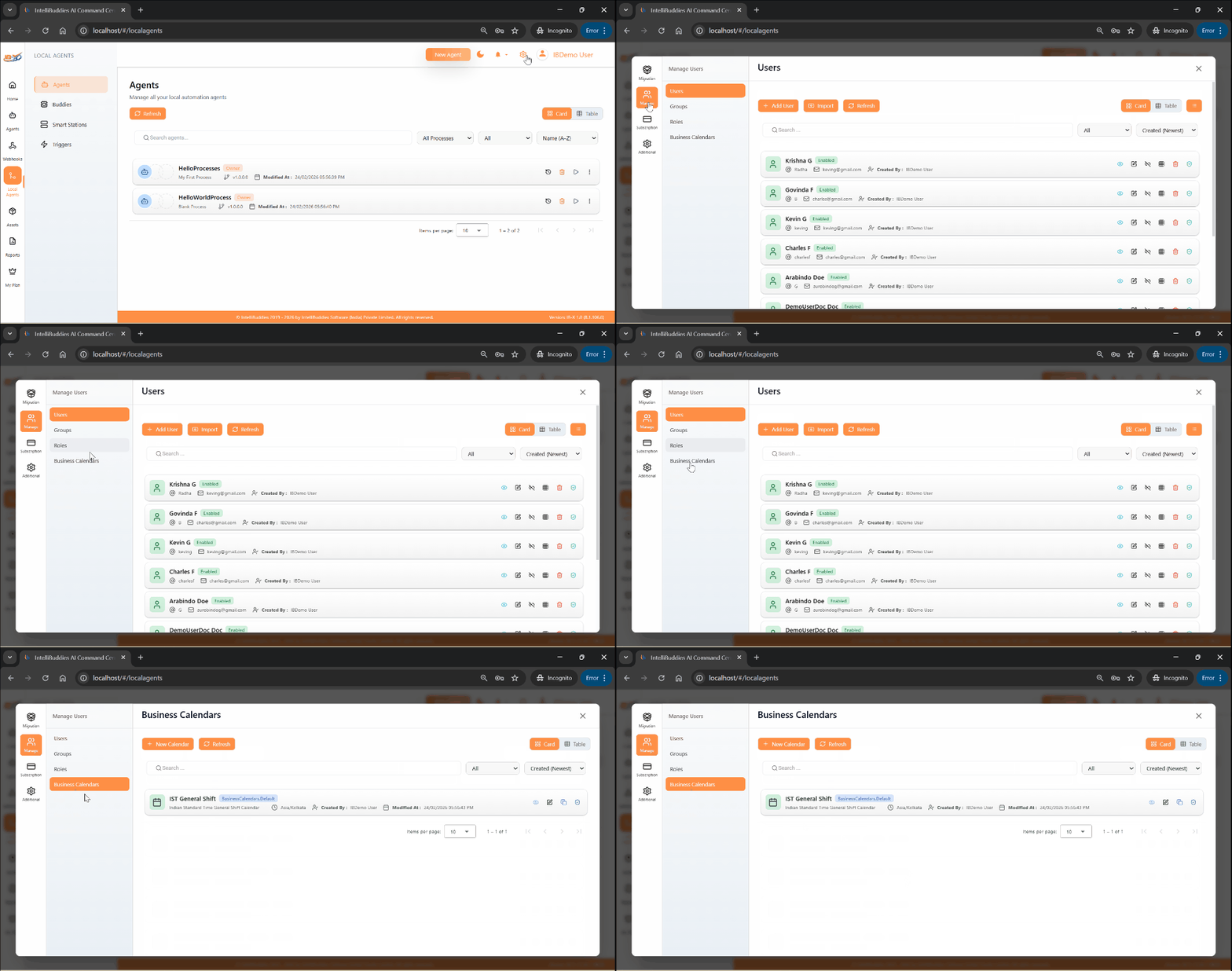
Default Business Calendar Behavior
When a Business Calendar is created, it may optionally be designated as the Default Business Calendar.
- Business Calendars can be mapped only to users and groups.
- If a user or group is not explicitly mapped to a Business Calendar, the system applies the Default Business Calendar, if one exists.
- At any time, only one Business Calendar can be designated as the default.
- Administrators can change the default designation as needed.
Calendar Resolution Order
When determining which Business Calendar to apply, the system follows this order:
- Calendar explicitly mapped to the user
- Calendar mapped to one of the user’s groups
- Default Business Calendar, if defined
- No calendar applied (if none of the above exist)
Context Menu Options for Business Calendars
Based on your assigned permissions, you can perform the following actions from the Business Calendars page:
| Option | Description |
|---|---|
| View | Opens the selected calendar in read-only mode. |
| Edit | Allows you to modify the calendar details. |
| Clone | Creates a copy of the selected calendar. |
| Enable / Disable | Activates or deactivates the selected calendar. |
| Set as Default | Designates the selected calendar as the default Business Calendar. |
| Audit | Opens the audit logs for the selected calendar. |
Creating a Business Calendar
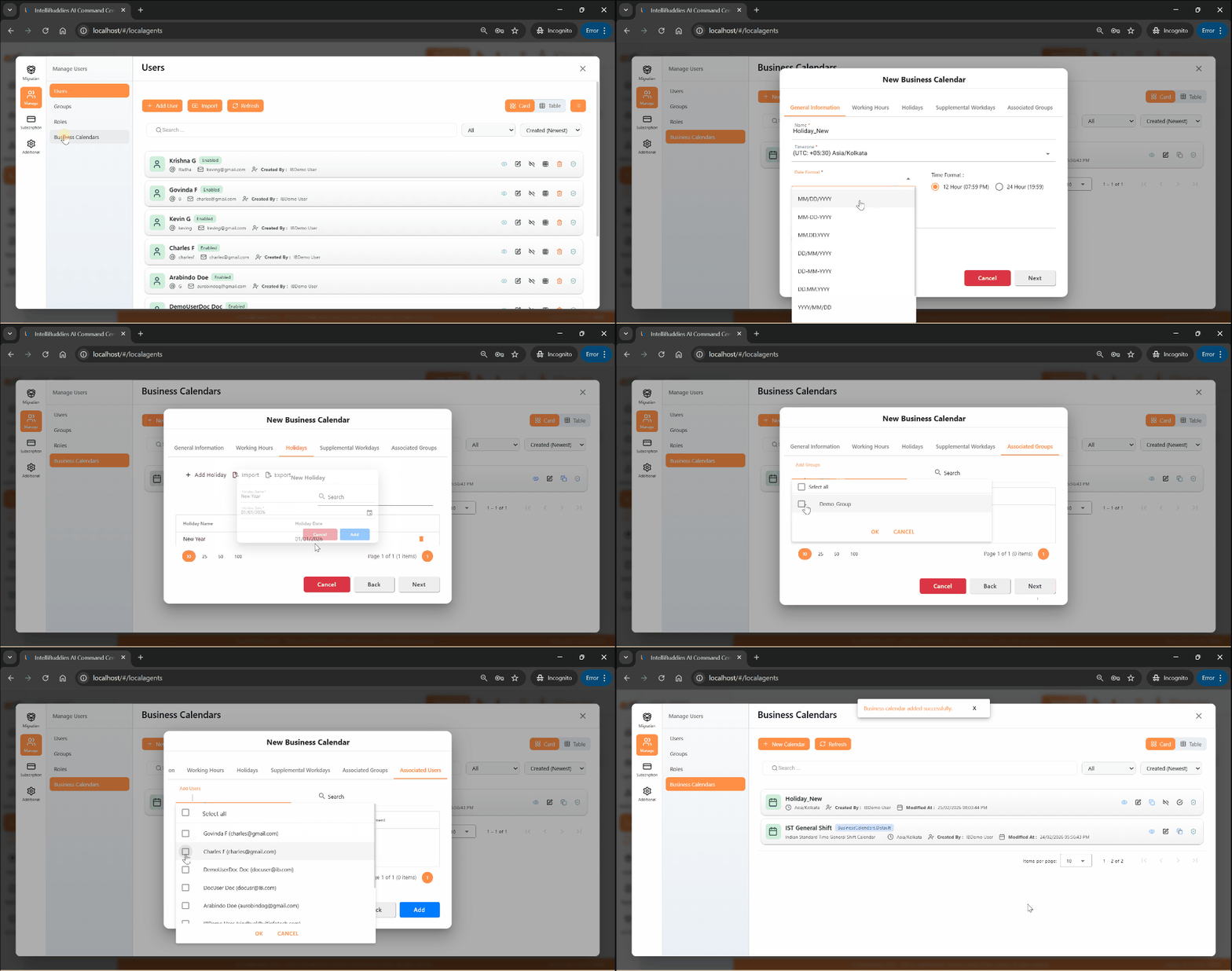
To create a new Business Calendar:
- Log in to the AI Command Center.
- Navigate to Administration → Business Calendars.
- Click Toolbar Menu → New Business Calendar.
Basic Details
Provide the required information:
-
Name
-
Time Zone
-
Date Format
-
Time Format
-
(Optional) Description
-
Enable the calendar to make it active.
- If the Default option is selected, the calendar is automatically enabled.
Working Hours
- Define the default working days and time ranges.
- Use the Custom option to configure different working hours for specific weekdays.
Holidays
Use this tab to define non-working dates:
- Add individual holidays using Add Holiday
- Import multiple holidays using the Import option
- Download the XLSX template using Export, populate it, and re-import
Supplemental Workdays
Use this tab to define additional working days and their corresponding time ranges:
- Add individual workdays using Add Workday
- Import multiple workdays using the Import option
- Download the XLSX template using Export, populate it, and re-import
Associations
- In the Associated Groups tab, map the calendar to groups.
- In the Associated Users tab, map the calendar to users.
Save
- Click Add to create the Business Calendar.
Updating a Business Calendar
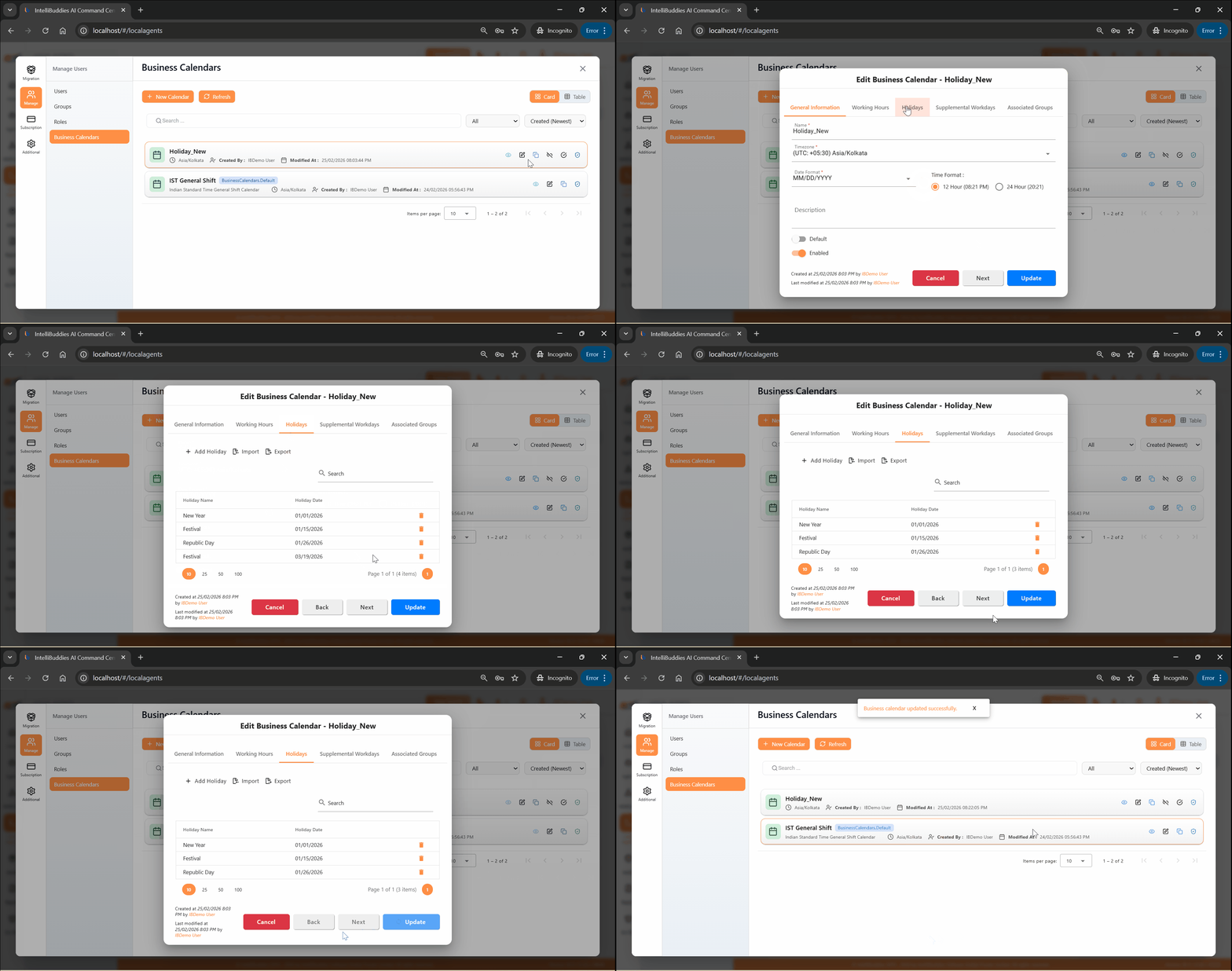
To update an existing Business Calendar:
- Navigate to Administration → Business Calendars.
- Select the calendar you want to update.
- Right-click and choose Edit.
- Modify the required properties and click Update.
Enabling or Disabling a Business Calendar
To turn a Business Calendar on or off:
- Navigate to Administration → Business Calendars.
- Select the calendar.
- Right-click and choose Enable or Disable.
- Confirm the action.
Disabling a Business Calendar prevents it from being used. The Default Business Calendar cannot be disabled. To disable a calendar that is currently set as default, you must first designate another Business Calendar as the default.
Setting a Business Calendar as Default
To designate a calendar as the default:
- Navigate to Administration → Business Calendars.
- Select the calendar.
- Right-click and choose Set as Default.
- Confirm the action.
Auditing Business Calendars
To view audit logs for a Business Calendar:
- Navigate to Administration → Business Calendars.
- Select the calendar.
- Right-click and choose Audit.
Supported Views
Use the View dropdown to filter calendars:
| View | Description |
|---|---|
| All | Displays all Business Calendars. |
| Active | Displays only enabled Business Calendars. |
| Inactive | Displays only disabled Business Calendars. |