Authentications
Introduction
The Authentication tab allows administrators to register, configure, and manage multiple authentication providers used for signing in to the AI Command Center.
This capability enables organizations to integrate multiple directories or identity providers and manage them independently.
The Authentication tab is available only to users with the Administrator role.
How to access:
From the AI Command Center, open Settings (⚙️) in the top-right corner and navigate to Additional → Authentication.
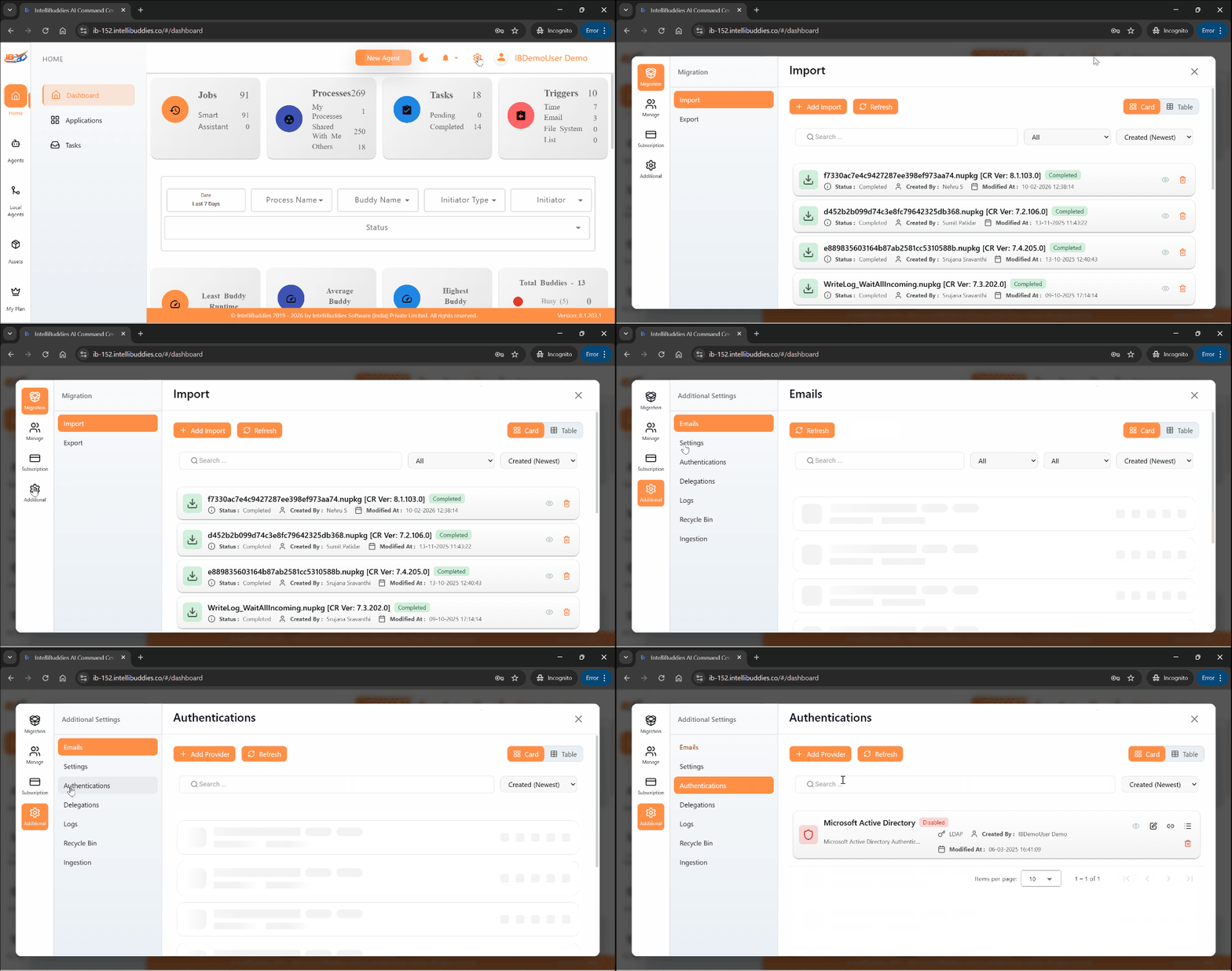
Managing Authentication Providers
Using the Authentications page, you can:
- Register and manage multiple authentication providers, including:
- LDAP (Microsoft Active Directory or generic LDAP)
- Azure Active Directory (OAuth / OpenID Connect)
- Turn authentication providers on or off without losing their configuration
- Configure and maintain separate synchronization schedules for users and groups for each provider
- Manually trigger synchronization and view execution logs for each provider
Each authentication provider is managed independently.
Available Actions
Each registered authentication provider includes a context menu that lets you manage and monitor its configuration and synchronization behavior.
| Action | Description |
|---|---|
| View | Opens the configuration in read-only mode. |
| View Log | Displays the execution history for user and group synchronization. |
| Edit | Opens the configuration in edit mode. |
| Delete | Removes the selected authentication provider configuration. |
| Disable/Enable | Disables or enables the authentication provider without deleting its configuration. |
| Run Sync Now | Immediately triggers user and group synchronization. |
Supported authentication providers
The AI Command Center supports the following authentication providers. Each provider can be registered, configured, and managed independently from the Authentications page:
Microsoft Active Directory (LDAP)
Use this provider to integrate on-premises Microsoft Active Directory or generic LDAP directories. See the complete guide: Microsoft Active Directory (LDAP)
Azure Active Directory
Use this provider to authenticate users via Azure Active Directory using OAuth/OpenID Connect. See the complete guide: Azure Active Directory
Registering an Authentication Provider
To register a new authentication provider:
- Open the Authentication tab
- Click Add Provider. The system launches an Add Provider page
- The first screen displays all available authentication provider types.
- Selecting a provider type opens the provider-specific configuration flow.
During setup, administrators can:
- Provide a configuration name and description
- Enable or disable the provider
- Configure user and group synchronization settings
Each provider maintains its own synchronization schedule and configuration.
For Microsoft Active Directory (LDAP)
- You first provide basic information, including a name and description for the configuration.
- You can turn the provider on or off during setup.
- Each Active Directory configuration maintains its own user and group synchronization schedule, identified by the configuration name.
The AI Command Center uses this configuration information to correctly authenticate users and associate them with the appropriate authentication provider.
Best practices
- Schedule user and group synchronization during off-peak hours and regularly review synchronization logs.
- Use read-only credentials for authentication providers whenever possible to reduce security risks.
- Assign clear, descriptive names to authentication provider configurations to simplify monitoring and troubleshooting.
- Disable unused providers instead of deleting them to preserve configuration history