Google Sheets Connection Setup
Overview
IB-X supports integration with Google Workspace services through Google OAuth 2.0 authentication.
Before configuring a Google Sheets connection, you must create and configure a Google Cloud project, enable the required APIs, and generate the necessary credentials.
IB-X provides separate connection types for Google Drive and Google Sheets because each service uses different Google APIs and permission scopes.
| Connection | Purpose |
|---|---|
| Google Sheets | Spreadsheet operations |
For file and folder operations, see Google Drive Connection Setup.
The configuration process consists of the following steps:
- Create a Google Cloud Project
- Enable Required APIs
- Configure OAuth Consent Screen
- Create OAuth Credentials
- Configure the Connection in IB-X
- Sign in with Google
Create a Project in Google Cloud Console
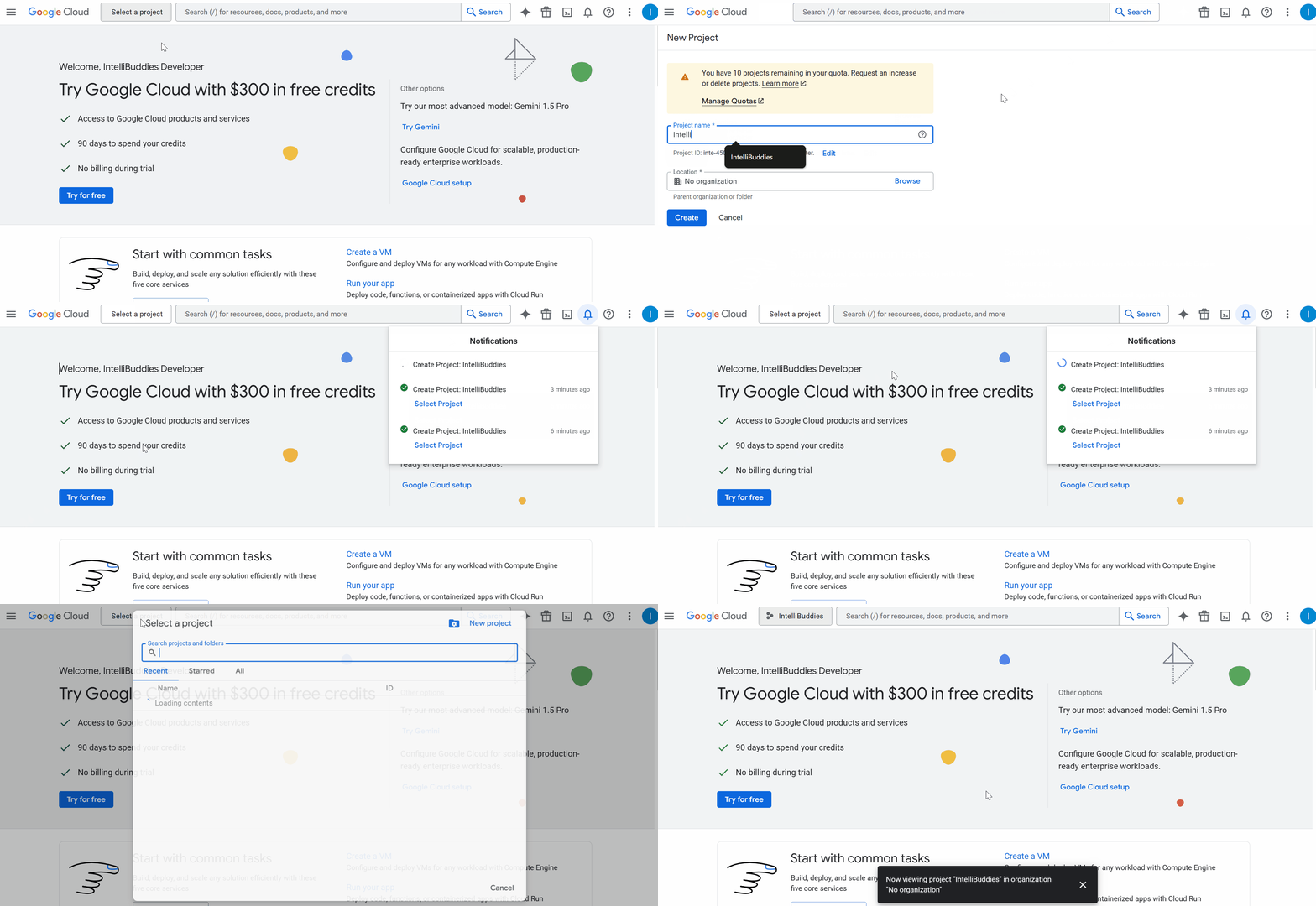
To start using Google APIs, create a Google Cloud project.
- Open Google Cloud Console.
- Sign in using your Google account.
- Click Select a Project in the top navigation bar.
- Select an existing project or click New Project.
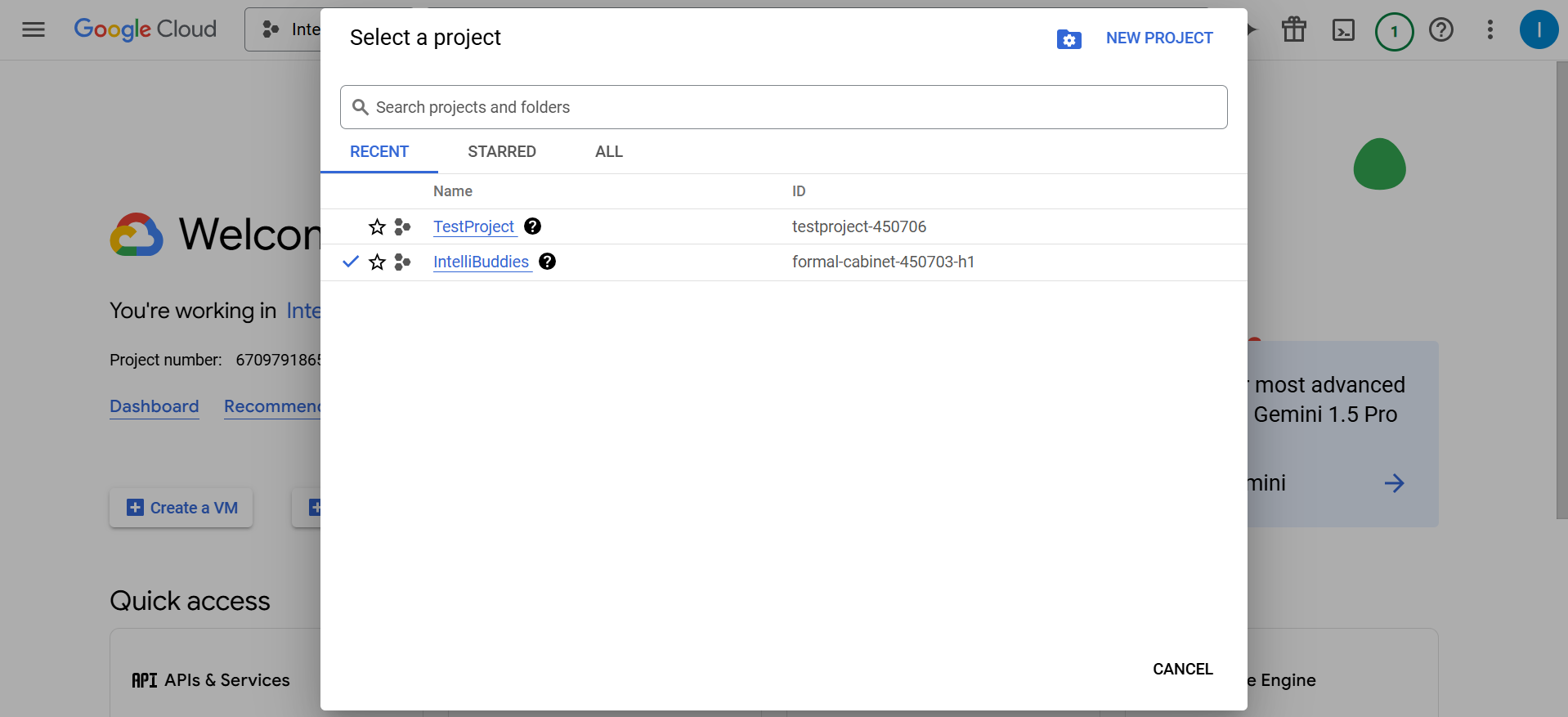
To switch between projects:
- Click the current project name.
- Select the desired project.
Enable Required APIs
After creating the project, enable the APIs required by IB-X.
Required APIs
| API | Purpose |
|---|---|
| Google Drive API | Browse and select spreadsheet resources stored in Google Drive |
| Google Sheets API | Required for Google Sheets activities |
Enable APIs
- Navigate to APIs & Services.
- Click Enable APIs and Services.
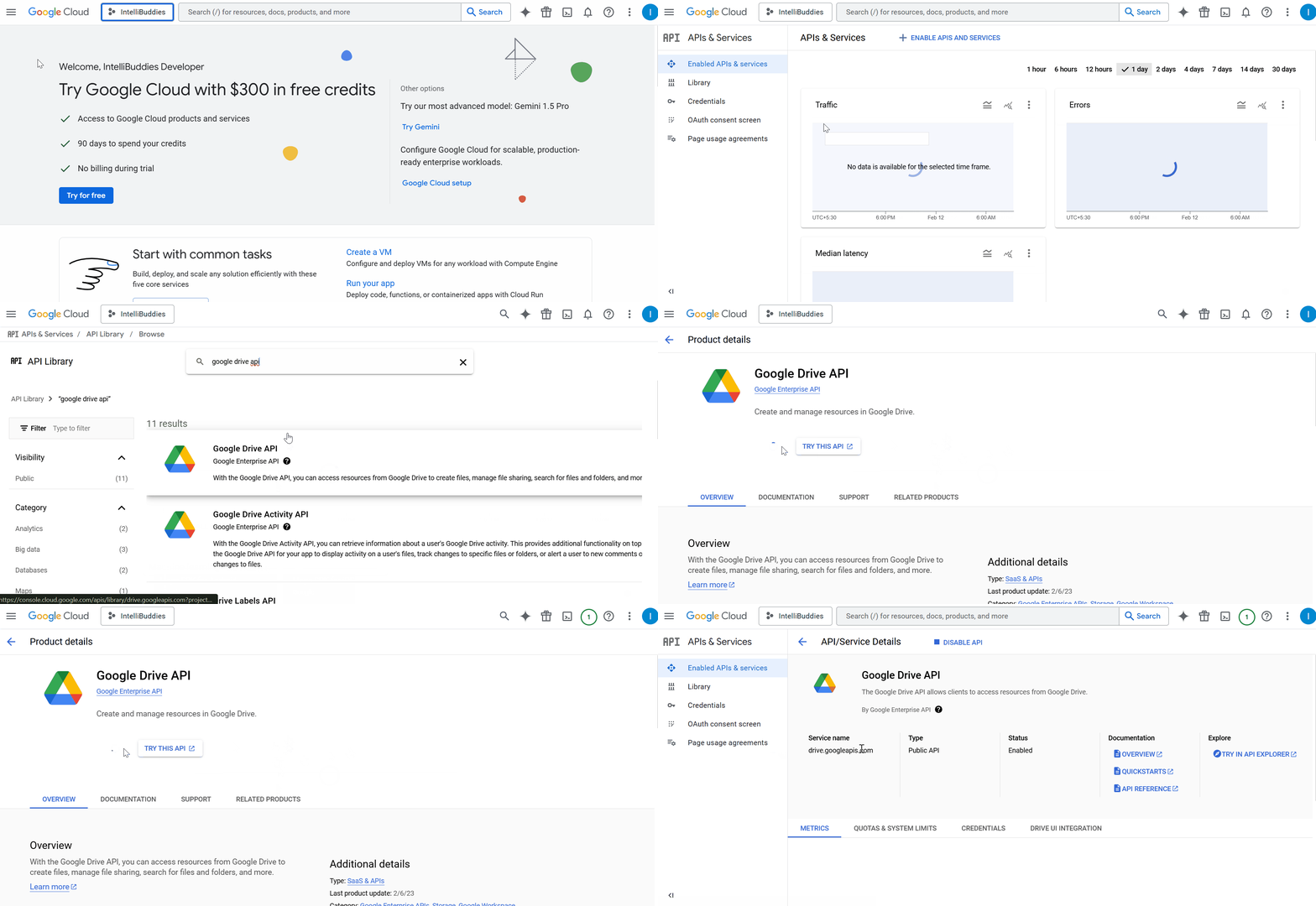
- Search for each required API.
- Open the API.
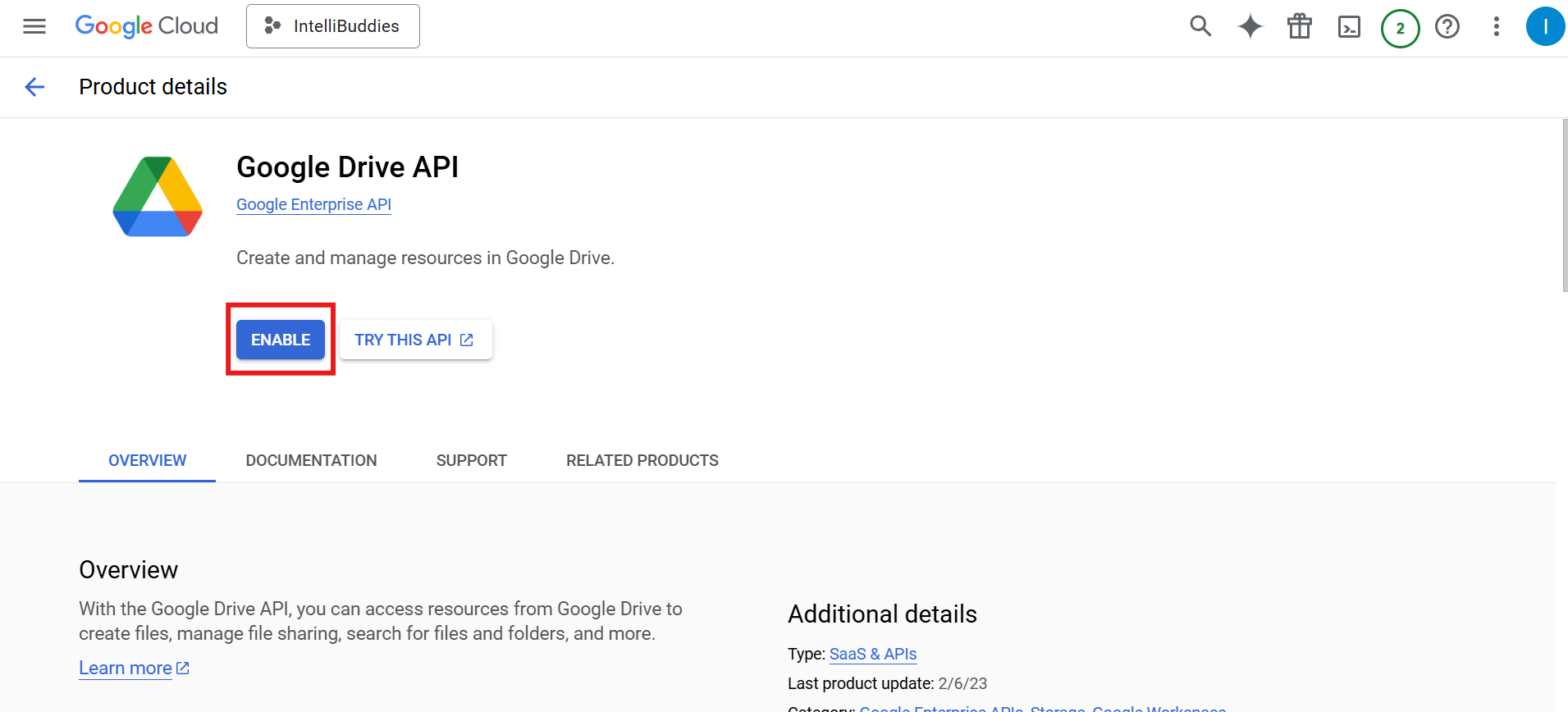
- Click Enable.
Enable the following APIs:
- Google Drive API
- Google Sheets API
Configure the OAuth Consent Screen
The OAuth Consent Screen defines how users authorize your application.
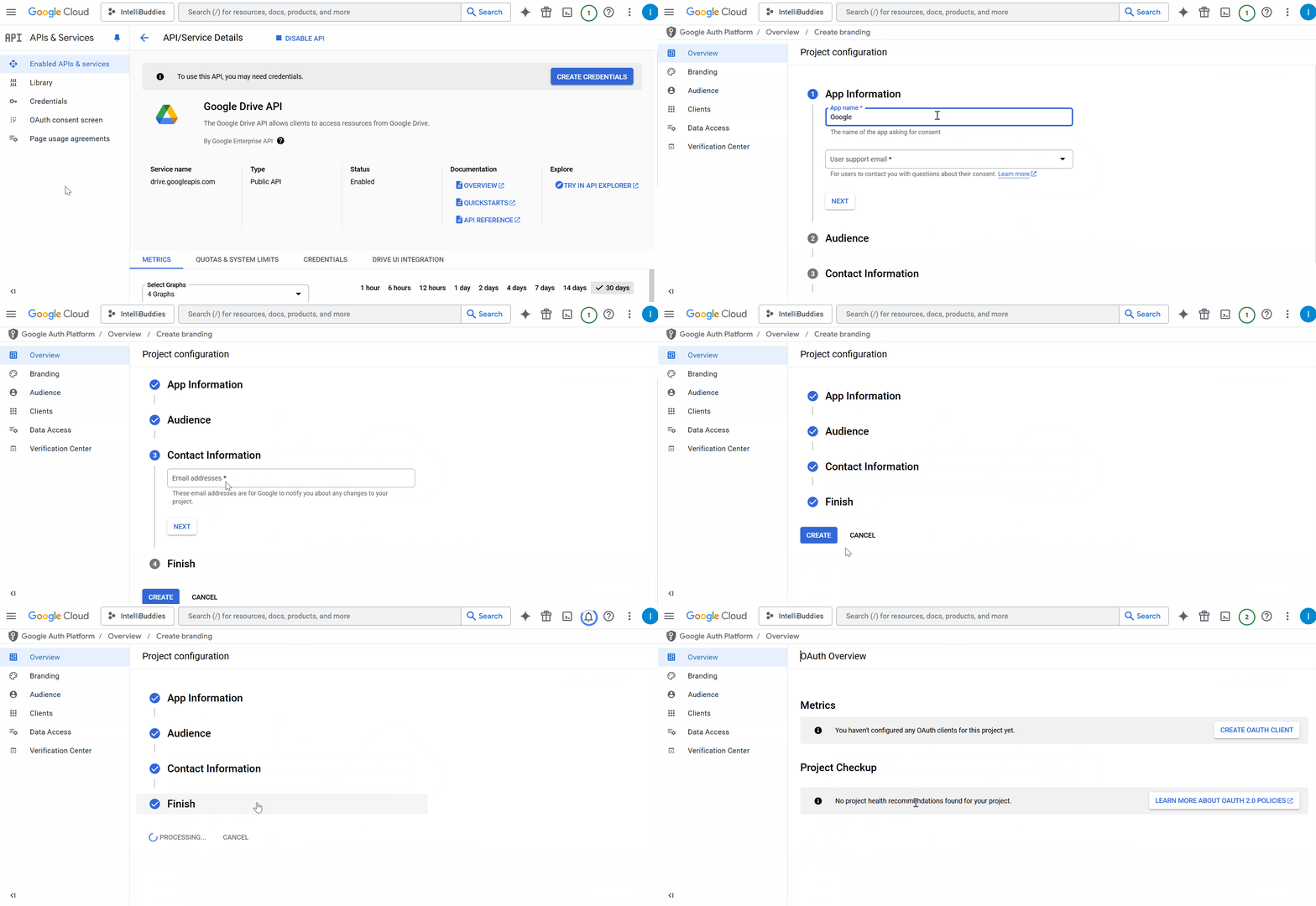
- Open Google Auth platform → Branding in Google Cloud Console. You may also reach this page through APIs & Services → OAuth Consent Screen.
- Click Get Started.
-
Enter an application name.
-
Select a User Support Email.
-
Choose the appropriate audience:
- Internal – Available only to users within your Google Workspace organization.
- External – For users outside the organization, subject to publishing status and access policies.
-
Click Next.
-
Provide a contact email address.
-
Review and accept Google's user data policy.
-
Click Create.
Permissions and test users
For an External application, open Google Auth platform → Data Access → Add or Remove Scopes. Declare the scopes requested by the IB-X connection and save the configuration. Enabling an API does not grant permission to use it: access also depends on OAuth consent and the authenticated user's resource permissions.
Use the connection's requested permissions as the source of truth. Drive operations need permissions for the files and folders they access; Sheets operations need spreadsheet permissions and Drive access for resource selection. Do not substitute a narrower scope without confirming that the connection supports it.
For applications used only within a Google Workspace organization, follow Google's Internal application configuration and your administrator's access policy. See Configure OAuth consent and scopes for audience-specific requirements.
For an External application in Testing:
- Open Audience.
- Under Test users, click Add users.
- Add the accounts that will authorize the IB-X connection.
- Click Save.
- Complete and test the connection using one of those accounts.
Production access
When the application is ready for production, review its audience and requested scopes, complete any applicable Google verification, and use Audience → Publish App where available.
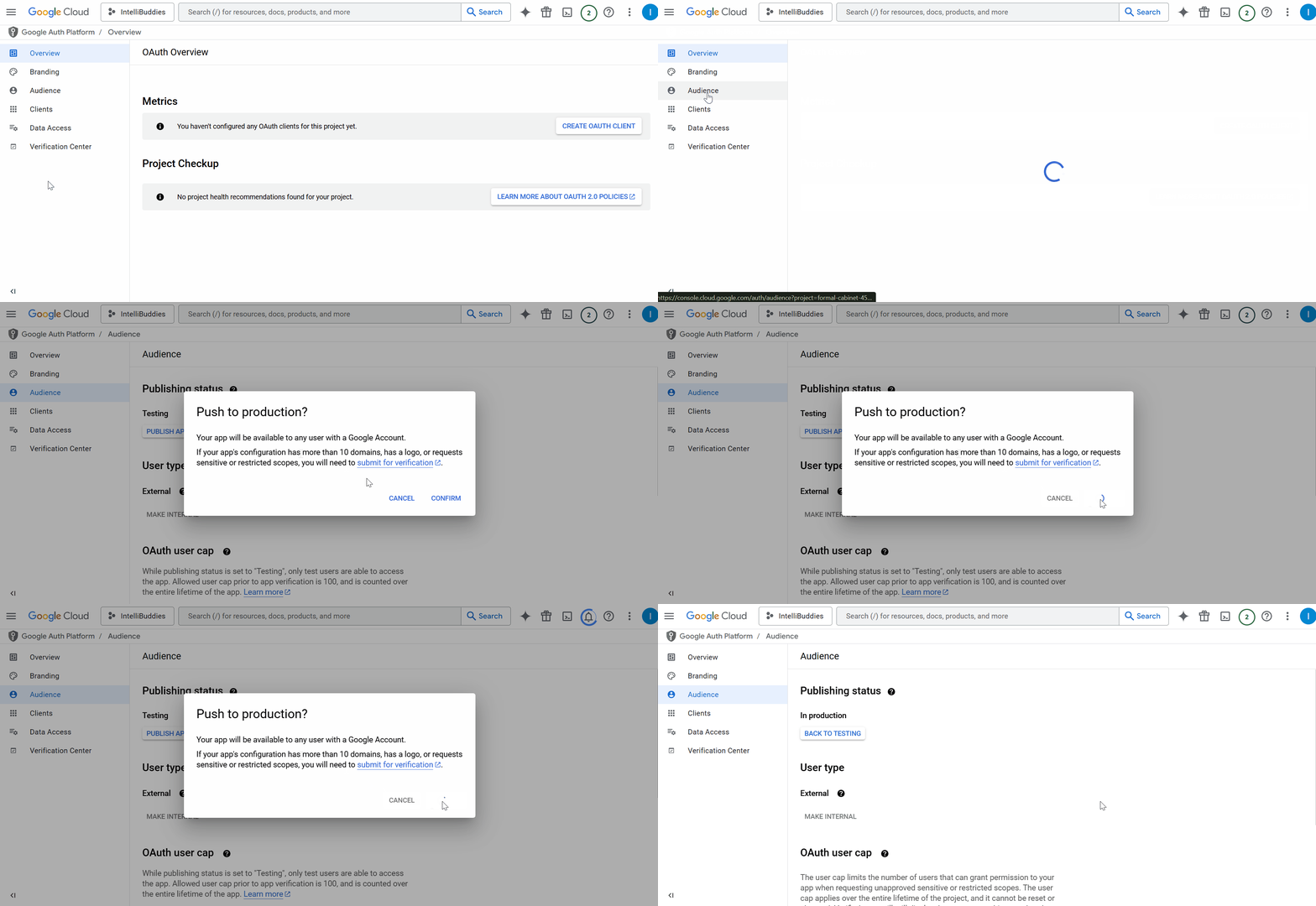
Publishing does not override the selected audience, Google verification requirements, or Google Workspace administrator restrictions. Sensitive or restricted scopes may require additional verification unless an exemption applies. See Google's scope verification guidance.note Testing Mode
Applications in testing mode can be accessed only by explicitly added test users.
Production Mode
Published applications can be used by any authorized Google account. :::
Create OAuth Credentials
OAuth credentials allow IB-X users to authenticate with Google.
- Navigate to APIs & Services → Credentials.
- Click Create Credentials.
- Select OAuth Client ID.
Create an OAuth Client
- Select Web Application.
- Enter a name.
- In IB-X, open Assets → Connections → Add Connection, select Google Sheets, and copy the displayed OAuth Redirect URI.
- Add the redirect URL to Authorized Redirect URIs.
- Add the application URL to Authorized JavaScript Origins.
- Click Create.
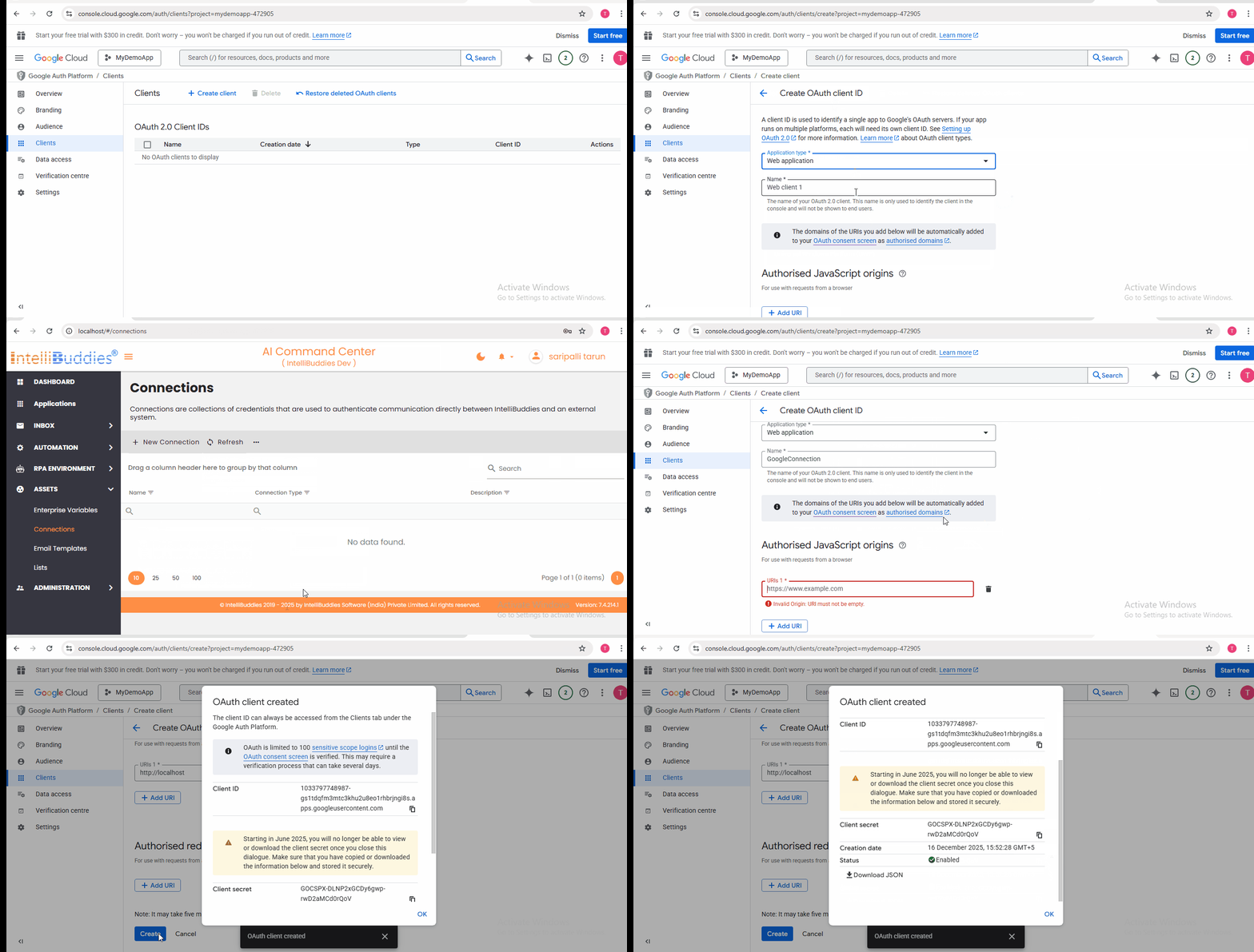
After creation, securely store:
- Client ID
- Client Secret
Configure the Connection in IB-X
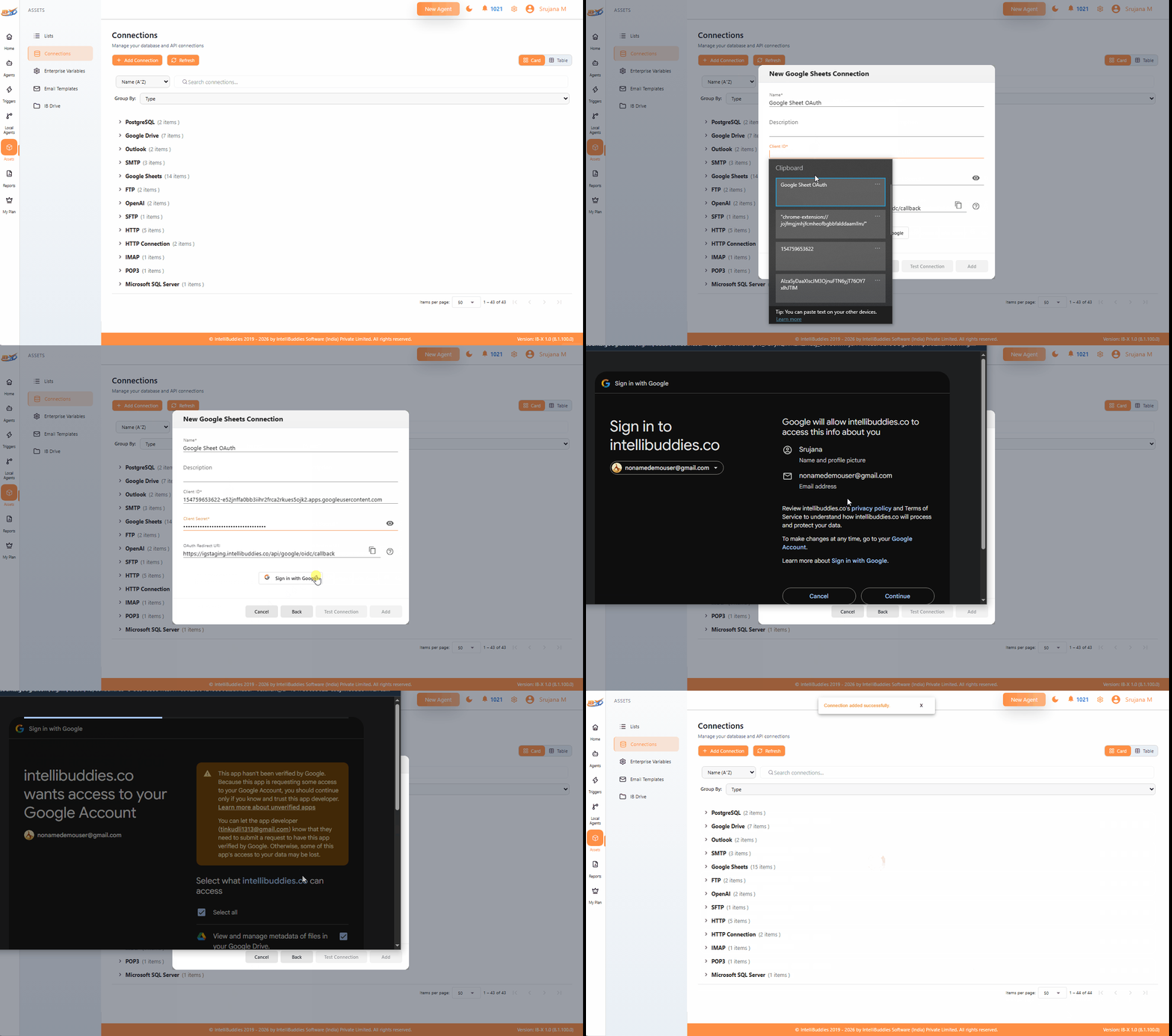
Open Assets → Connections → Add Connection and select Google Sheets. Enter a unique connection name and, optionally, a description.
Provide the following values:
| Field | Description |
|---|---|
| Name | Name used to select this connection in activity configuration |
| Description | Optional description of the connection |
| Client ID | OAuth Client ID generated in Google Cloud Console |
| Client Secret | OAuth Client Secret generated in Google Cloud Console |
| OAuth Redirect URI | Automatically provided by IB-X; register this exact value in Google Cloud Console |
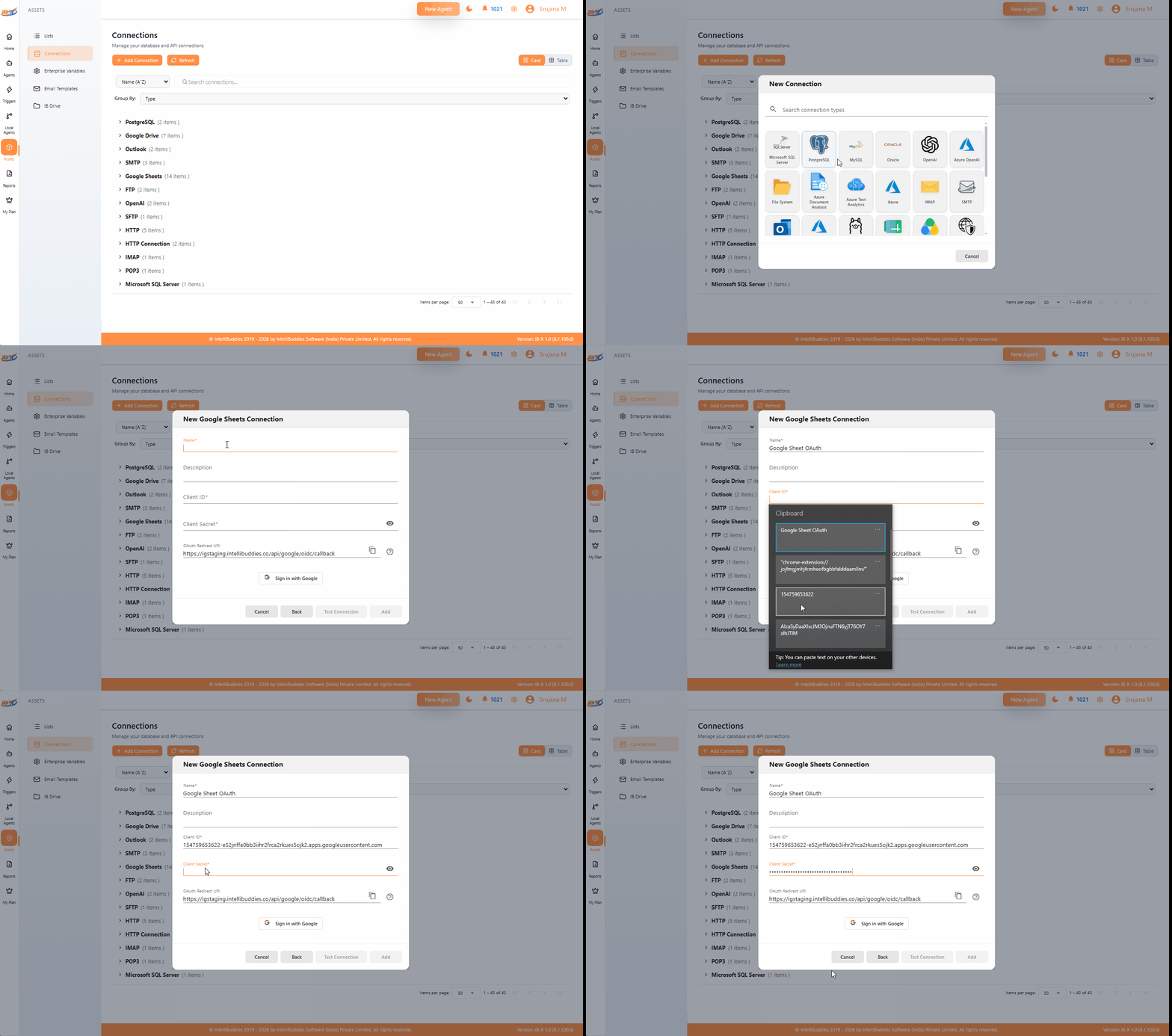
Sign in with Google
After entering the connection credentials:
- Click Sign in with Google.
- Select the Google account.
- Review the requested permissions.
- Approve access.
After successful authorization, Google redirects back to IB-X. Complete the connection creation by clicking Add, then select it in the activity configuration.
Google Sheets Connection
Troubleshooting
Invalid Client (401)
Verify:
- Client ID
- Client Secret
- Authorized Redirect URI configuration
Resource selection or access fails
Confirm that the required APIs are enabled, the intended Google account authorized the connection, and the requested permissions were granted. Verify that the account can access the resource. For External applications in Testing, add the account as a test user. If organizational policy blocks authorization, contact your Google Workspace administrator.
Limitations
- Access to Google resources is limited by the permissions granted during authorization.